Mesh Repair
Automatically fix non-manifold geometry, holes, flipped normals, and other mesh issues. Optional texture re-bake for clean output.
The Repair and Fix Mesh tool automatically detects and corrects common geometry problems in your 3D models. AI-generated meshes sometimes have small defects like holes, flipped normals, or non-manifold edges that cause issues in game engines, slicers, or other software. This tool fixes those problems so your model is ready to use.
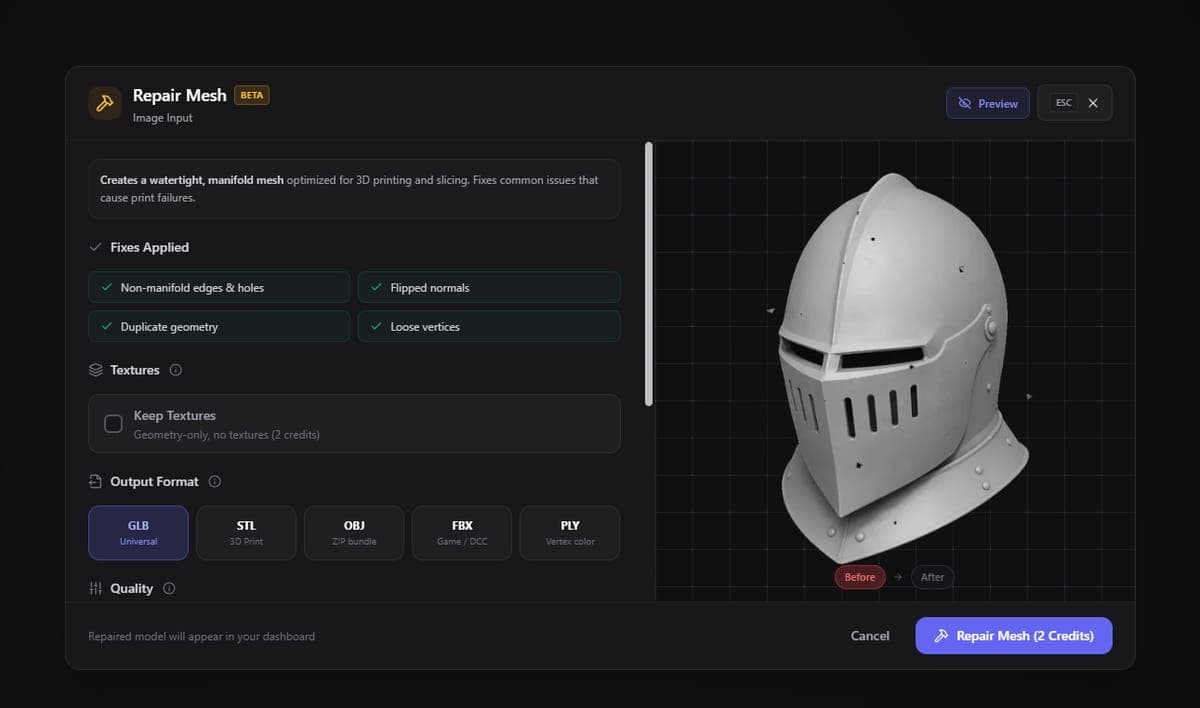
What it fixes
- Non-manifold geometry - Edges shared by more than two faces, or vertices with complex topology
- Holes and gaps - Small openings in the mesh surface get filled in
- Flipped normals - Faces pointing the wrong direction are corrected
- Degenerate faces - Zero-area triangles and duplicate vertices are cleaned up
- Self-intersections - Overlapping geometry is resolved where possible
Repair modes
Geometry only (2 credits) - Fixes the mesh structure without touching textures. Best when you plan to retexture the model or only need a clean mesh for further processing.
With texture re-bake (4 credits) - Repairs the geometry and then re-bakes the textures onto the fixed mesh. This ensures the UV mapping still looks correct after vertices are moved or added. Use this mode when you want a ready-to-use result.
How to use
- Open a model from your Dashboard
- Click Process and select Repair & Fix Mesh
- Choose your repair mode
- The repaired model replaces the original or is added as a new version
Mesh Repair is available as a model action from the 3D AI Studio Dashboard.
Related Tools
- Need to reduce poly count too? Use Remesh for retopology and optimization
- Preparing for 3D printing? Export for 3D Printing makes the model watertight and exports single or multi-color print files
- Need to retexture after repair? Use the Texture Generator
- See all available model actions in the Model Actions overview
Frequently Asked Questions
Open your model in 3D AI Studio, click Process, and select Repair & Fix Mesh. The tool automatically detects and fills holes, fixes flipped normals, and resolves non-manifold geometry. Choose the "with texture re-bake" option (4 credits) if you want the textures to stay aligned after the repair, or geometry-only (2 credits) if you plan to retexture later.
Non-manifold geometry means edges or vertices that create impossible shapes, like an edge shared by three or more faces. This causes problems in 3D printing slicers, game engines, and rendering software. 3D AI Studio's Mesh Repair tool fixes non-manifold issues automatically so your model works correctly in downstream applications.
Yes, 3D AI Studio's Mesh Repair is a great first step before printing. It seals holes, fixes normals, and cleans up degenerate faces that would cause slicer errors. For printing, Export for 3D Printing also seals the model automatically and exports a print-ready 3MF or STL.
In most cases the visual difference is minimal. The tool targets structural defects, not the overall shape. If vertices need to move slightly to fix topology issues, the "with texture re-bake" mode in 3D AI Studio re-maps the textures onto the repaired mesh so everything still looks correct.
Format Conversion
Change any model in your 3D AI Studio library to GLB, GLTF, FBX, OBJ, STL, USDZ, 3MF or PLY in seconds. Costs 1 credit and keeps the original file.
3D Viewer
View and inspect 3D models in the browser with HDRI lighting, material channels, and screenshot export. Supports GLB, GLTF, FBX, OBJ, and STL.