Models, Credits & Downloads
How model selection, parameters, parameter binding, credits, and downloads work in Flow. Plus how the Outputs shelf and content viewer help you manage results.
This page covers the practical side of generation in Flow: choosing models, adjusting their settings, what things cost, and how to view and download your results.
Choosing a model
Generation nodes (Generate Image, Edit Image, the 3D nodes, and so on) let you pick which AI model does the work. Flow offers a curated set of the platform's best models, organized so you can find the right one quickly.
- Image nodes use a small, high quality set of image models.
- 3D nodes use a categorized picker covering image to 3D, multi view to 3D, and text to 3D, with filters and search.
When you pick a model, the node's input handles automatically update to match what that model accepts. For example, switching to a model that takes multiple views will change the inputs to front, left, right, and back slots. This means you never have to guess which inputs a model needs.
The same models you know from the standalone tools (such as Prism, Hunyuan, and the image models) are available in Flow. They behave the same way; Flow simply wires them into a pipeline. You can preview model quality and costs on the standalone Image to 3D page before building them into a flow.
Adjusting parameters
Each model exposes its own settings in the node, so every model shows exactly the controls it supports:
- Toggles for on/off options (like PBR materials).
- Dropdowns or pill selectors for choices (like quality or aspect ratio).
- Sliders for numeric values (like face count), with safe minimum and maximum limits.
- Advanced settings are tucked behind a "Show advanced" toggle so the node stays simple by default.
If you change a value away from its default, a small reset control appears so you can put it back.
Parameter binding (wiring a setting)
Sometimes you want a setting to be driven by another node rather than set by hand. Flow lets you bind a parameter, which turns it into an input handle on the node. Then you can wire a value into it.
The classic example is a Seed node wired into a model's seed parameter, so several generators share one seed for consistent results. You can also drive a setting from a Variable node, which is useful when you promote that variable into the run panel as a form field. Numeric settings accept a number wire; text and choice settings accept a text wire.
Credits
You spend credits only when you run nodes that call AI models. Building, wiring, and arranging the canvas costs nothing.
- Each model shows its credit cost in the picker and in the Node Library.
- The run panel shows a credit estimate for a whole run before you start it.
- Generating multiple images at once multiplies the cost. A multi view step counts as four image generations.
- A Batch multiplies cost per item: a step fed by a batch of 6 runs six times, so it costs six generations. The run panel reflects this and shows the generation count (for example "6 generations") before you run. See Batch runs.
- Local steps like Render Views (rendering turnaround images from a 3D model in your browser) and pure logic nodes (Switch, Seed, Variable, Combine Prompts, Batch) cost nothing on their own.
Your current balance is always shown in the top right of the editor.
Downloads
Every download in Flow goes through one place, so you get a consistent experience: a small downloads tray appears in the corner showing progress for each file, and you can cancel or dismiss items.
The Outputs shelf
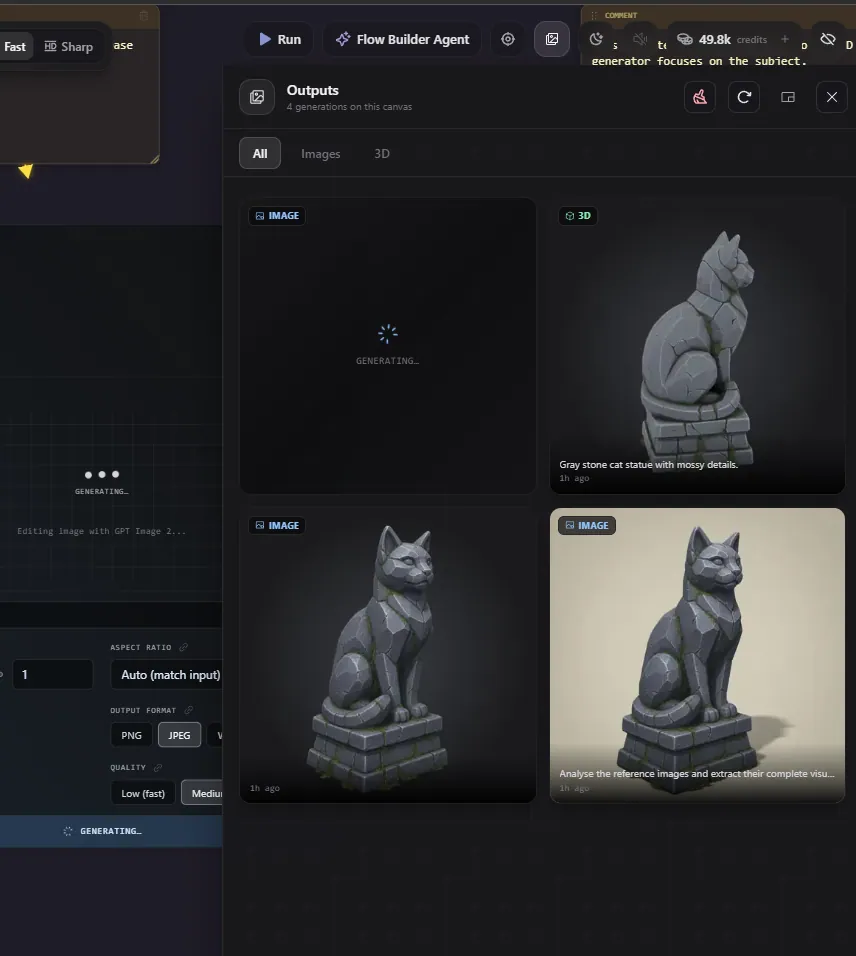
Open Outputs from the top right cluster to see a gallery of everything this flow has ever generated, newest first. Each tile is tagged with the node and run that produced it. Hover a tile for actions:
- Download - save the result to your computer.
- Locate node - jump the camera to the node that made it.
- Set as active result - make this the node's current output.
- Add to canvas - drop the result onto the canvas as a new Image or 3D Model node.
You can filter by type (all, images, 3D) and by a specific run. In progress generations show a "Generating" state and update live.
The Content Viewer
The Content Viewer is a panel that mirrors whatever node you currently have selected, shown larger. Select an image node and it shows the image; select a 3D node and it shows a rotatable model; select a text node and it shows the text. It is the quick way to inspect a result closely without zooming the canvas. It also has a history strip so you can flip through a node's previous results.
Preview quality (fast versus sharp)
To keep large canvases smooth, image previews can be shown as lightweight thumbnails. The resolution toggle in the toolbar switches between:
- Fast - lightweight thumbnails, best for big pipelines.
- Sharp - full resolution previews.
This affects display only. Wires, downloads, and large viewers always use the full quality asset regardless of the toggle, so your actual outputs are never reduced in quality.
Frequently Asked Questions
Flow offers a curated selection of 3D AI Studio's best image and 3D models, including the Prism and Hunyuan 3D families and the top image generation and editing models. The 3D picker is organized by category (image to 3D, multi view to 3D, text to 3D) with filters and search. Picking a model automatically updates the node's inputs to match.
The same as the standalone tools. Each model shows its credit cost, and the run panel estimates the total cost of a run before you start. You only spend credits when you run model based nodes. Generating multiple images multiplies the cost, and a multi view step counts as four generations. Logic nodes and local rendering cost nothing.
Use the download button on a node's result, on a tile in the Outputs shelf, or in the Content Viewer. A downloads tray shows the progress of each file.
Parameter binding turns a model setting into an input handle so you can wire a value into it instead of setting it by hand. The most common use is wiring a Seed node into a model's seed for consistent results, or driving a setting from a Variable node that is promoted into the run panel. Numeric settings take a number wire; text and choice settings take a text wire.
No. The fast versus sharp toggle only changes how previews are displayed on the canvas to keep large flows smooth. The actual data passed along wires, used in large viewers, and downloaded is always full quality. Switch to sharp anytime you want to inspect previews at full resolution.
Open the Outputs shelf from the top right of the editor. It lists every result the flow has produced, newest first, tagged by node and run. From there you can download a result, jump to the node that made it, set it as the active result, or add it to the canvas as a new node.