Templates & Sharing
Save a flow as a reusable template, share it with a link, submit it to the public gallery, and use version history to roll back. The full template lifecycle in Flow.
Once you have built a pipeline you like, you do not have to rebuild it. Flow lets you save it as a template, share it with a link, publish it to the public gallery, and keep a history of versions you can roll back to. This page covers the whole lifecycle.
The vocabulary
Four similar sounding words mean different things in Flow:
| Term | What it is |
|---|---|
| Flow (canvas) | Your editable working document, the pipeline you are building. |
| Template | A saved snapshot of a flow (its nodes plus a title, description, category, and cover images) that can be reused, shared, and published. |
| Version | A saved point in your flow's history that you can restore. Different from a template. |
| Custom node / group | A small reusable piece (one node or a captured sub graph), not a whole template. |
Saving a flow as a template
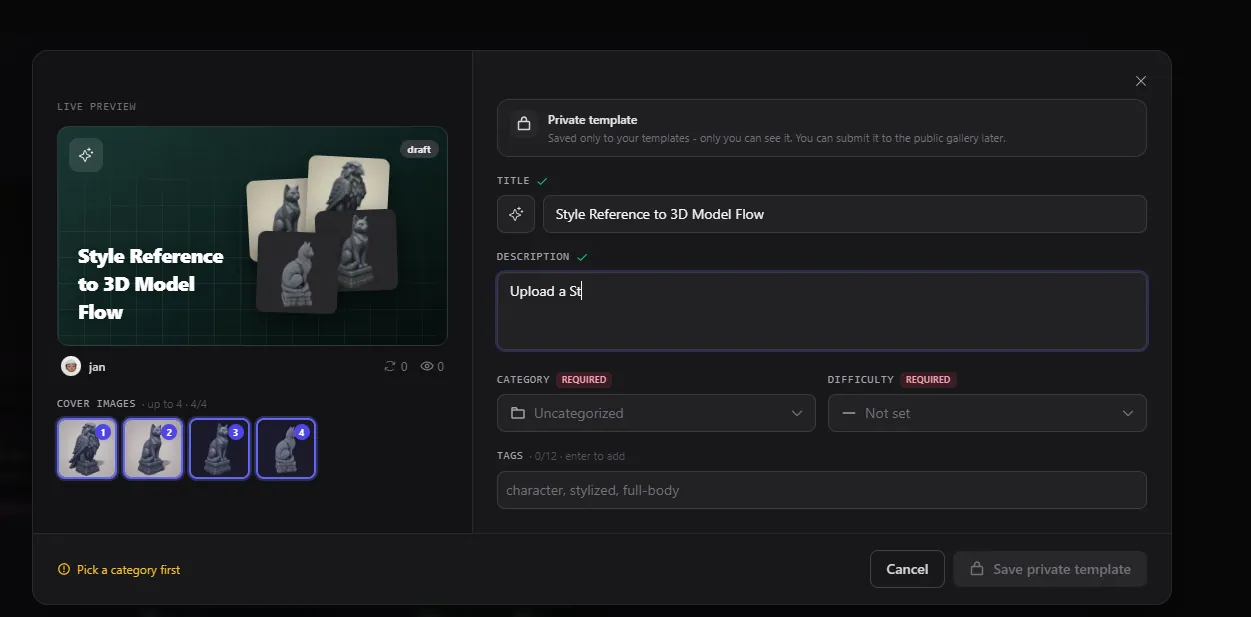
Click Save as template in the bottom left of the editor. A dialog opens with a live preview of the template card on the left and a form on the right.
Fill in:
- Title and description (both required).
- An icon.
- A category and difficulty (both required).
- Tags (up to twelve) to help people find it.
- Cover images - pick up to four of your flow's output images to show on the card.
Click Save private template. The result is a private draft that only you can see, listed under My Templates on the dashboard.
Private drafts versus public copies
A template you own can be in two states:
- A private draft is visible only to you. You can keep editing it and submit it to the gallery later.
- A public copy is a detached snapshot you submitted for the gallery. Your private draft stays separate, so submitting does not change your working draft.
Each public copy carries a status: In review, Live (published), or Not approved (with a reason).
Using a template
Open a template's detail view (click its card) to see a large preview of the pipeline and its information. The main action is Use this template, which clones the template into a brand new flow of your own. The original is never changed.
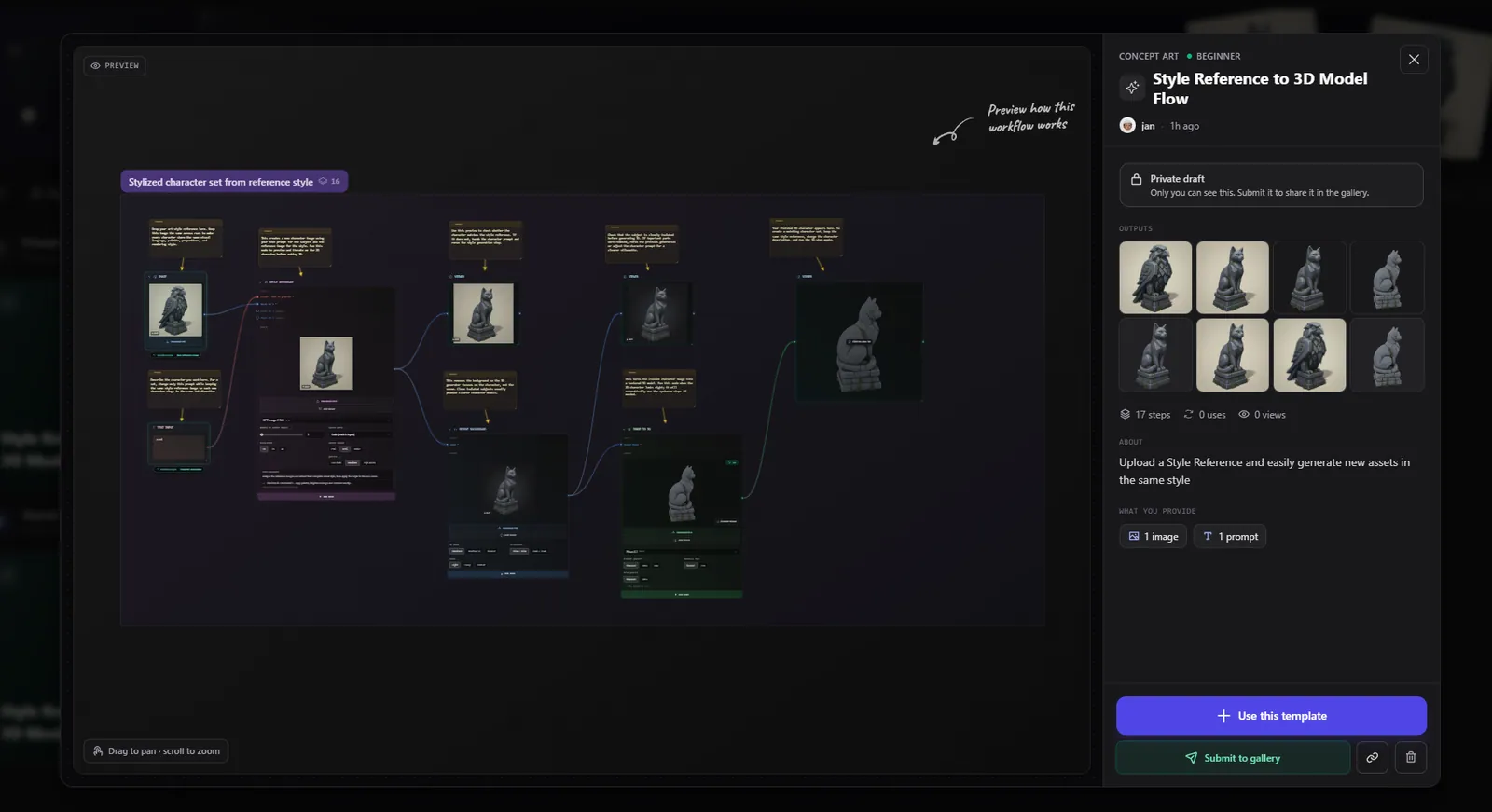
If the template was set up as an app (it has promoted inputs), using it can open directly into run mode so you can fill in the form and run it right away.
From the detail view you can also Favorite a template (heart) and, for public templates, Report it if something is wrong.
Sharing a flow with a link
Click Share link (in the editor's bottom left bar, or from a flow card on the dashboard). This mints a short lived link to your flow.
- Choose a duration: 10 minutes, 1 hour, or 24 hours.
- Choose Allow copying (recipients can clone it into their own account) or leave it off for view only.
- Only one active link exists per item; creating a new one replaces the old.
- You can Revoke a link at any time.
Anyone with the link opens a clean, full screen, read only view of your flow. If copying is allowed, they get a Use this flow button to clone it.
Share links expire automatically, so you stay in control of who can open your flow.
Submitting to the public gallery
To share a template with the whole community:
- Save it as a private template.
- Open its detail view and click Submit to gallery.
This creates a public copy with the status In review. It is then reviewed before going live:
- Approved templates go Live and appear in the Public Gallery, where anyone can use them.
- Rejected templates show as Not approved with a reason, so you can fix and resubmit.
If you spot a problem with a published template, you can report it from its detail view.
Browsing the gallery
The Public Gallery tab on the dashboard is the community library. You can search by name, filter by category, and sort by New, Trending, Most Used, Official, or Staff Picks. Hover a card to preview its description, favorite it with the heart, or open it to use it.
Version history
Version history is separate from templates. It is the long term companion to undo and redo, working across sessions.
Open Version history from the bottom left bar. You get:
- Manual versions you save with a name, marking a milestone.
- Automatic checkpoints saved periodically as you work.
For any version you can:
- Restore it in place. Your current state is saved first, so a restore is always reversible.
- Open as a copy (branch it into a new flow).
- Rename, Pin (so it is never auto deleted), or Delete it.
Use version history to experiment with confidence: save a version before a big change, and restore it if the change does not work out.
The full lifecycle at a glance
- Create a flow (blank, with AI, or from a template).
- Build it, saving named versions along the way.
- Save as template to make a private, reusable snapshot.
- Use the template anytime to spin up fresh copies.
- Share it privately with a short lived link.
- Submit it to the gallery to share with everyone.
- A reviewer approves it and it goes Live for the community.
Frequently Asked Questions
A template is a reusable snapshot of a flow with its own title, description, and cover images, meant to be cloned into new flows or published. A version is a saved point in a single flow's history that you can restore. Templates are for reuse and sharing; versions are for going back in time within one flow.
Save it as a template (Save as template in the bottom left of the editor). It becomes a private draft under My Templates. Open its detail view and click Use this template to clone it into a new flow whenever you want, without changing the original.
Click Share link in the editor or on a flow card. Choose how long the link lasts (10 minutes, 1 hour, or 24 hours) and whether recipients can copy it or only view it. Send them the link. They open a read only view, and if copying is allowed they can clone it into their own account.
First save it as a private template. Then open its detail view and click Submit to gallery. It goes into review with the status In review. Once a reviewer approves it, it goes Live and appears in the Public Gallery for everyone to use.
Yes. Open Version history from the bottom left bar. You can restore any manual version you saved or any automatic checkpoint. Restoring saves your current state first, so it is always reversible. You can also open a version as a separate copy instead of overwriting your current flow.
AI Assistant (Bob)
Bob is the AI assistant inside Flow. Describe the pipeline you want and Bob builds it, edits nodes, rewires connections and answers questions.
Models, Credits & Downloads
How model selection, parameters, parameter binding, credits, and downloads work in Flow. Plus how the Outputs shelf and content viewer help you manage results.