3D Text & Logo Maker
Turn any text into a 3D model for free. Choose from 16 fonts, customize depth, materials, and lighting, and export as GLB or PNG. No signup needed.
The 3D text generator turns any text into an extruded 3D model directly in your browser. Pick a font, adjust the depth and material, and export as GLB or PNG. Everything runs locally - nothing gets uploaded to a server. Free, no credits, no signup.
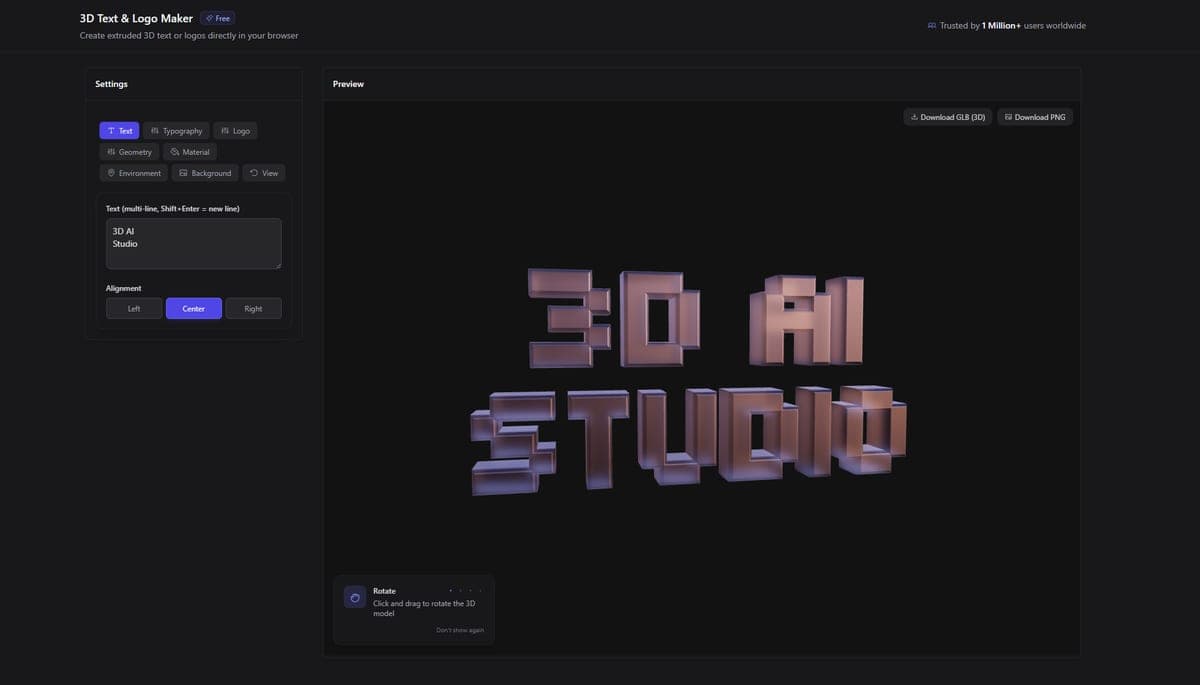
How It Works
- Type your text - enter any text in the text field. Supports multiple lines (use Shift+Enter for new lines).
- Pick a font - choose from 16 built-in fonts or upload your own TTF/WOFF2 file.
- Adjust the look - change depth, bevel, materials, lighting, and colors in real time.
- Export - download as GLB (3D model) or PNG (transparent render).
The 3D preview updates instantly as you change settings. Rotate, zoom, and pan the model with your mouse.
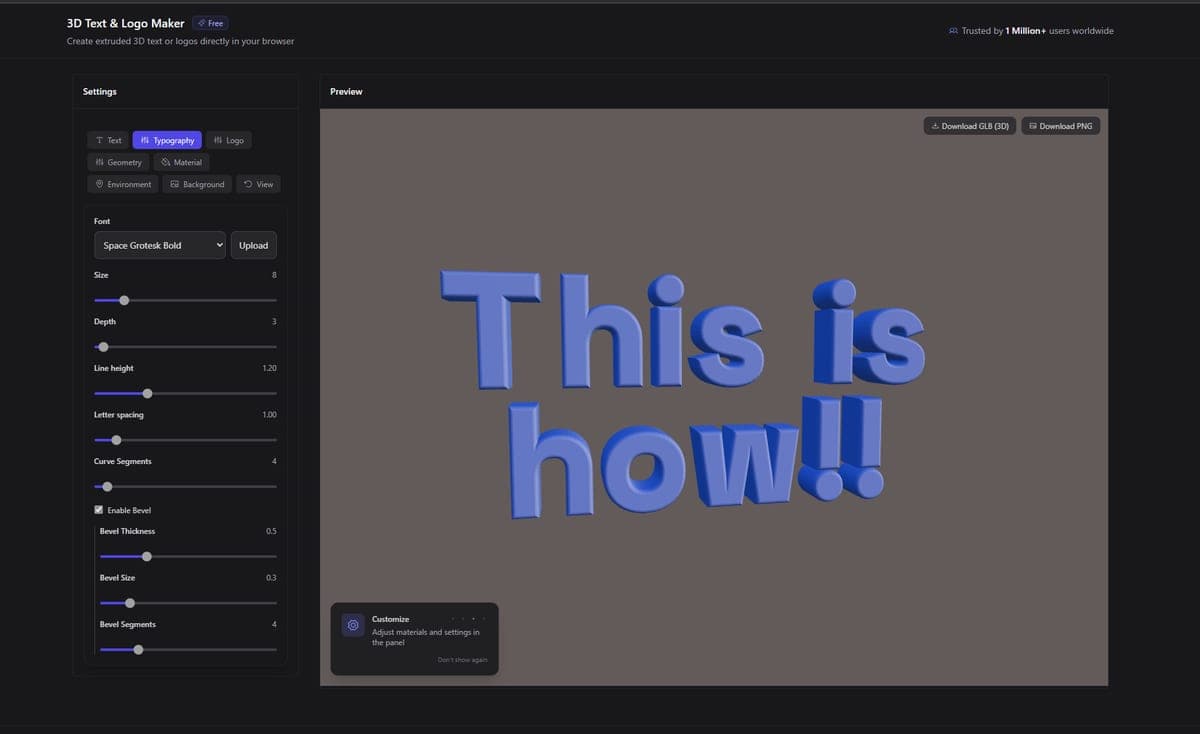
Settings
The settings panel has 7 tabs:
Text
Type your text and choose alignment (left, center, right). Multi-line text is supported.
Typography
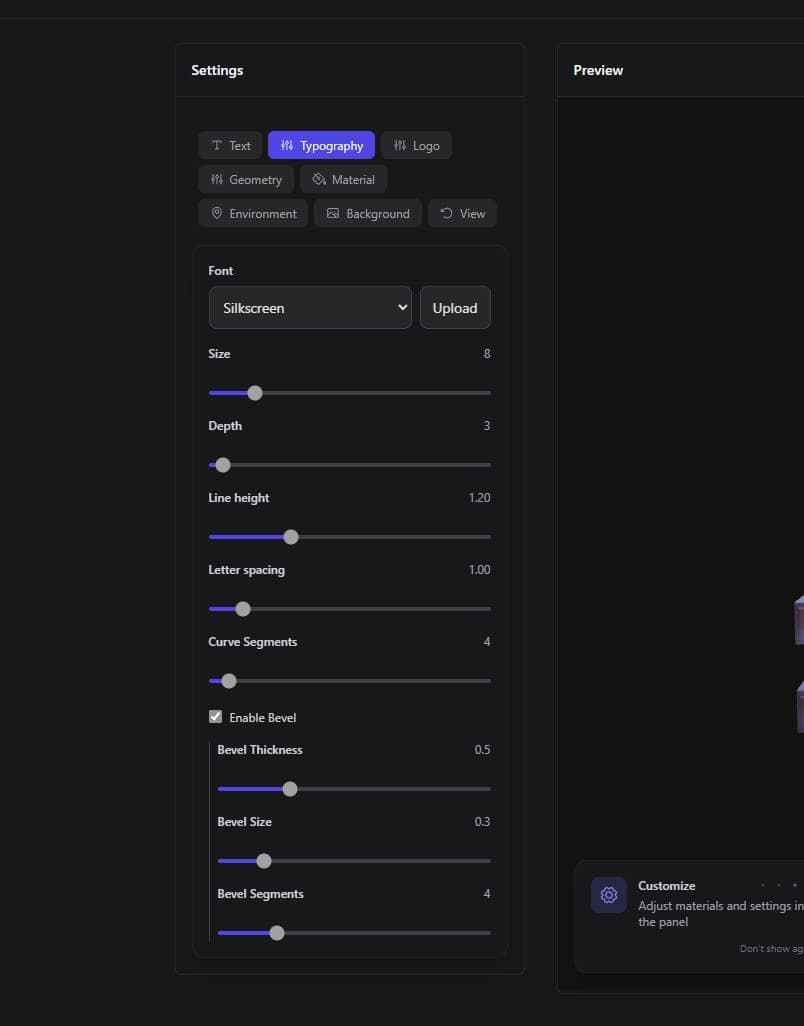
| Setting | Range | What it does |
|---|---|---|
| Font | 16 built-in + custom upload | Choose the typeface |
| Size | 1-50 | How large the text appears |
| Depth | 0.5-100 | How far the text extrudes into 3D |
| Line Height | 0.5-3 | Spacing between lines |
| Letter Spacing | 0-10 | Gap between characters |
| Curve Segments | 1-64 | Smoothness of curved letters |
Bevel (optional) adds rounded edges to the text. When enabled:
- Bevel Thickness (0-2)
- Bevel Size (0-2)
- Bevel Segments (1-16) - higher = smoother bevel
Available Fonts
Roboto, Open Sans, Bahiana, Caveat, Doto, Doto Bold, Doto Rounded, Kablammo, Lobster, Nova Mono, Rationale, Silkscreen, Silkscreen Bold, Space Grotesk, Space Grotesk Bold, Train One
Want a different font? Click "Upload your own" and select any TTF or WOFF2 file from your computer.
Geometry
- Spread (0-100) - expands or contracts the shapes
- Invert Depth - flips the extrusion direction
- Invert Mask - cuts the text shape out of a background rectangle
Material
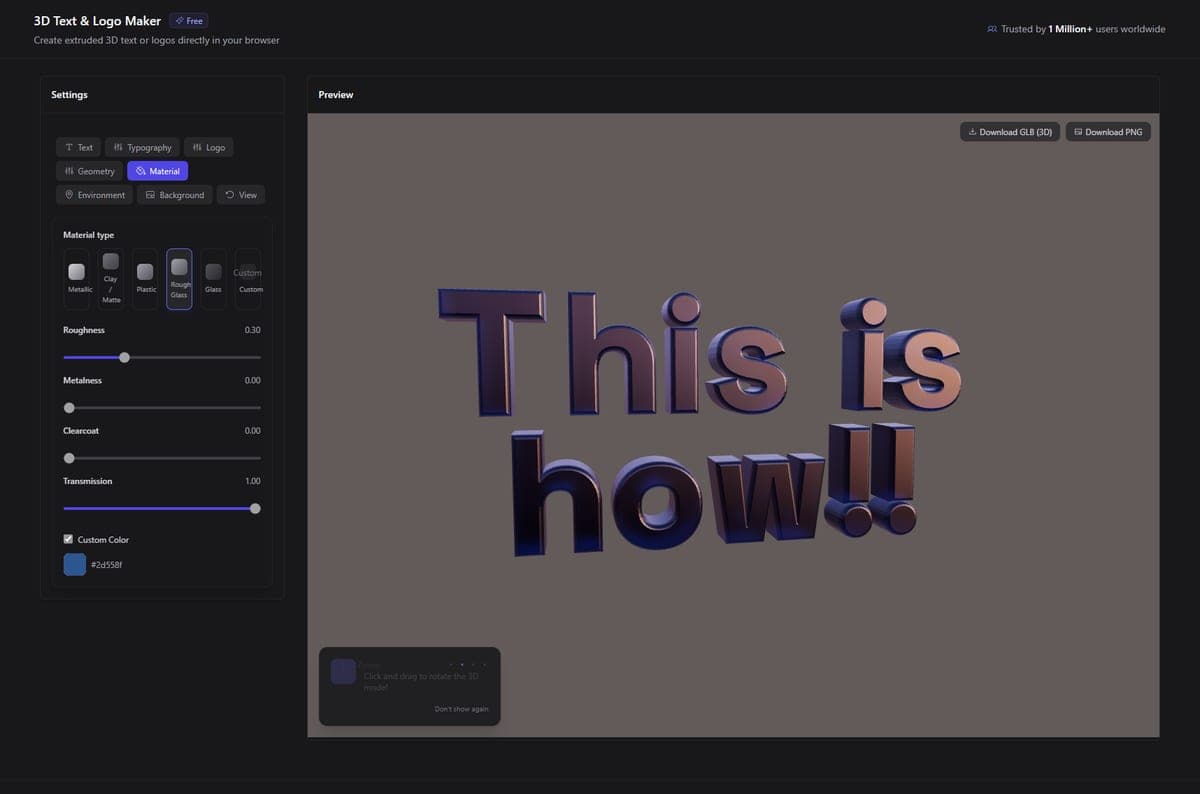
Five presets to choose from:
| Preset | Look | Best for |
|---|---|---|
| Metallic | Shiny metal surface | Logos, premium branding |
| Clay / Matte | Soft, non-reflective | Prototypes, clean renders |
| Plastic | Slight sheen, subtle reflection | Product mockups |
| Rough Glass | Frosted translucent | Artistic, decorative |
| Glass | Clear transparent | Special effects, overlays |
Or go custom with individual sliders for roughness, metalness, clearcoat, and transmission. You can also override the text color with any custom color.
Environment
Choose how the scene is lit:
- HDRI mode - pick from 5 environment presets: City, Dawn, Forest, Lobby, Studio
- Color mode - set a single light color
- Adjust intensity (0-3)
- Optional bloom effect for a soft glow
Background
Pick any background color. Default is dark (#121212). Reset to default with one click.
View
- Auto-rotate toggle with adjustable speed (0.1-5)
Export
Two export options, both free:
| Format | What you get | Best for |
|---|---|---|
| GLB | 3D model file with materials | Web viewers, AR, game engines, 3D printing |
| PNG | Transparent screenshot of the current view | Social media, presentations, marketing |
Export buttons appear in the top-right corner of the preview panel.
Tips
- For 3D printing - use a bold font with thick strokes (Silkscreen Bold, Space Grotesk Bold). Increase depth to at least 5. Export GLB and convert to STL using the Quad Remesh Tool.
- For web/AR - keep curve segments low (4-8) for smaller file sizes. GLB works directly in most web 3D viewers.
- For transparent PNGs - set the background to a dark color, adjust lighting for the look you want, then export as PNG. The background will be transparent.
- Multi-line text - use Shift+Enter to add line breaks. Adjust line height to control spacing.
- Custom branding - upload your brand font (TTF/WOFF2), set your brand colors, and use the metallic or plastic preset for a professional look.
Use Cases
- Social media headers - create 3D text renders for YouTube thumbnails, Instagram posts, Twitter banners
- Logo mockups - extrude your logo text in 3D with different materials and lighting
- Game UI - generate 3D text for game titles, menus, and HUD elements
- Presentations - add 3D text renders to slides for visual impact
- 3D printing - print custom name plates, signs, and decorative text
Open the 3D Text and Logo Maker
Frequently Asked Questions
Yes, 100% free with no signup, no credits, and no usage limits. The 3D Text tool in 3D AI Studio runs entirely in your browser, so your text never leaves your computer. You can create and export as many GLB or PNG files as you want without paying anything.
Yes. Click "Upload your own" in the typography settings and select any TTF or WOFF2 font file from your computer. 3D AI Studio's 3D Text tool renders it instantly in 3D with all the same customization options as the built-in fonts. This is great for brand-specific typography.
Export as GLB from 3D AI Studio's 3D Text tool, then convert to STL using a tool like Blender or the Quad Remesh tool on the platform. For best printing results, use a bold font with thick strokes (like Silkscreen Bold or Space Grotesk Bold), set the depth to at least 5, and increase curve segments for smoother letters.
Yes. Press Shift+Enter to add line breaks in the text input field. 3D AI Studio's text tool renders each line in 3D, and you can adjust the line height setting to control spacing between lines. Text alignment (left, center, right) applies to all lines.
Metallic works best for premium, corporate logo presentations. It catches light beautifully and gives a polished, professional feel. For a softer look, try Clay/Matte in 3D AI Studio's 3D Text tool. Plastic adds a subtle sheen that works well for playful or consumer brands. You can also go fully custom with individual sliders for roughness, metalness, and clearcoat.
Yes. GLB is the standard format for web 3D and works directly with Three.js, model-viewer, Babylon.js, and most web-based viewers. Export your 3D text from 3D AI Studio, upload the GLB to your server, and embed it in any webpage. Keep curve segments low (4-8) for smaller file sizes that load faster on the web.
SVG to 3D
Convert SVG vector files into extruded 3D models right in your browser. Free tool for turning logos, icons, and vector art into GLB or PNG exports.
Relief Generator
Turn photos into 3D relief sculptures for 3D printing, CNC carving, and laser engraving. AI depth estimation builds printable bas-reliefs from any image.