MCP Connector Overview
How the 3D AI Studio MCP connector works: connect Claude, ChatGPT, Cursor, Claude Code or Codex and generate 3D models and images with your normal credits.
The 3D AI Studio MCP connector is a 3D model generation MCP server: it lets your AI assistant create 3D models and images for you. You connect Claude, ChatGPT, Cursor, Claude Code, Codex or another assistant to your 3D AI Studio account once, and from then on you can simply ask in the chat:
"Turn this sketch into a 3D model and export it as an STL for printing."
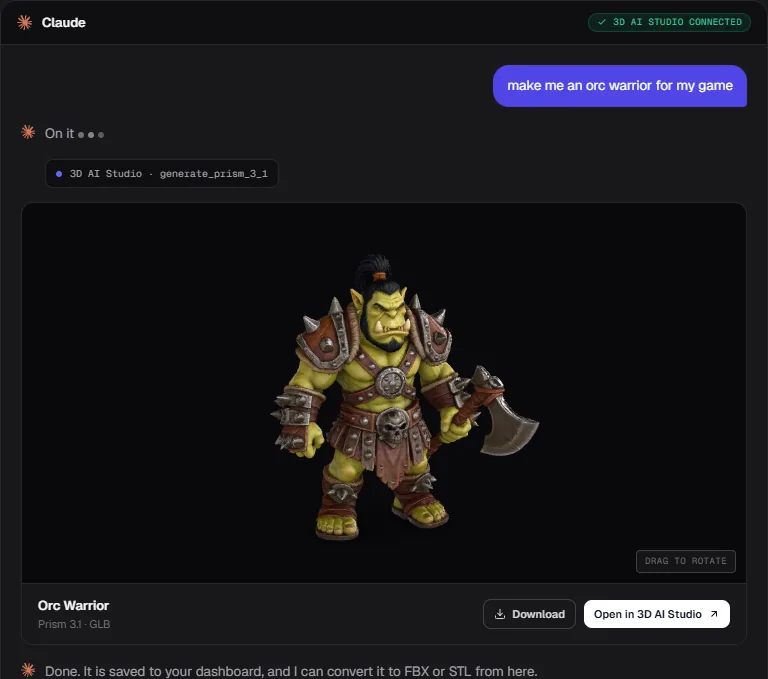
The assistant picks the right tool, starts the generation on 3D AI Studio, waits for it to finish, and shows you the result. Everything it creates is saved to your normal 3D AI Studio dashboard, exactly as if you had made it on the website.
Connector URL: https://mcp.3daistudio.com/mcp
This is the only address you need. It is the same for every user. Your account is connected through a normal sign in screen, so there is no API key to create or copy.
What is MCP?
MCP stands for Model Context Protocol. It is an open standard that lets AI assistants use external tools. A tool provider (in this case 3D AI Studio) publishes a list of things it can do, and the assistant decides when to use them while it talks with you.
On its own, an assistant like ChatGPT or Claude cannot generate real 3D models. At best it can write code for very simple shapes. With the 3D AI Studio connector added, it can use the same AI models you use on the website and hand you a proper textured mesh with downloadable files.
What you can do
Once connected, you can ask your assistant to:
- Generate 3D models from a text description, a single image, or several views of the same object (Prism 3.1, P2, P1, Hunyuan 3.1, Meshy 7.1).
- Generate and edit images (Nano Banana 2.1, GPT Image 2.5, and more), for example to design a character first and then turn it into 3D.
- Create sound effects and spoken dialogue for games and videos, from footsteps and ambient loops to voiced NPC lines.
- Make a low poly version of a model for games, AR and VR, or unwrap its UVs.
- Convert a model to GLB, OBJ, FBX, STL, PLY, USDZ or 3MF, optionally scaled to a target size for 3D printing.
- Create PBR materials from a text description or a photo (base color, normal, roughness, metalness and height maps).
- Remove image backgrounds.
- Browse your library and organize results into projects in your dashboard.
- Check your credit balance and compare model costs before generating.
The full list, with costs and example prompts, is on What You Can Do.
Requirements
| You need | Details |
|---|---|
| A 3D AI Studio account | Free accounts can try the connector: Prism 3.1 3D previews and GPT Image 2.5 images with free credits (free plan). Every paid plan includes the full connector. See plans |
| An AI assistant that supports remote MCP servers | Claude, ChatGPT, Claude Code, Cursor, Codex, VS Code with GitHub Copilot, OpenCode and most other MCP clients. Some assistants only offer custom connectors on their own paid plans |
| A web browser | Only for the one time sign in when you connect |
Generations use your normal 3D AI Studio credits, at the same prices as on the website. There is no separate subscription or wallet for the connector.
Supported assistants
| Assistant | Where it runs | Setup | Result preview |
|---|---|---|---|
| Claude | Web and desktop | Add a custom connector in Settings | Interactive 3D viewer in the chat |
| ChatGPT | Web and desktop | Add a connector in Settings | Result card or link |
| Claude Code | Terminal | One command | Link to the result |
| Cursor | Editor | One config entry | Link to the result |
| Codex | CLI, IDE extension and app | One command | Link to the result |
| VS Code (Copilot) | Editor | One config entry | Link to the result |
| OpenCode | Terminal | One config entry | Link to the result |
| Other MCP clients | Anywhere | Add a remote server with the URL | Depends on the client |
AI apps update their MCP settings often, so if a guide's menus or commands do not match what you see, ask your assistant how it adds a remote MCP server and point it to our agent instructions. Coding agents can usually do the whole setup for you.
How results are shown depends on the assistant. Clients that support interactive cards (like Claude) show finished models in a 3D viewer you can spin right in the chat. Terminal and editor clients show a link to the result instead. Either way, the model is always in your dashboard.
How it works
- Connect once. Add the connector URL to your assistant, sign in with your 3D AI Studio account, and approve access. See the Quick Start.
- Ask in plain language. For example: "make a low poly fox for my game" or "turn this product photo into a 3D model".
- The assistant does the work. It chooses a model, starts the generation, and checks on it until it is done. 3D models usually take 1 to 5 minutes.
- Get your result. The model appears in the chat (or as a link) and in your dashboard, where every editing tool, export format and project feature works as usual.
Prefer to let your AI do the setup? Developer tools like Claude Code, Codex and Cursor can configure the connector themselves. Send your agent the agent setup page and it will take care of the rest.
Where to go next
- Quick Start - connect your first assistant in about two minutes.
- Set Up With Your Agent - a copy and paste brief for coding agents.
- Setup Guides - step by step instructions for each assistant.
- What You Can Do - every tool, model and cost, with example prompts.
- Images & Uploads - how to give your assistant a photo or sketch.
- Credits & Limits - how spending, confirmations and limits work.
- Managing Connections - see, fix and disconnect your assistants.
- Troubleshooting - fixes for every common message.
- Security & Privacy - what an assistant can and cannot do with your account.
Frequently Asked Questions
Not on their own, but they can with the connector added. See how to generate 3D models in ChatGPT and Claude for examples, or jump straight to the ChatGPT or Claude setup guide.
No. You sign in through a normal 3D AI Studio login screen and approve access. No key is created, copied or stored in a config file.
No. It is included in every paid plan, and you can try it on a free account. Generations cost the same credits as on the website.
Try one of these:
- "Use 3D AI Studio to make a low poly fox for my game."
- "Use 3D AI Studio to turn this photo into a 3D model."
- "Use 3D AI Studio to design a fantasy sword, first as an image, then as a 3D model."
- "Use 3D AI Studio to make a cute robot figurine I can 3D print."
- "Show me my latest models from 3D AI Studio." (paid plans)
Many assistants also list these as ready-made prompts in their prompt or slash-command menu.
Into your normal dashboard, tagged so you can see which ones came from an assistant. You can download, edit, convert and organize them like any other model.
Yes, at any time in Settings → AI Assistants (MCP). It stops working immediately. See Managing Connections.
Open AI Assistants settings - MCP on 3daistudio.com - Pricing