Add 3D AI Studio to Claude Connectors
Add 3D AI Studio as a custom connector in Claude on the web or desktop app, then generate textured 3D models and images in chat with a built-in 3D viewer.
Claude gives you the best experience with 3D AI Studio: finished models open in an interactive 3D viewer right in the conversation, and you can drop images into an inline upload card. This guide covers Claude on the web (claude.ai) and the Claude desktop app.
New to 3D AI Studio? See how to generate 3D models in Claude with the 3D model generation MCP.
Using Claude in the terminal? See Claude Code instead.
What you need
- A 3D AI Studio account. Free accounts can try the connector with Prism 3.1 previews and GPT Image 2.5 images; every paid plan includes the full connector (free vs paid).
- A Claude account that can add custom connectors. Custom connectors depend on your Claude plan. In Claude Team and Enterprise workspaces, an owner may need to add the connector for the organization first (see below).
- The connector URL:
https://mcp.3daistudio.com/mcp
Menus look different? Claude updates its settings often, so the exact menu names below may already have changed. Claude itself usually knows the current steps. Ask it in a chat (turn on web search if you have it):
How do I add a custom connector (remote MCP server) in Claude right now? I want to connect 3D AI Studio:
https://mcp.3daistudio.com/mcp (OAuth sign in, no API key).
Use https://docs.3daistudio.com/mcp-setup.md for the details and walk me through the exact steps for my plan.
Setup
Open the connector settings
In Claude on the web or in the desktop app, click your profile and open Settings → Connectors.
Add a custom connector
Click Add custom connector and fill in:
| Field | Value |
|---|---|
| Name | 3D AI Studio |
| Remote MCP server URL | https://mcp.3daistudio.com/mcp |
Leave any advanced or OAuth fields empty. Click Add.
Connect and authorize
Click Connect next to 3D AI Studio. A 3D AI Studio page opens:
- Sign in with your 3D AI Studio account.
- Review what Claude will be able to do.
- Under Use credits from, keep Personal or choose a team.
- Click Authorize.
You are sent back to Claude, and the connector shows as connected.
Use it in a chat
Start a new chat. Open the tools menu in the message box (the "Search and tools" or connectors menu) and make sure 3D AI Studio is turned on. Then ask:
"Make a low poly fox for my game."
Check that it worked
Ask Claude: "What's my 3D AI Studio credit balance?" Claude should call the connector and answer with a number. The connection also appears under Connected Apps in Settings → AI Assistants (MCP) on 3D AI Studio.
What it looks like in Claude
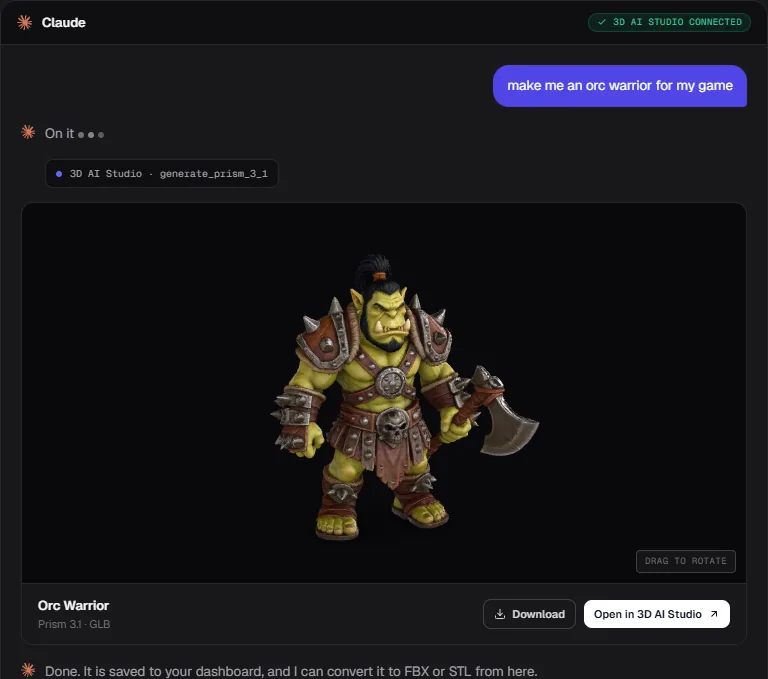
- 3D viewer in the chat. When a model is finished, Claude shows it in an interactive viewer. You can spin it, switch between the textured and clay (untextured) view, and open it in your dashboard.
- Image cards. Generated and edited images appear as cards in the conversation.
- Upload card. When you want to use your own photo or sketch, Claude opens an upload card you can drop the file into. See Images & Uploads.
- Progress. 3D models take 1 to 5 minutes. Claude checks on the generation by itself until it is done, so you can simply wait.
Claude Team and Enterprise
In organization workspaces, custom connectors are usually managed by an owner:
- An owner adds the connector once in the organization's admin connector settings, using the URL
https://mcp.3daistudio.com/mcp. - Each member then goes to Settings → Connectors, clicks Connect next to 3D AI Studio, and signs in with their own 3D AI Studio account.
Every member authorizes separately, so each person's generations use the credits they choose on the sign in page (personal or a team they belong to).
Claude specific fixes
| Problem | Fix |
|---|---|
| No Add custom connector button | Your Claude plan or workspace does not allow custom connectors, or an owner has to add it for your organization |
| Claude answers without using 3D AI Studio | Turn on 3D AI Studio in the chat's tools menu, or ask explicitly: "use 3D AI Studio to make..." |
| "3D AI Studio is signed out" or a reconnect prompt | Open Settings → Connectors, click 3D AI Studio and connect again |
| The connector fails right after you paste the URL | Check it is exactly https://mcp.3daistudio.com/mcp (not www., not ending in /sse) |
More fixes are on the Troubleshooting page.
Frequently Asked Questions
Yes. Connectors are tied to your Claude account, so once you add 3D AI Studio on claude.ai it is also available in the desktop app, and the 3D viewer works there too.
Yes. Claude supports interactive cards, so finished models open in a 3D viewer inside the conversation. You can still open every model in your 3D AI Studio dashboard to download it in other formats or edit it.
Claude only generates when you ask it to, and every generation costs the same credits as on the website. Very large requests ask you to confirm first. You can always ask "how much will this cost?" before generating. See Credits & Limits.
Set Up With Your Agent
Let your coding agent connect 3D AI Studio for you: paste one brief into Claude Code, Codex, Cursor, VS Code Copilot or OpenCode, or point it at the setup file.
ChatGPT
Add 3D AI Studio to ChatGPT as a custom MCP connector in developer mode, sign in, and generate textured 3D models and images right inside your ChatGPT chats.