Text to 3D
Generate a 3D model from a text prompt: write a short description, pick a model and download a textured mesh. Prompt tips, model comparison and settings.
Text to 3D generates a textured 3D model from a written description. Type a short prompt, pick an AI model and download the result as GLB, FBX, OBJ, STL or USDZ, usually within 1-10 minutes and without any modeling skills.
| Input | A text prompt, ideally 5-20 words about one object |
| Cost | 30-70 credits depending on the model, 35 for the default Prism 3.1 |
| Time | 60 seconds to 10 minutes, 3-5 minutes for Prism 3.1 |
| Output | Textured mesh with optional PBR maps |
| Downloads | GLB/GLTF, FBX, OBJ, STL, USDZ |
How do I generate a 3D model from text?
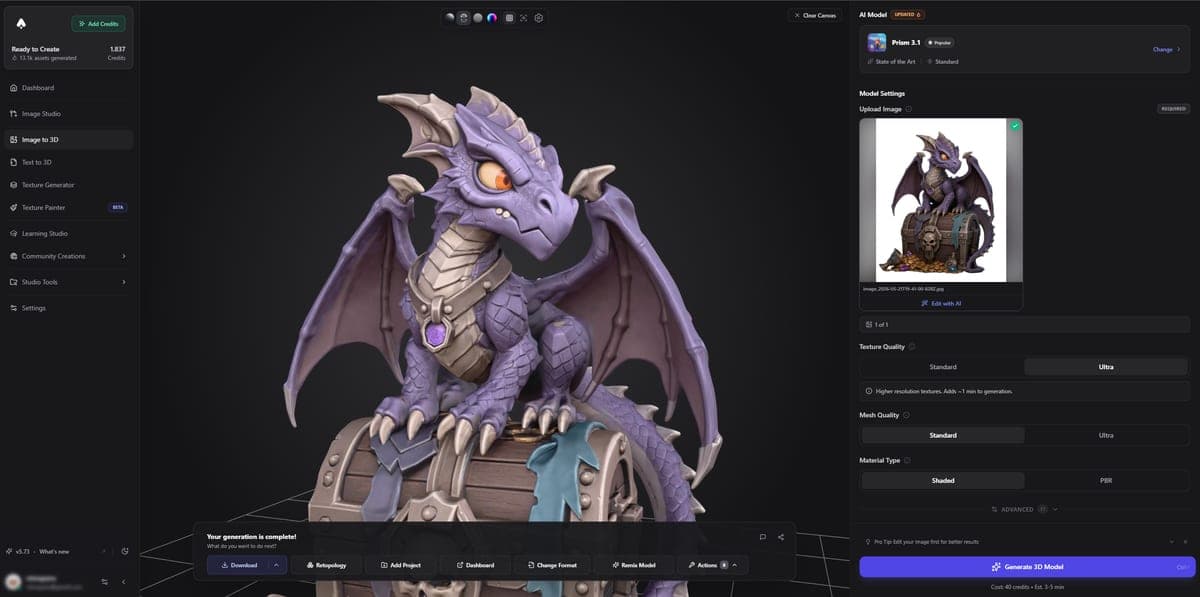
Open Text to 3D, describe the object in one short sentence, choose a model such as Prism 3.1 and click Generate. When it finishes, inspect the model in the 3D viewer and download it.
- Write a prompt describing one object, its materials and style
- Pick a model based on quality, speed or budget
- Adjust settings such as texture quality, face count or PBR (optional)
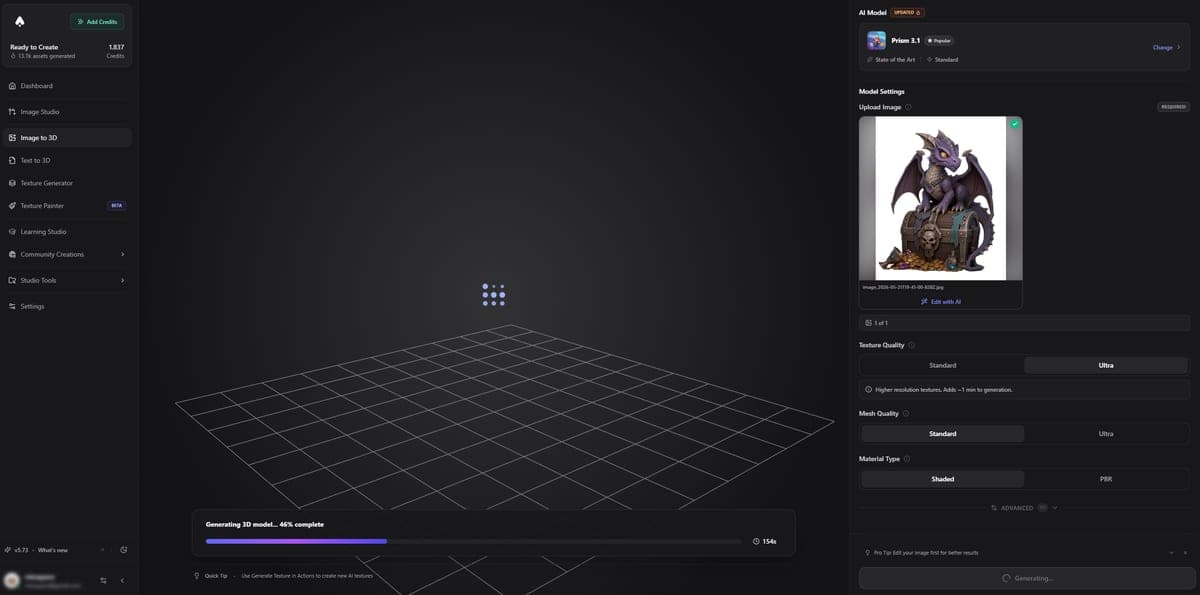
- Click Generate. Processing time depends on the model
- Preview the result: rotate, zoom and inspect it in the 3D viewer
- Download in the format you need
How do I write a good text to 3D prompt?
Describe one object in 5-20 words and include its material, style and view. Short, focused prompts produce cleaner models than long paragraphs or scenes with several objects.
- Be specific: name the object, its materials and key features
- Mention the view: "full body", "side view" or "isometric" helps the framing
- Add a style: "realistic", "low-poly", "cartoon" or "PBR" guide the look
- One object per prompt: "a sword and a shield" tends to merge into one messy mesh. Generate them separately and combine them in your 3D software
| Use case | Prompt that works well |
|---|---|
| Architecture | "medieval castle with stone walls and a tall tower" |
| Character | "cute chibi anime cat girl, big eyes, full body" |
| Weapon or prop | "futuristic sci-fi pistol, metallic, detailed" |
| Vehicle | "red sports car, glossy paint, side view" |
More examples are in Prompt Tips.
Which model should I choose?
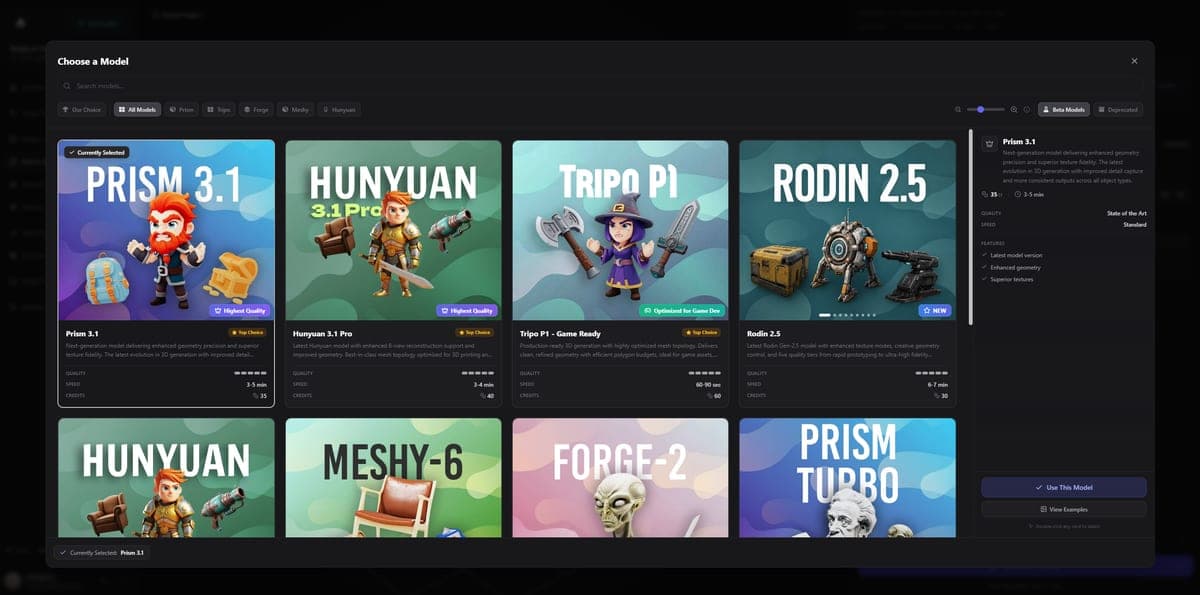
Start with Prism 3.1, the default with the best balance of quality, speed and cost. Switch only for a specific need.
| If you want... | Use | Why |
|---|---|---|
| The best overall quality | Prism 3.1 or Hunyuan 3.1 Pro | State-of-the-art geometry and textures |
| The fastest result | Tripo P1 or Tripo P2 | About one minute |
| Game-ready assets | Tripo P2 Game Ready | Clean topology, optional quad meshes |
| The lowest price | Rodin 2.5 | From 30 credits |
| Maximum detail | Prism 3.1 with Ultra mesh, Hunyuan 3.1 Pro or Forge Gen-2 | Best for complex objects |
| The newest texturing (experimental) | Prism 3.1 with Texture Model set to Latest | New texturing pass with a Fast tier |
How do the text to 3D models compare?
| Model | Credits | Speed | Quality | Time |
|---|---|---|---|---|
| Prism 3.1 (default) | 35 | Standard | State of the art | 3-5 min |
| Hunyuan 3.1 Pro | 40 | Standard | State of the art | 3-4 min |
| Tripo P2 Game Ready | 70 | Fast | State of the art | 1-3 min |
| Tripo P1 Game Ready | 60 | Fast | State of the art | 60-90 sec |
| Meshy 7.1 | 40 | Standard | State of the art | 5-10 min |
| Rodin 2.5 | 30 | Fast-Standard | State of the art | 6-7 min |
| Forge Gen-2 | 35 | Standard | State of the art | 5-7 min |
| Hunyuan 3.0 | 40 | Standard | State of the art | 3-4 min |
| Prism 3.0 (legacy) | 30 | Standard | High | 2-4 min |
Which settings can I change?
Every model family has its own options for texture quality, polygon count and output. The defaults work for most prompts.
Prism
- Texture quality: Standard, Ultra (+5 credits) or Max (+10 credits)
- Mesh quality: Standard or Ultra (+10 credits)
- PBR: physically based rendering textures
- Face limit: up to 1,500,000 faces (2,000,000 with Ultra mesh quality)
- Texture Model (Prism 3.1): Standard (default) or Latest (experimental) at the same price. Latest adds a Fast texture tier (same price as Standard, quicker, less fine detail)
Hunyuan
- Generation type: Normal, Geometry Only, Sketch or LowPoly
- PBR: full PBR material maps
- Max face count: from 40,000 up to 1,500,000 faces
Meshy 7.1 and Meshy 6
- Mesh detail (Meshy 7.1): Standard, Ultra 2K (+10 credits) or Ultra 4K (+15 credits)
- Mesh quality: Standard or Smart Low-Poly (AI) for clean game-ready topology up to 15,000 polygons (20 credits with textures)
- Texture quality: Standard (2K), Ultra (4K, +10 credits) or Max (8K, +15 credits)
- Topology: triangle or quad mesh
- Remesh option: cleaner topology for animation
- Character pose: A-pose or T-pose
- Meshy 7 stays available as a legacy version; Meshy 5 has been retired
Tripo P1 and P2 Game Ready
- Texture on or off: P1 costs 60 credits with texture and 40 without; P2 costs 70 with texture and 50 without
- Quad Mesh Output (P2): four-sided polygons for rigging and subdivision, delivered as FBX alongside a GLB preview. No extra cost, up to 25,000 faces
- Texture Model (P2): Standard (default) or Latest (experimental), which unlocks the Fast texture quality
Rodin 2.5
- Quality tiers: from extreme-low to extreme-high
- HighPack add-on: 4K textures for +10-15 credits
Should I use Text to 3D or Image to 3D?
Use Text to 3D for quick models straight from an idea. Use Image to 3D when the look matters, because you can see and refine the reference image before spending credits on 3D.
For maximum control, generate an image first in Image Studio with the same prompt, edit it until it looks right, then convert it with Image to 3D. Image generation is cheaper, so you can iterate freely before committing credits to 3D. The full process is in the recommended workflow.
Which formats can I download?
Download the model as GLB/GLTF for web and AR, FBX for Unity and Unreal, OBJ for maximum compatibility, STL for 3D printing or USDZ for Apple AR. GLB is the safest all-rounder. The Export Formats guide compares them in detail.
Try the Text to 3D generator, with free credits on signup.
Frequently Asked Questions
30 to 70 credits. Rodin 2.5 and Prism 3.0 start at 30 credits, the default Prism 3.1 costs 35, and Tripo P2 Game Ready costs 70. Options such as Ultra texture quality (+5) or Ultra mesh quality (+10) add a few credits. New accounts get free credits to test several models.
Yes. Tripo P1 and P2 Game Ready produce clean, game-optimized topology in about one to three minutes, and P2 can output quad meshes. For other models, run the Remesh tool or Smart Low Poly afterward to prepare the mesh for Unity or Unreal Engine.
Turn on the PBR option before generating. Prism and Hunyuan models output base color, normal, roughness and metallic maps. With FBX or OBJ downloads, the PBR maps come as separate texture files.
Up to 1.5 million faces with Prism 3.1 (2 million with Ultra mesh quality) and Hunyuan 3.1 Pro. Most other models produce around 40,000-100,000 faces. Set a face limit before generating to match your platform: lower for mobile and web, higher for film and renders.
Latest is a newer, experimental texturing pass on Prism 3.1 and Tripo P2 at the same price as Standard. It adds a Fast texture tier and, for image inputs, Neutral Lighting. Results can vary while it is being evaluated, so use it to experiment and stay on Standard for production work. The geometry is identical either way.
Image to 3D
Turn a photo, sketch or drawing into a textured 3D model with Image to 3D. Pick a model, compare costs and settings, and download it in 1-10 minutes.
SVG to 3D
Convert SVG vector files into extruded 3D models right in your browser. Free tool for turning logos, icons, and vector art into GLB or PNG exports.