3D Viewer
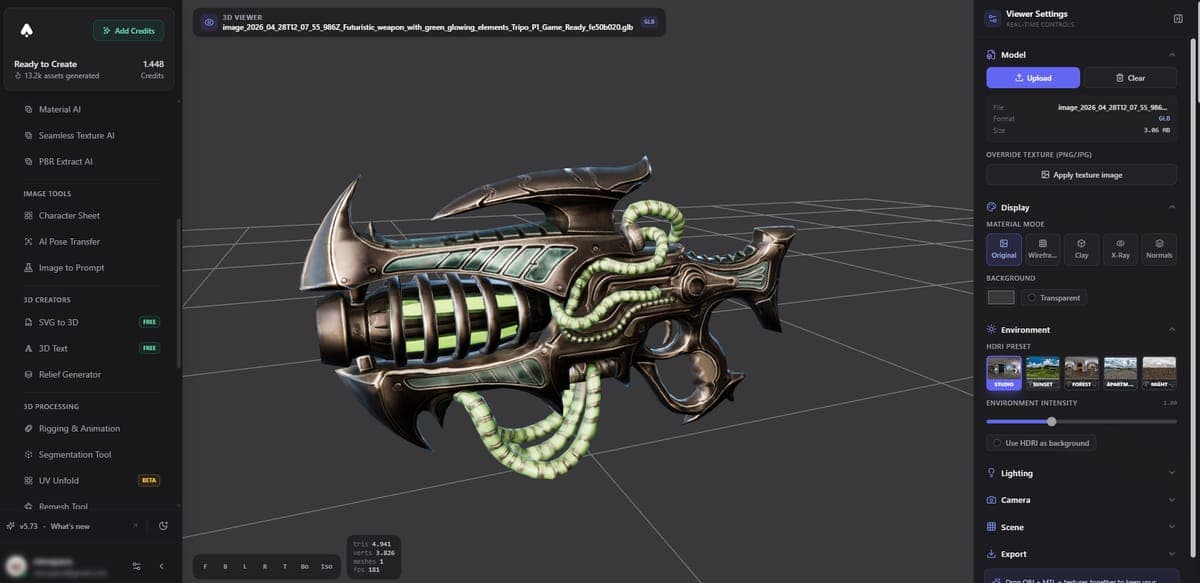
View and inspect 3D models in the browser with HDRI lighting, material channels, and screenshot export. Supports GLB, GLTF, FBX, OBJ, and STL.
The 3D Viewer is a free in-browser tool for viewing and inspecting 3D files. Drag and drop a model to view it instantly with realistic lighting and full orbit controls. No account needed, no credits used, and your files never leave your computer.
Supported formats
- GLB / GLTF
- FBX
- OBJ (with MTL)
- STL
Features
HDRI environment lighting - Choose from several environment maps to see how your model looks under different lighting conditions. The HDRI provides realistic reflections on metallic and glossy surfaces.
Material inspection - View individual material channels including albedo, normal map, roughness, and metallic. This helps you verify that textures exported correctly.
Screenshot export - Capture a high-resolution screenshot of your current view. Useful for sharing previews or creating thumbnails.
Orbit, pan, and zoom - Left-click to orbit, right-click to pan, scroll to zoom. The viewer centers automatically on your model.
Privacy
All processing happens locally in your browser. Your files are not uploaded to any server. This makes the viewer suitable for confidential or pre-release work.
Related Tools
- Want a spinning video of your model? Use the Model Spinner to render turntable videos
- Need product photos? The 3D Stager places your model in AI-generated scenes
- Generate models to view with Image to 3D or Text to 3D
- See all Export Formats supported by 3D AI Studio
Frequently Asked Questions
Yes. 3D AI Studio's free 3D Viewer runs entirely in your browser with no installation, no account, and no file uploads. Just drag and drop your GLB, GLTF, FBX, OBJ, or STL file and you can orbit, pan, and zoom around the model with realistic HDRI lighting.
Completely free, with no credit cost and no account required. 3D AI Studio processes everything locally in your browser, so your files never leave your computer. This makes it safe for confidential or pre-release models.
Yes. The 3D AI Studio viewer lets you switch between material channels including albedo, normal map, roughness, and metallic. This is useful for checking that your texture export is correct before importing into a game engine or renderer.
Load your model in the 3D AI Studio 3D Viewer, position the camera where you want it, and click the screenshot button to capture a high-resolution image. You can use this for quick previews, portfolio thumbnails, or sharing with collaborators.