Sketch to Image
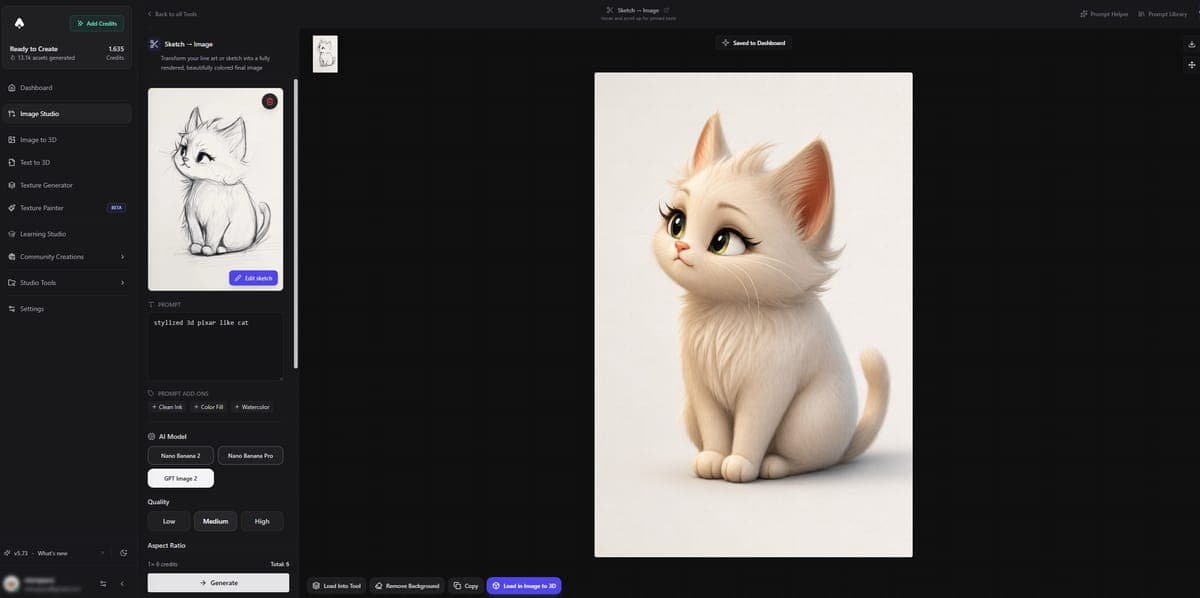
Turn rough sketches and drawings into polished images with AI. Use Sketch to Image or the built-in Paint & Transform tool to create art from simple line drawings.
Turn your rough sketches and drawings into polished, detailed images using AI. Whether you upload an existing sketch or draw directly in the browser, the AI interprets your lines and produces a finished result based on your prompt.
Two Tools
Image Studio includes two sketch tools:
- Sketch to Image - Upload a sketch or drawing from your device. The AI uses it as a guide to generate a polished image.
- Paint & Transform - Draw directly in the browser using the built-in canvas. No need to upload anything. Sketch your idea, then let the AI transform it.
Both tools work the same way once your sketch is ready: write a prompt describing what you want the final image to look like, pick a model, and generate.
Available Models
| Model | Credits |
|---|---|
| Nano Banana 2 | 4 |
| Nano Banana Pro | 8 |
| GPT Image 2 | 3 |
How to Use
- Upload a sketch (Sketch to Image) or draw one in the browser (Paint & Transform).
- Write a prompt describing the desired output. For example: "a cozy cabin in the mountains, watercolor style."
- Pick a model from the dropdown.
- Click Generate.
The AI will use your sketch as a structural guide and produce an image that matches your prompt.
Tips
- Clean lines work best. Simple, clear outlines give the AI a stronger structure to follow.
- Add shading for depth. Even rough shading helps the AI understand light direction and volume.
- Describe the style in your prompt. The sketch gives structure, but the prompt controls the look. Mention things like "oil painting", "anime style", or "photorealistic" to guide the output.
- Use bold shapes. Thin, faint lines may get lost. Thicker strokes translate better.
Sketch to 3D Workflow
You can combine Sketch to Image with Image to 3D to go from a hand drawing to a full 3D model. See the Sketch to 3D workflow guide for a step-by-step walkthrough.
Ready to try it? Open the Sketch to Image tool -- free credits on signup.
Frequently Asked Questions
Yes. In 3D AI Studio, upload any sketch or doodle to the Sketch to Image tool, write a prompt describing the desired result, and the AI produces a polished, detailed image. Even very rough pencil sketches work - the AI uses your lines as structural guidance and fills in color, texture, lighting, and detail based on your prompt.
Paint and Transform is a built-in drawing canvas inside 3D AI Studio's Image Studio. You draw directly in your browser using brushes and shapes, then the AI transforms your sketch into a finished image. It saves you the step of drawing on paper, photographing it, and uploading. Both tools produce the same quality output.
Simple outlines with basic shading are enough. 3D AI Studio's sketch tools work with anything from rough stick figures to detailed line art. Clean, bold lines give the best results because thin or faint strokes may get lost. Adding even rough shading helps the AI understand light direction and depth.
GPT Image 2 (3 credits) offers the best balance of quality and affordability in 3D AI Studio. For maximum detail and resolution, Nano Banana Pro (8 credits) produces the highest quality output. Nano Banana 2 (4 credits) is a good middle option for fast iterations when you are still refining your sketch.
Yes, 3D AI Studio supports a full sketch-to-3D pipeline. First, convert your sketch into a polished image using Sketch to Image. Then send that image to Image to 3D to generate a full 3D model. The whole process takes a few minutes and requires no 3D modeling skills.
Yes. The Paint and Transform canvas in 3D AI Studio supports any pointing device including mouse, tablet, stylus, and touchscreen. Pressure sensitivity is not currently supported, but you can adjust brush size manually to simulate thick and thin strokes.
Convert
Convert images into 15 different art styles including anime, oil painting, pixel art, figurines, and more. Pick a style, choose an AI model, and transform any image.
Video
Generate AI videos from images or text prompts. Multiple models available including Veo 3, Kling, Lucy, and Seedance with various quality and style options.