Texture Generator
Texture a 3D model with AI: upload a GLB, FBX or OBJ, describe the look or add a reference image, and get PBR textures in 1-3 minutes.
The AI texture generator textures an entire 3D model with AI. Upload a GLB, FBX or OBJ, describe the look or add a reference image, and get back a fully textured GLB with optional PBR maps in 1-3 minutes for 20-35 credits.
| Cost | 20-35 credits, depending on engine and quality |
| Time | 1-3 minutes |
| Input | GLB, FBX or OBJ up to 120MB (200MB with Hunyuan) |
| Guidance | Text prompt, reference image, or four reference views (Prism) |
| Output | Textured GLB, optional PBR maps (base color, roughness, metalness, normal) |
| Geometry | Unchanged, only the surface is replaced |
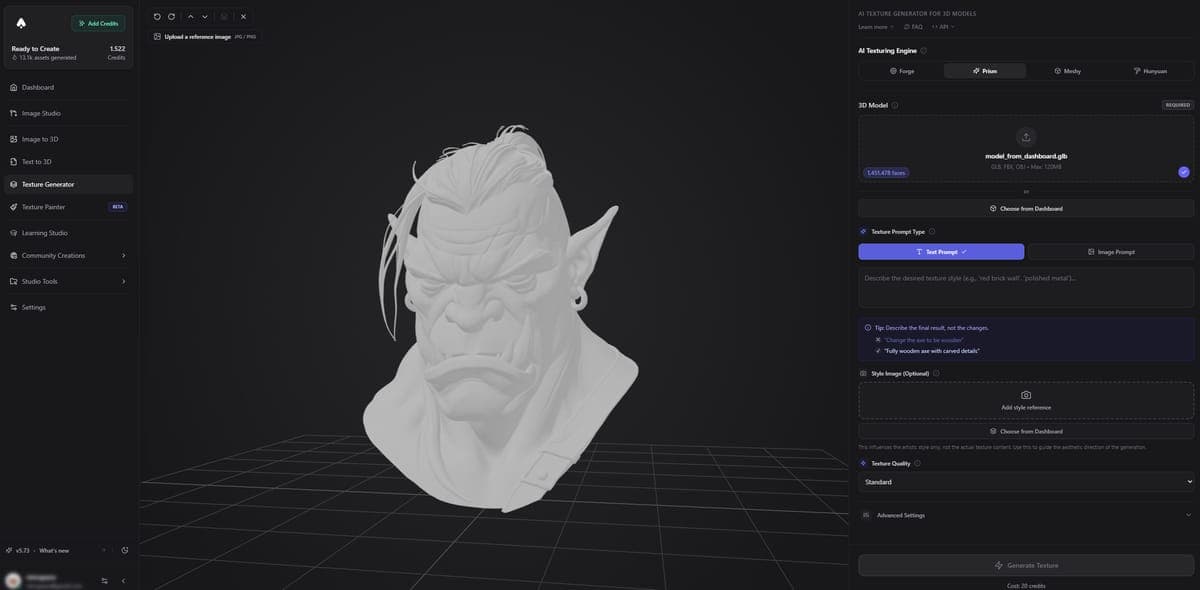
How do I texture a 3D model with AI?
Upload the model, pick an engine, describe the material or add a reference image, and click Generate. The AI paints new textures onto the model's UV layout and returns a textured GLB.
- Upload your 3D model (GLB, FBX or OBJ, up to 120MB) or select one from your dashboard
- Pick an AI engine. Prism is the default and the best choice for most models
- Enter a prompt such as weathered wooden surface with visible grain, or upload a reference image
- Adjust quality and material settings, and enable PBR for game engines
- Click Generate (or press Ctrl+Enter)
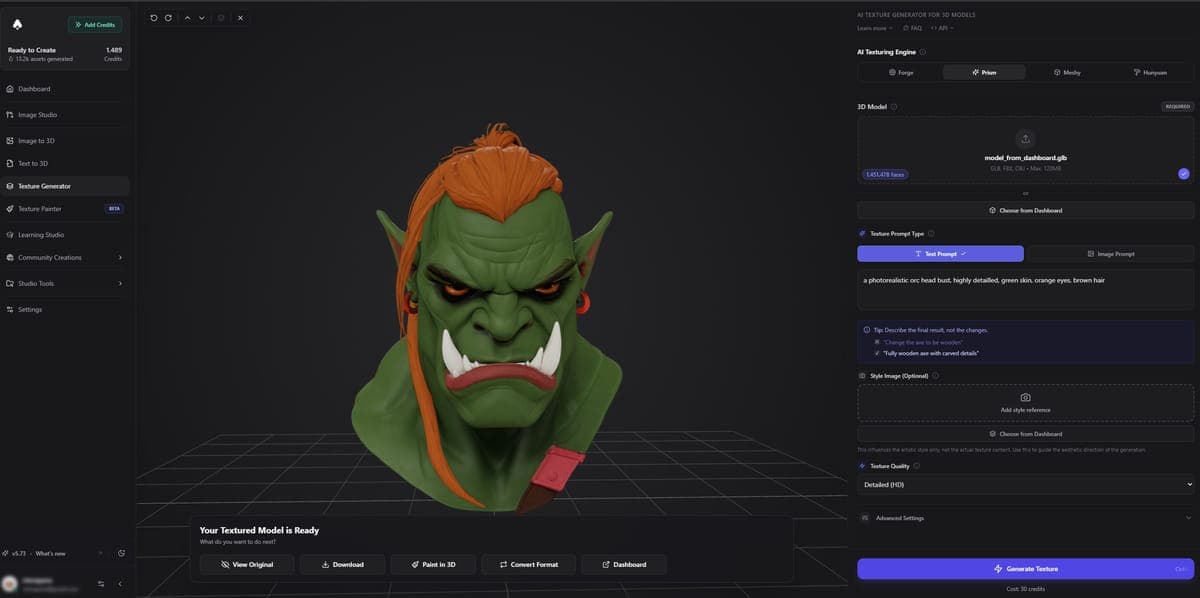
- Preview the result and download the textured GLB
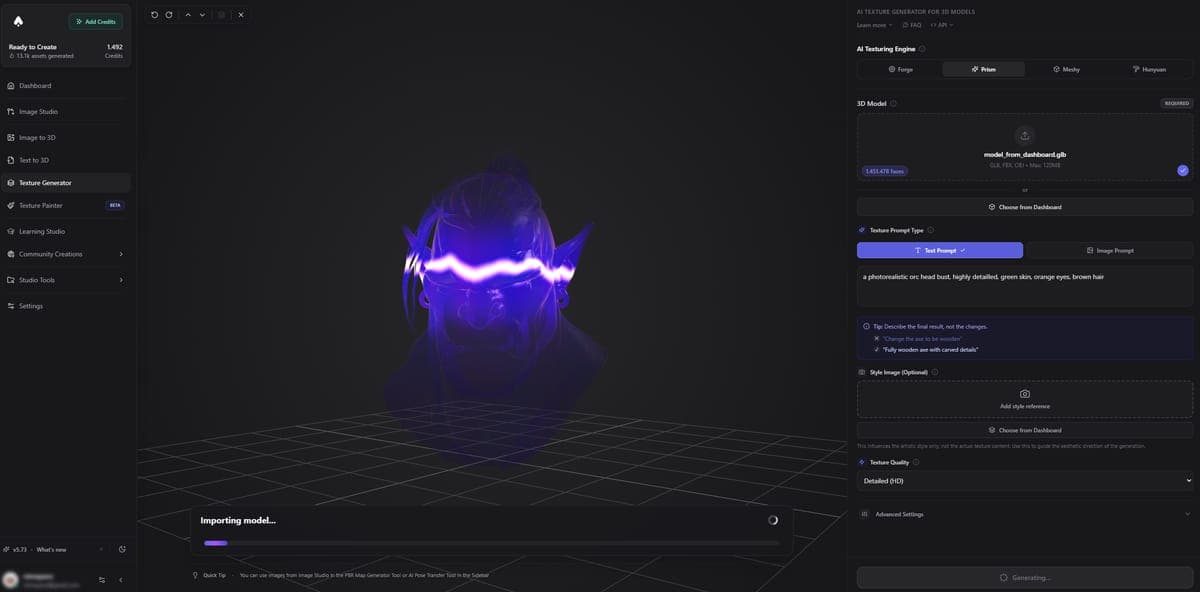
Which texturing engine should I use?
Start with Prism: it handles the widest range of styles and produces the most consistent results. Use Forge when you have a reference image to match, Meshy when the existing UV layout must be kept, and Hunyuan for files between 120MB and 200MB.
| Engine | Credits | Best for |
|---|---|---|
| Prism (default) | 20 (fast or standard), 30 (HD), 35 (max) | Best overall quality, 4K and 8K support |
| Forge | 20 | Texturing from a reference image |
| Meshy | 25 | Clean UV handling, keeps the original UV layout |
| Hunyuan | 20 | PBR materials, files up to 200MB |
Prism settings
Prism's Texture Model setting picks the texturing pass: Latest (experimental, the default here) or Standard. Prism 2.5 stays available for reproducing earlier results.
- Texture quality: Fast (same price as Standard, quicker, less detail, Latest texture model only), Standard, HD (30 credits, sharper 4K textures) or Max (35 credits, highest resolution)
- Texture prompt: describe the look, upload a reference image, or provide all four views. Leave it empty on a model from your dashboard and the generator re-textures it from that model's original reference image or prompt. Uploaded models need a prompt or reference image.
- Neutral Lighting: on by default with the Latest texture model. It removes lighting baked into the reference image before texturing. Turn it off to keep the original shading.
- PBR: generates roughness, metalness and normal maps alongside the base color
- Texture alignment: "original image" matches the model's existing look, "geometry" ignores existing textures and works from the shape alone
- Texture seed: lock a seed to get repeatable results
Forge settings
Forge needs a reference image showing the look you want and matches its style and materials.
- Reference image: required
- Material type: PBR (physically based) or Shaded (simpler, baked lighting)
- Resolution: Basic or High
Meshy settings
Meshy focuses on clean UV handling and consistent surface coverage.
- AI model: Meshy-7 (newest, recommended), Meshy-6 (adds lighting removal) or Meshy-6 Lite (budget, 2K textures only)
- Preserve original UV: keeps the model's existing UV layout
- PBR: generates full PBR material maps
Hunyuan settings
Hunyuan is Tencent's texturing model. It accepts a text prompt or a reference image, but not both at once.
- Input mode: text prompt or image prompt
- PBR: generates PBR material maps
- File size limit: 200MB
Which PBR maps do I get?
With PBR enabled, the GLB contains four maps in a standard glTF material: base color (albedo), roughness, metalness and normal. Unity, Unreal Engine, Blender and any glTF-compatible renderer read them directly, with no manual map assignment.
Does my model need UVs before texturing?
Not strictly, but models with clean UVs produce better results with every engine. If the model has no UVs or a messy layout, run UV Unfold first. It costs 5-15 credits depending on the engine.
What can I do after generating?
- Download the textured GLB
- Refine areas by hand with "Paint in 3D", which opens the result in the Texture Painter
- Save to your dashboard to keep it in your project library
- Convert to FBX, OBJ or other formats with Format Conversion
If the AI misses a section of the model, switch Prism's texture alignment to "geometry" and generate again. Adding a reference image next to the prompt gives more control over the final look.
Related tools
- Need a model first? Generate one with Image to 3D or Text to 3D
- Paint textures manually with the Texture Painter
- Create tileable materials with Material AI and Seamless Texture AI
- Pick the right download format in Export Formats
Frequently Asked Questions
No. The Texture Generator only replaces the surface textures. The geometry, vertex positions and rigging stay exactly as they were.
The Texture Generator retextures the whole model in one pass from a prompt or reference image. The Texture Painter gives manual control with brushes, layers and angle-by-angle AI projection. Use the Generator for fast full-model results and the Painter for precise work on specific areas.
Prompt Tips
Practical prompt tips for Text to 3D, Image Studio generation, and image editing. Real examples that work, model-specific advice, and common mistakes to avoid.
Overview
The Texture Painter lets you paint textures right on a 3D model in your browser, by hand or with AI. What it can do, what you need, what each plan includes, and where to find every guide.