Add Base
Add a pedestal or platform under your 3D model. Choose from different base shapes and sizes for display or 3D printing.
The Add Base tool places a pedestal or platform underneath your 3D model. This is useful for display purposes, 3D printing stability, or creating a more polished presentation. The processing runs entirely in your browser.
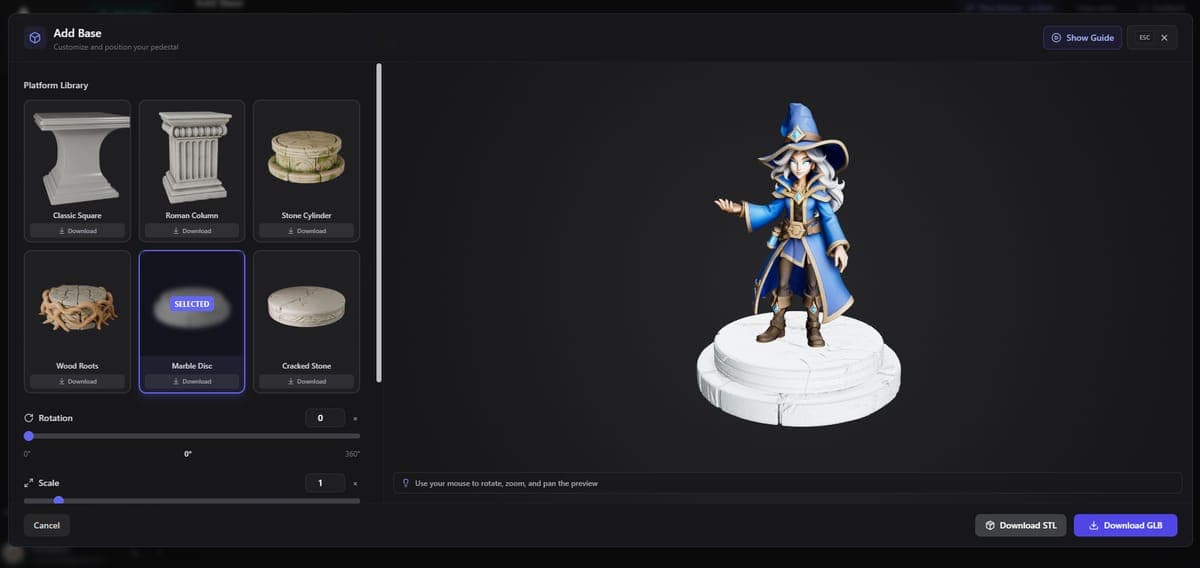
How to use
- Upload a GLB file or select a model from your Dashboard
- Choose a base shape (round, square, or hexagonal)
- Adjust the size and height of the base
- Preview the result in the built-in viewer
- Download the model with the base attached
Options
Shape - Round, square, or hexagonal base shapes. Round works well for most organic models. Square or hexagonal bases suit architectural or mechanical objects.
Size - Scale the base relative to your model. The tool auto-fits by default but you can override this.
Height - Control how tall the pedestal is. Thinner bases work for display, thicker ones add stability for 3D printing.
Pricing
Processing is free and runs client-side in your browser. Downloading the result requires a paid plan.
Related Tools
- Preparing for 3D printing? Export for 3D Printing maps the colors to your filaments and sets the print size
- Need product showcase photos? Use the 3D Stager to place your model in scenes
- Want a spinning turntable video? Try the Model Spinner
- Generate models to add bases to with Image to 3D or Text to 3D
Frequently Asked Questions
Open the Add Base tool in 3D AI Studio, upload a GLB file or pick a model from your Dashboard, and choose from round, square, or hexagonal base shapes. Adjust the size and height to fit your model, preview the result, and download the combined file.
For most figurines and organic models, a round or hexagonal base provides even support and looks clean. Square bases work well for architectural or boxy models. In 3D AI Studio, you can also increase the base height for extra printing stability, especially for models with small or uneven contact points.
No. The Add Base tool in 3D AI Studio is completely free and runs in your browser. The base is merged directly into the model geometry, so no server processing is needed. You just need a paid plan to download the final result.
Yes, and that is a common workflow. Add your base in 3D AI Studio first, then open Export for 3D Printing to pick your filament colors and export as 3MF or STL. The pedestal exports as part of the model, so it prints as one solid piece.