AI Video Generation
Generate AI videos from images or text prompts. Multiple models available including Veo 3, Kling, Lucy, and Seedance with various quality and style options.
Generate short AI videos from images or text prompts. Upload a starting image and describe the motion you want, or generate a video entirely from a text description. Multiple models are available with different strengths, quality levels, and pricing.
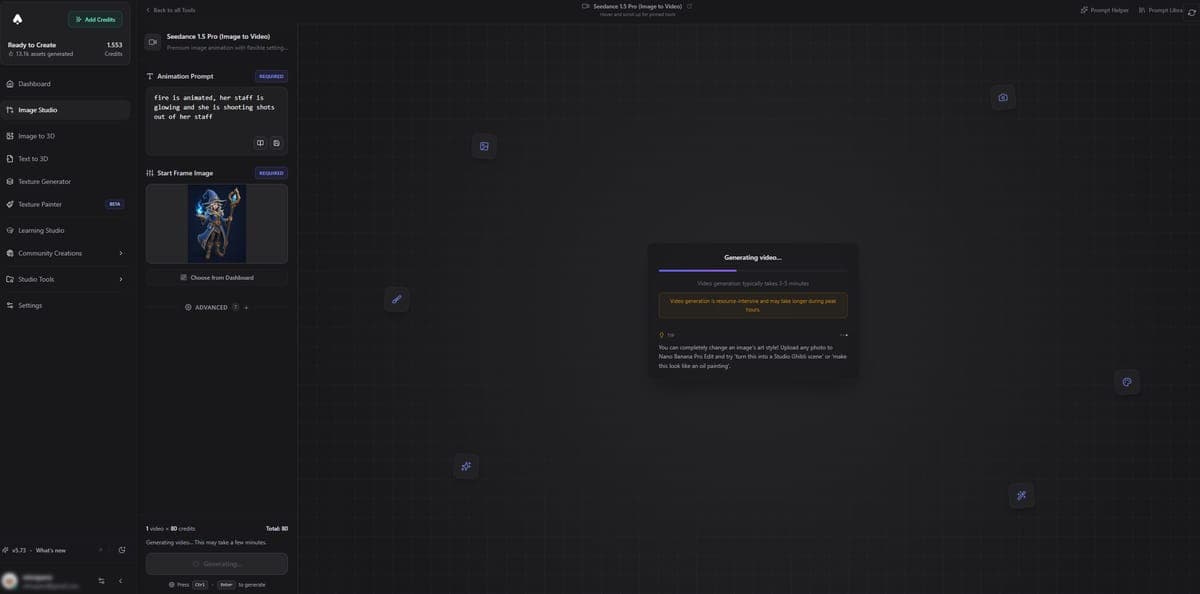
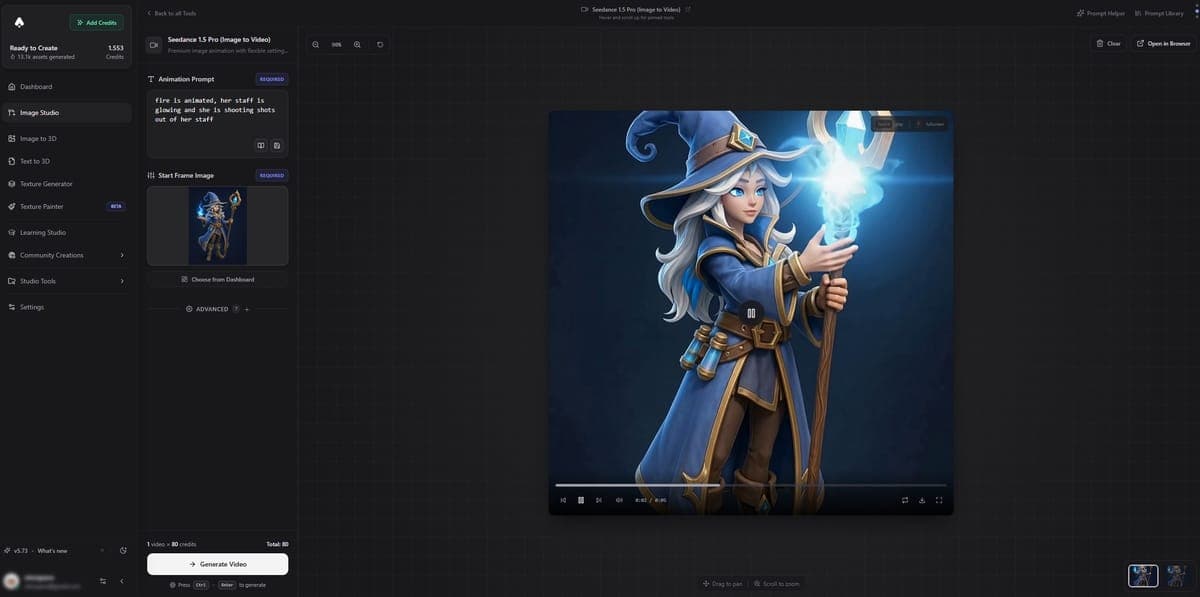
Available Models
| Model | Type | Credits | Best for |
|---|---|---|---|
| Veo 3 Fast | Image to Video | 60 | Quick animation |
| Veo 3 Fast | Text to Video | 60 | Text-only video |
| Kling | Image to Video | 40-80 | Standard/Master quality |
| Veo 3 Standard | Image to Video | 120 | Premium quality |
| Lucy 14B | Image to Video | 60 | Creative animation |
| Seedance 1.5 Pro | Image to Video | 80-200 | Advanced settings, end frame |
| Kling O1 | Frame Transition | 80-200 | Start/end frame morph |
| Kling Motion Control | Motion Transfer | 80-200 | Transfer motion from ref video |
Credit costs vary based on quality settings and video duration where applicable.
Video Types
Image to Video - Upload a starting frame and describe how it should move. The AI animates your image into a short video clip.
Text to Video - Describe a scene entirely in text. The AI generates both the visuals and the motion from scratch.
Frame Transition - Provide a start frame and an end frame. The AI creates a smooth morph between them.
Motion Transfer - Upload a reference video and a source image. The AI applies the motion from the reference video to your image.
How to Use
- Select a video model from the dropdown.
- Upload an input image (or write a text prompt for Text to Video).
- Write a motion prompt describing what should happen. Keep it simple - "camera slowly zooms in", "character turns head to the left", "leaves blowing in the wind."
- Adjust quality settings if available for your chosen model.
- Click Generate. Video generation takes longer than image generation - typically 30 seconds to a few minutes depending on the model.
Tips
- Clear input images work best. High-contrast subjects with simple backgrounds produce smoother animations.
- Keep motion prompts simple. Describe one or two motions rather than complex choreography. "Camera pans left" works better than a paragraph of instructions.
- Use Veo 3 Fast for testing ideas. Once you find a prompt and input that works, switch to a higher-quality model for the final render.
- Frame Transition is great for turntables. Use a front view as the start frame and a side view as the end frame to create a smooth rotation.
Requirements
All video generation tools require a paid plan. Free accounts cannot access video features.
Related Tools
- Need a starting image? Generate one with AI or edit an existing photo
- Want a 3D turntable video instead? Use the Model Spinner for rotating 3D model videos
- Want to turn images into 3D models? Try Image to 3D
Frequently Asked Questions
In 3D AI Studio, video generation ranges from 40 to 200 credits per video depending on the model and quality settings. Veo 3 Fast starts at 60 credits for a quick animation, while premium models like Seedance 1.5 Pro can cost up to 200 credits for longer, higher-quality output with advanced controls.
Veo 3 (by Google) produces the highest quality output with smooth motion and realistic physics, available in Fast (60 credits) and Standard (120 credits) tiers. Kling offers more creative flexibility with standard and master quality modes (40-80 credits), plus unique features like frame transitions and motion transfer. Both are available in 3D AI Studio.
Yes. 3D AI Studio offers Text to Video through Veo 3 Fast (60 credits). Describe a scene and motion in your prompt, and the AI generates both the visuals and animation from scratch. Image to Video typically produces more predictable results since the AI has a clear starting point.
Most AI videos generated in 3D AI Studio are 3-5 seconds long. The exact duration depends on the model, with some offering configurable length. Generation time is typically 30 seconds to a few minutes, which is longer than image generation due to the complexity of creating motion frames.
Motion transfer lets you upload a reference video and a static image, then the AI applies the movement from the video onto your image. In 3D AI Studio, Kling Motion Control handles this at 80-200 credits. It is great for making product shots or characters perform specific actions without filming new footage.
Yes. All video generation tools in 3D AI Studio require a paid plan. Free accounts cannot access video features. This includes Image to Video, Text to Video, Frame Transition, and Motion Transfer across all models like Veo 3, Kling, Lucy, and Seedance.
Sketch to Image
Turn rough sketches and drawings into polished images with AI. Use Sketch to Image or the built-in Paint & Transform tool to create art from simple line drawings.
Utilities
Practical image tools including background removal, upscaling, cropping, and lighting restoration. Prepare your images for 3D conversion or clean them up for any use.