Convert
Convert images into 15 different art styles including anime, oil painting, pixel art, figurines, and more. Pick a style, choose an AI model, and transform any image.
Convert transforms your images into completely different art styles. Upload any image, pick a conversion style, and the AI recreates it in that style while keeping the core subject and composition intact. It is a fast way to explore how your concepts look as figurines, anime characters, oil paintings, pixel art, and more.
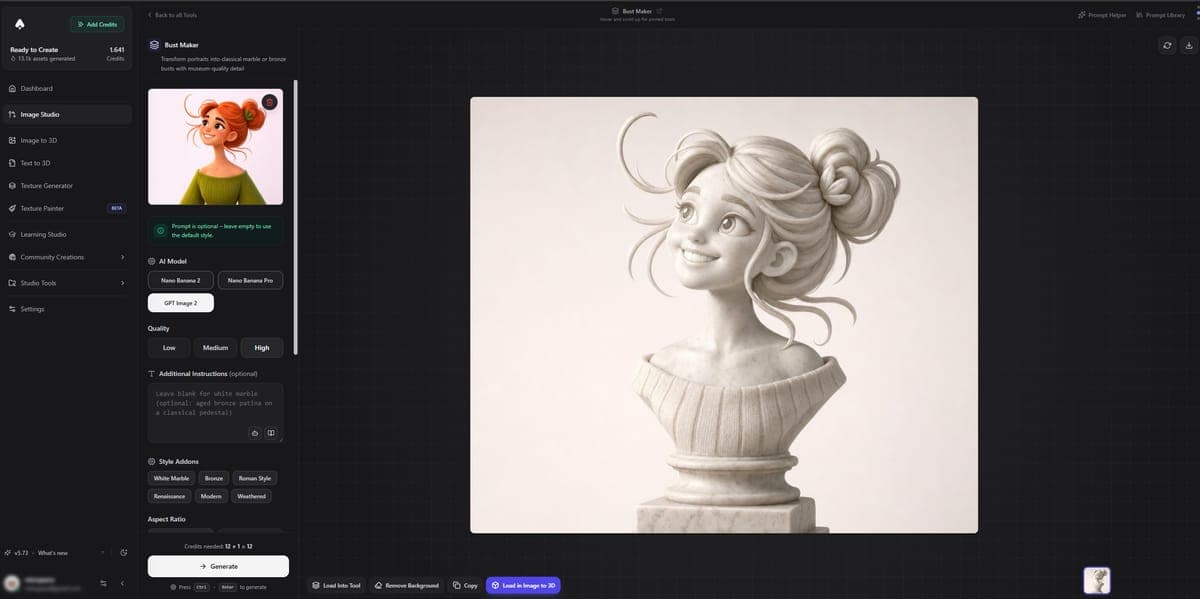
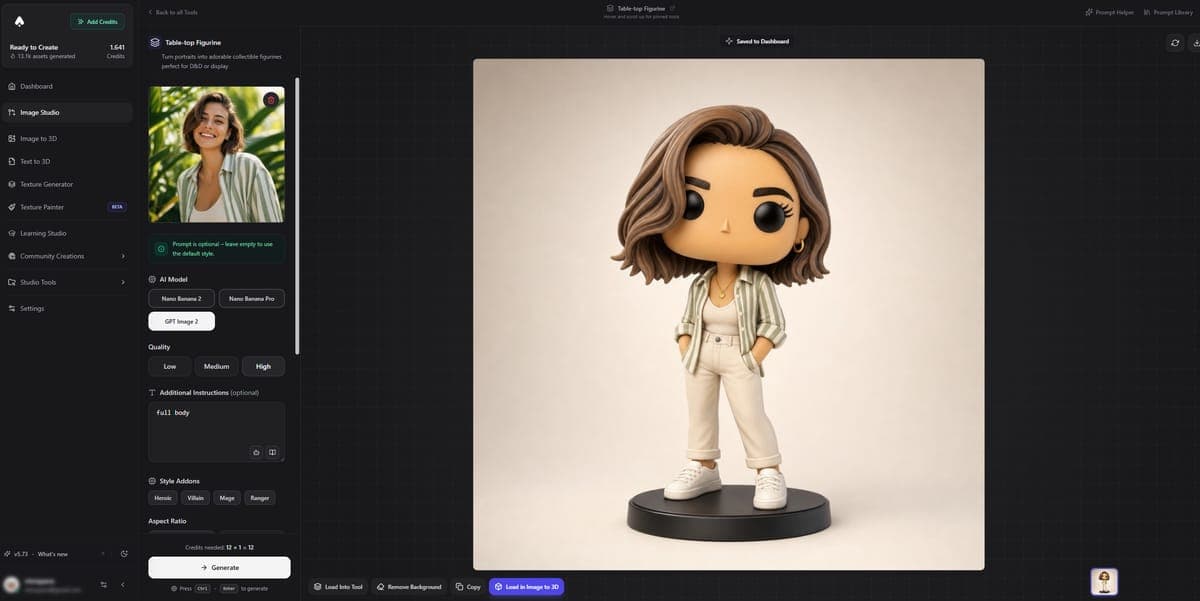
Available Styles
Convert includes 14 built-in styles. Some are available on the free plan, and some require a paid plan.
| Style | Description | Plan |
|---|---|---|
| Convert Anything | General-purpose style transfer. Describe the target style in your prompt. | Free |
| Parts Sheet | Breaks a character or object into individual component parts, laid out as a reference sheet. | Paid |
| Bust Maker | Transforms portraits into classical sculptural busts with realistic stone or bronze materials. | Paid |
| Table-top Figurine | Converts characters into detailed tabletop miniature figurines. | Free |
| Pose Generator | Changes a character's pose to T-pose, A-pose, or any custom pose you describe. | Free |
| Fantasy Character | Transforms images into high-fantasy character art with armor, weapons, and magical elements. | Free |
| Stylized 3D Render | Recreates the image as a polished 3D render with stylized lighting and materials. | Free |
| Anime Character | Converts any portrait or character into anime art style. | Free |
| Ghibli Art | Applies the warm, painterly look of Studio Ghibli films. | Free |
| Brick Figure | Turns characters into collectible brick-style toy figures. | Free |
| Oil Painting | Applies traditional oil painting techniques with visible brushstrokes and rich color. | Paid |
| Comic Panel | Converts the image into a comic book panel with bold lines, halftone shading, and speech bubbles. | Paid |
| Pixel Art Sprite | Creates retro pixel art sprites from any image. Great for game dev assets. | Paid |
| Claymation | Makes the image look like a stop-motion clay figure with soft, sculpted textures. | Paid |
How It Works
Using Convert is straightforward:
- Upload an image. Any photo, AI-generated image, or artwork works. The clearer and better-lit the input, the better the result.
- Pick a conversion style from the list above.
- Choose an AI model. Convert supports three models:
- Nano Banana 2 (4-12 credits) for flexible resolution and fast results.
- Nano Banana Pro (8-14 credits) for the highest quality output.
- GPT Image 2 (3 credits) for affordable, high-quality conversions.
- Add optional instructions. You can guide the conversion with extra details in the prompt. For example, when using Bust Maker you could add "white marble material, dramatic side lighting" to control the look.
- Generate. Hit
Ctrl+Enteror click Generate.
Tips
Best input images
- Clear, well-lit photos convert better than dark or blurry ones. The AI needs to see the subject clearly to recreate it in a new style.
- Simple backgrounds help. A busy background can confuse the conversion, especially for styles like Figurine or Bust that need to isolate the subject.
- Front-facing or three-quarter views tend to produce the best results for character-based styles like Anime, Fantasy, and Figurine.
Best styles for 3D conversion
If you plan to turn the converted image into a 3D model with Image to 3D (guide), some styles work better than others:
- Stylized 3D Render is the most natural fit since the output already looks like a 3D model.
- Table-top Figurine and Bust Maker both produce images with clear depth and volume that translate well to 3D.
- Brick Figure creates clean, geometric shapes that 3D generators handle easily.
- Avoid Oil Painting and Comic Panel for 3D conversion since the flat, stylized look can confuse depth estimation.
Ready to convert? Try the Image Style Converter -- free credits on signup.
Frequently Asked Questions
Yes. In 3D AI Studio, upload any photo to the Convert tool and select "Anime Character" from the style list. The AI transforms your image into anime art while keeping the original pose, composition, and key features. It works with portraits, full-body shots, and even group photos.
AI style transfer analyzes your input image for structure, subject, and composition, then regenerates it in the target art style. In 3D AI Studio's Convert tool, you pick from 14 preset styles and the AI handles the rest. The "Convert Anything" option also lets you describe any custom style in your prompt.
Yes. Select the "Oil Painting" style in 3D AI Studio's Convert tool. The AI applies traditional oil painting techniques with visible brushstrokes, rich color, and natural canvas texture. This style requires a paid plan and costs 3-14 credits depending on your chosen model and resolution.
Upload your image and select "Table-top Figurine" in 3D AI Studio's Convert tool. The AI transforms your subject into a detailed tabletop miniature with painted details and a sculpted base. This style is free to use and works especially well as input for 3D model conversion afterward.
GPT Image 2 at 3 credits per conversion is the most affordable model in 3D AI Studio's Convert tool. It handles all 14 styles with good quality. For higher resolution or more detail, Nano Banana 2 (4-12 credits) and Nano Banana Pro (8-14 credits) are available as step-up options.
Yes. The "Pixel Art Sprite" style in 3D AI Studio creates retro-style pixel art from any image. It works great for creating game assets, character sprites, and icon sets. This style requires a paid plan and produces clean, game-ready output that you can use directly in pixel-based games or as reference.
Edit
Edit images using AI models. Describe changes in plain text to swap objects, change styles, fix lighting, remove backgrounds, and more.
Sketch to Image
Turn rough sketches and drawings into polished images with AI. Use Sketch to Image or the built-in Paint & Transform tool to create art from simple line drawings.