Image to Prompt
Upload an image and get a detailed text prompt that describes it. Use the output to recreate similar images in AI generators or learn how to write better prompts.
Upload any image and get a detailed text prompt describing what is in it. Use the generated prompt to recreate similar images in other AI generators, learn how successful images are described, or save descriptions for reference.
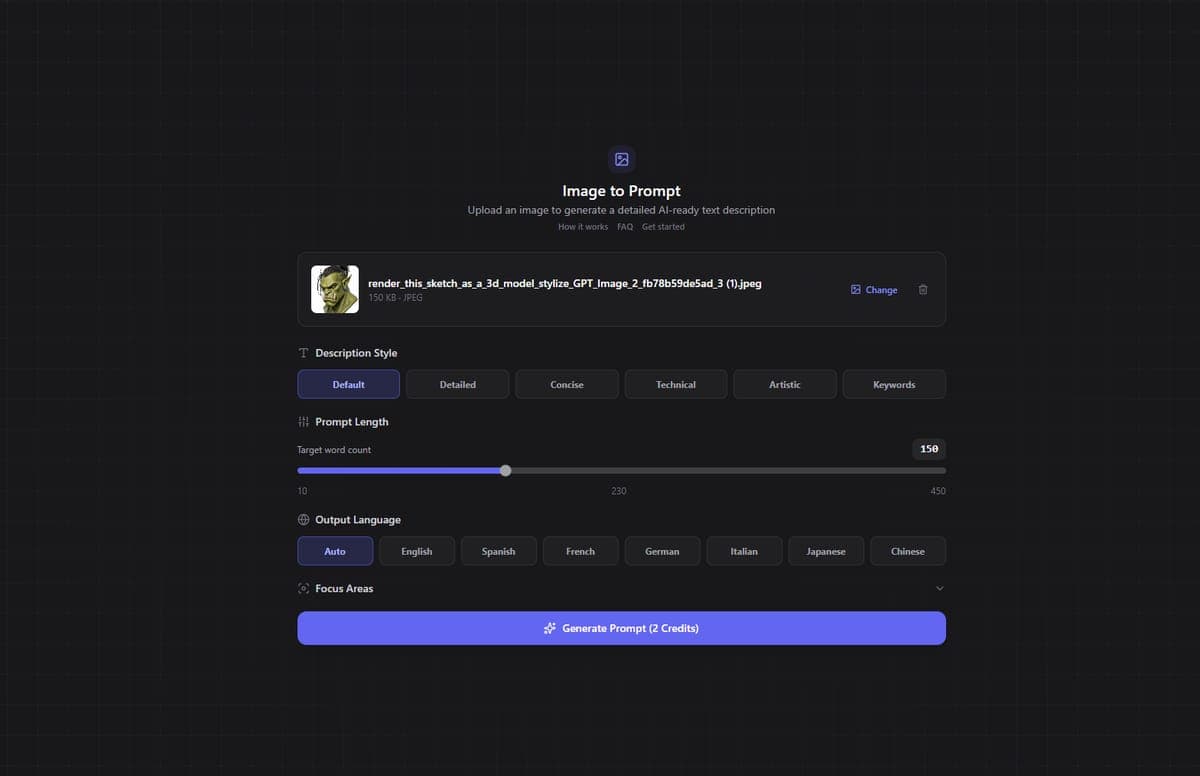
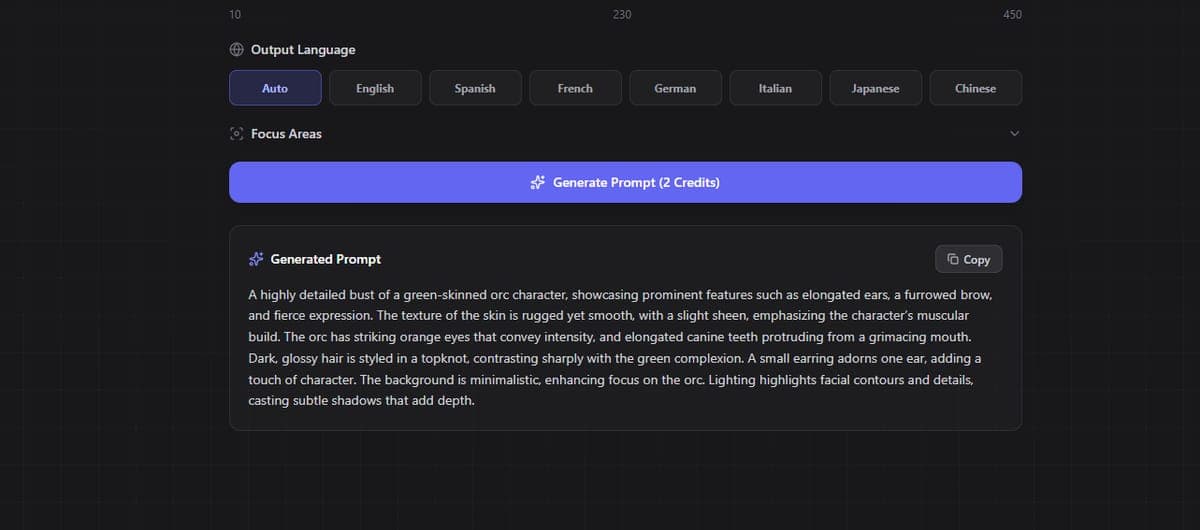
How It Works
- Upload an image.
- Configure your settings (style, length, language, focus areas).
- Click Generate.
- Copy the resulting text prompt with one click.
The tool uses GPT-4o-mini to analyze your image and produce a text description tailored to your settings. There is no model picker - it always uses GPT-4o-mini.
Cost: 2 credits per generation.
Settings
Description Style
Choose how the prompt reads:
- Default - Balanced description
- Detailed - Thorough, covers everything visible
- Concise - Short and focused
- Technical - Emphasis on specs, measurements, rendering terms
- Artistic - Emphasis on mood, composition, artistic qualities
- Keywords - Comma-separated tags rather than sentences
Prompt Length
Slider from 10 to 450 words. Shorter prompts are punchier and work well for simple images. Longer prompts capture more nuance and are better for complex scenes.
Output Language
Available in 8 languages: English, German, French, Spanish, Italian, Portuguese, Japanese, and Chinese.
Focus Areas
Toggle up to 16 focus areas to guide what the AI pays attention to: colors, materials, lighting, composition, textures, mood, perspective, background, foreground, details, style, subject, environment, action, clothing, and anatomy.
Access
Image to Prompt requires a paid plan. It is not available on the free tier.
Great For
- Reverse-engineering images - See how an AI would describe a photo or artwork, then use that prompt to generate similar results.
- Learning prompt writing - Study how detailed, effective prompts are structured by analyzing images you like.
- Recreating styles - Get the prompt for a style you want to replicate, then use it across multiple generations.
- Documentation - Save text descriptions of visual assets for your project files.
Related Tools
- Use extracted prompts to Generate new images in a similar style
- See Prompt Tips for how to refine and improve prompts for better results
- Ready to convert images to 3D? Try Image to 3D
Frequently Asked Questions
Yes. Upload any photo, artwork, AI-generated image, or screenshot to the Image to Prompt tool in 3D AI Studio, and it generates a detailed text description. The tool uses GPT-4o-mini to analyze the image and produces a prompt you can copy with one click. It costs 2 credits per generation.
Upload the image to 3D AI Studio's Image to Prompt tool and select "Detailed" style with a high word count (200-450 words). The AI will describe the subject, composition, lighting, colors, style, and mood in detail. You can then paste this prompt into any AI image generator to recreate a similar result.
3D AI Studio offers six description styles: Default (balanced), Detailed (thorough), Concise (short), Technical (specs and rendering terms), Artistic (mood and composition focus), and Keywords (comma-separated tags). You can also set the prompt length from 10 to 450 words and choose from 8 output languages.
Image to Prompt requires a paid plan in 3D AI Studio and costs 2 credits per generation. It is not available on the free tier. However, since each generation is only 2 credits, it is one of the most affordable tools available and you can analyze many images without spending significant credits.