Image Utilities
Practical image tools including background removal, upscaling, cropping, and lighting restoration. Prepare your images for 3D conversion or clean them up for any use.
Image Studio includes five utility tools for common image tasks like removing backgrounds, upscaling, cropping, and fixing lighting. These are especially useful for preparing images before 3D conversion.
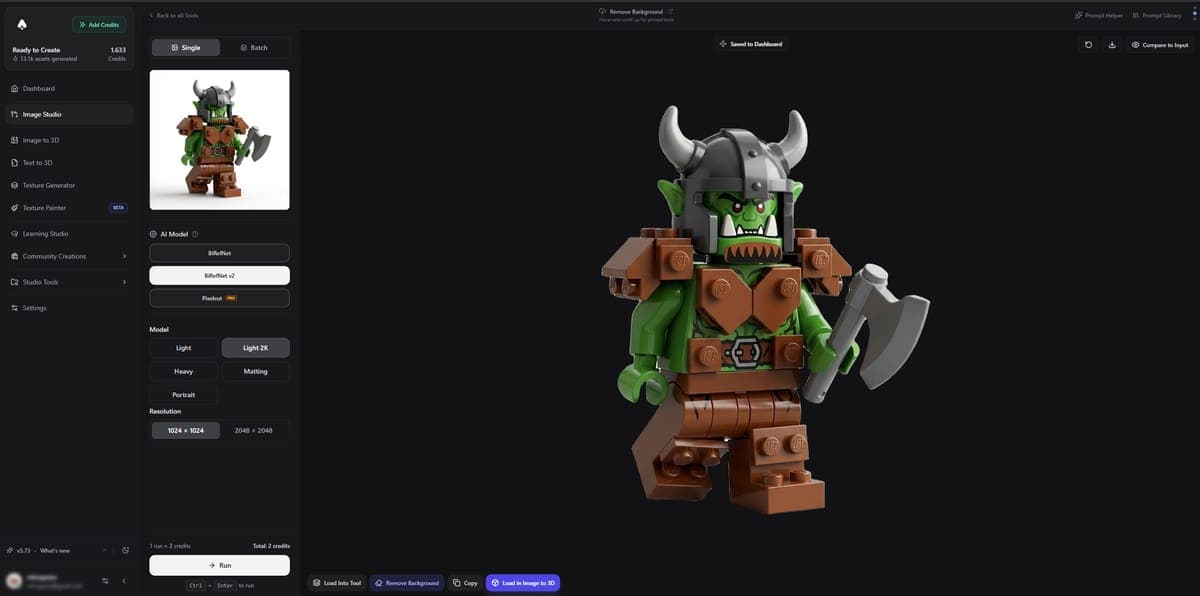
Available Tools
1. Remove Background (1-3 credits)
Remove the background from any image, leaving just the subject on a transparent canvas.
Three providers are available:
| Provider | Credits | Notes |
|---|---|---|
| BiRefNet | 1 | Fast, good for simple subjects |
| BiRefNet v2 | 2 | Better edge detection |
| Pixelcut | 3 | Best quality, handles hair and fine details |
2. Upscale Creative (1 credit)
Enlarge images 2x to 4x with AI-generated detail. An optional prompt and creativity and detail sliders let you guide how the AI fills in new pixels. Good for stylized or artistic images where you want the AI to add creative detail.
3. Upscale Faithful (1 credit)
Enlarge images 2x to 4x while preserving existing detail as closely as possible. Best for photos or renders where you want a clean, faithful enlargement without added interpretation.
4. Crop Image (free - 0 credits)
Crop and resize images directly in the browser. This runs entirely on your device with no AI involved, so it costs nothing. Use it to trim unwanted areas or adjust aspect ratios before using other tools.
5. Restore Lighting (2 credits)
Remove unwanted shadows and normalize lighting across an image. Designed to prepare images for 3D conversion where consistent lighting produces better results.
Tips
- Use Remove Background before Image to 3D. A clean subject on a transparent background gives 3D generators much better input than a busy photo.
- Use Restore Lighting before 3D conversion. Shadows baked into the source image can cause artifacts in the 3D model. Removing them first leads to cleaner geometry and textures.
- Combine tools in sequence. A typical prep workflow: Remove Background, then Restore Lighting, then Upscale if the image is small, then send to Image to 3D.
Try the Image Utilities -- background removal, upscaling, and more.
Related Tools
- After cleaning up your image, convert it to 3D with Image to 3D
- See the full Recommended Workflow for preparing images before 3D conversion
- Need to edit the image content itself? Use AI Image Edit
Frequently Asked Questions
3D AI Studio offers three background removal providers. BiRefNet (1 credit) is fast and good for simple subjects. BiRefNet v2 (2 credits) has better edge detection. Pixelcut (3 credits) handles hair, fur, and fine details the best. For most images, BiRefNet v2 gives the best balance of quality and cost.
Yes. 3D AI Studio includes two upscaling tools. Upscale Faithful (1 credit) enlarges images 2x to 4x while faithfully preserving existing detail, best for photos and renders. Upscale Creative (1 credit) enlarges 2x to 4x and adds AI-generated detail, better for stylized or artistic images where you want the AI to enhance the result.
The recommended prep workflow in 3D AI Studio is: first remove the background, then restore lighting to remove baked-in shadows, then upscale if the image is small. This gives 3D generators a clean, well-lit subject on a transparent background, which produces much better geometry and textures than a raw photo.
No. The Crop Image tool in 3D AI Studio is completely free at 0 credits. It runs entirely on your device with no AI processing involved. Use it to trim unwanted areas, adjust aspect ratios, or resize images before sending them to other tools that do cost credits.
Video
Generate AI videos from images or text prompts. Multiple models available including Veo 3, Kling, Lucy, and Seedance with various quality and style options.
Character Sheet
Generate multi-view character turnaround sheets from a single image. Get front, left, right, and back views for game dev, 3D modeling, and animation reference.