AI Assistant (Bob)
Bob is the AI assistant inside Flow. Describe the pipeline you want and Bob builds it, edits nodes, rewires connections and answers questions.
Bob is the AI assistant built into Flow. Instead of placing and wiring nodes yourself, you can describe what you want in plain English and Bob builds or edits the pipeline for you. Bob can create whole workflows, change existing nodes, rewire connections, and answer questions about how things work.
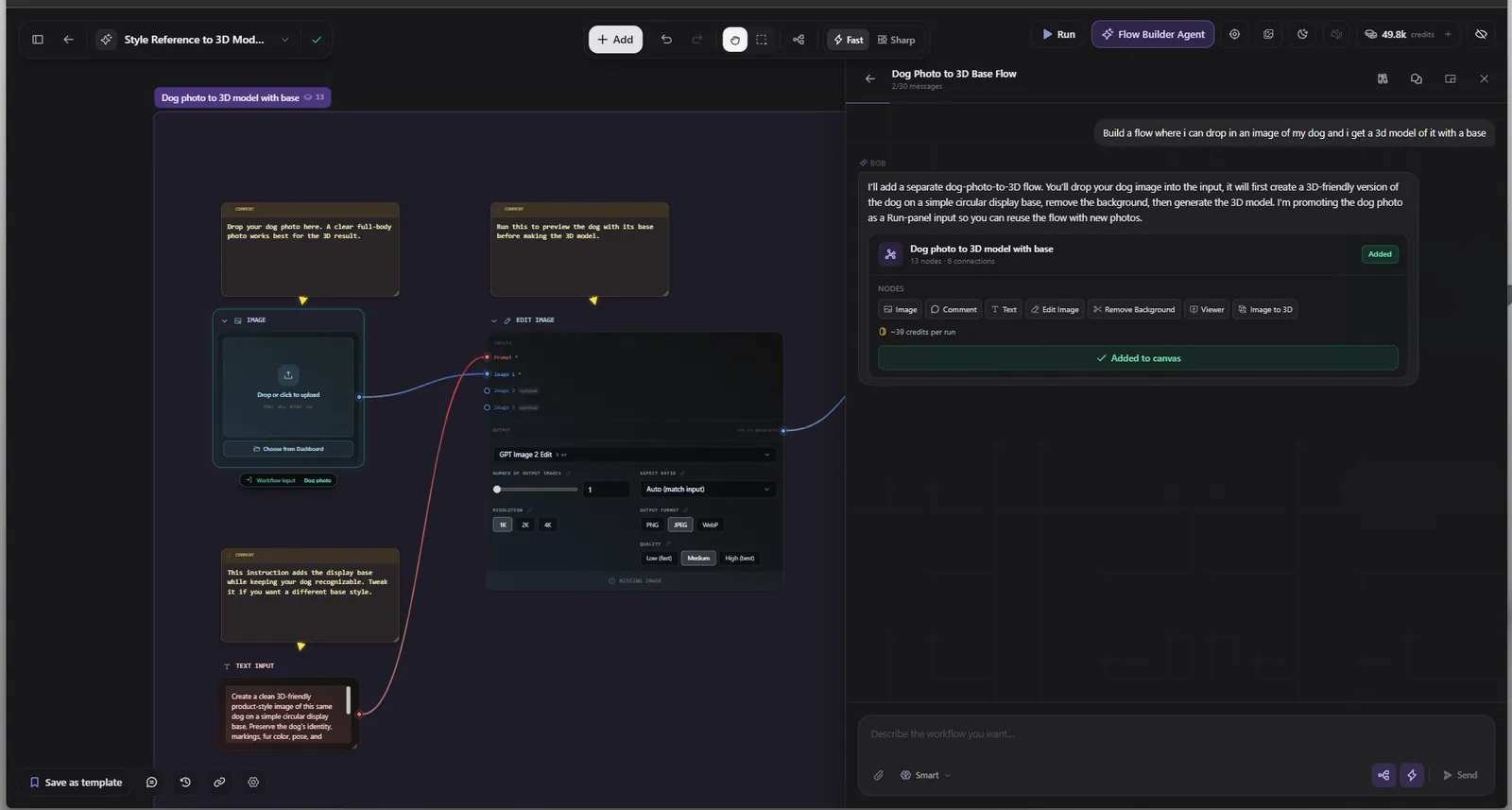
Opening Bob
Click the assistant button in the top right cluster of the editor. A chat panel opens that you can dock to an edge or float anywhere on screen. Opening the chat does not cost anything; you spend credits only on the messages you send.
You can also reach Bob through the Build with AI option in the new flow launcher. In that case Bob opens automatically and starts building from your description as soon as the editor loads.
What Bob can do
Bob works in two complementary ways, often in the same response.
Build new pipelines
Describe a workflow and Bob proposes a complete set of new nodes, already wired together, laid out neatly, and grouped in a section. For example:
"Generate a fantasy sword concept image, create four turnaround views of it, then convert it into a 3D model."
Bob will propose a Prompt node, a Generate Image node, a Multi View node, and a Multi View to 3D node, all connected in the right order.
Edit what is already there
Bob can also change your existing canvas. It can:
- Switch a node's model.
- Change a node's settings.
- Connect or disconnect nodes.
- Insert a new node in the middle of an existing wire.
- Rename, group into a section, bypass, or delete nodes.
- Promote inputs and mark outputs (turning your flow into an app).
- Drop an image you attach to the chat into an Image node.
Answer questions and guide you
You can just ask Bob how something works, or what node to use for a goal. Bob can also highlight a specific node on your canvas to point you to it, and can open the feedback form for you if you hit a problem.
How proposals work (review before apply)
Bob never changes your canvas without showing you first. Every response that includes changes comes as a proposal card with a clear choice:
- Apply / Keep to accept the changes.
- Discard to reject them.
The whole proposal applies as a single undo step, so if you change your mind you can undo it all at once with Ctrl+Z. This is a core safety principle: Bob can only do things you could do by hand, and nothing happens until you confirm.
Watch Bob build
When Bob is building a new pipeline, you can literally watch the nodes appear on the canvas as ghosts while it works. When it finishes, the nodes settle and you confirm with Keep or Discard.
Apply modes: Ask versus Auto
You can choose how proposals are applied, set per flow:
- Ask (the default): Bob shows you each proposal and you click to apply it.
- Auto: proposals are applied automatically right after the preview. It is still one undo step, so you can always reverse it.
There is also an auto arrange setting that controls whether Bob tidies the layout of the parts of the canvas it touches.
Reasoning effort and credits
Each message you send costs credits, priced by the reasoning effort you choose:
| Effort | Good for | Cost per message |
|---|---|---|
| Fast | Small edits and simple builds | 1 credit |
| Smart | Most builds | 1 credit |
| Genius | Large, complex pipelines | 2 credits |
Higher effort gives Bob more time to think, so it can plan and build larger, more complex pipelines in one go. Your choice is remembered between sessions. Each chat also has a message cap; when you reach it, start a new chat.
How Bob understands your canvas
Bob can see the nodes on your canvas and how they are connected, so its suggestions fit what you are actually building rather than being generic. You can also attach images to a message for Bob to look at and place on the canvas.
Self correction
If a proposal does not apply cleanly (for example a connection that no longer fits after other edits), Bob notices and fixes it on its next try, so you rarely have to explain what went wrong.
Tips for working with Bob
- Be specific about the goal, not the nodes. "Make a pipeline that turns a photo into a 3D printable model" works better than trying to name every node.
- Build in steps for big pipelines. Ask for the core chain first, then ask Bob to add refinements.
- Use Ask mode while learning so you can see exactly what each proposal does before applying it.
- Combine with manual editing. Let Bob lay down the structure, then fine tune settings yourself.
- Ask questions. Bob is also a guide, not just a builder.
Frequently Asked Questions
Bob is the AI assistant inside the Flow node editor. You describe what you want in plain English and Bob builds the pipeline, edits existing nodes, rewires connections, or answers questions. Every change is shown as a proposal you can apply or discard, and applies as a single undo step.
Only if you turn on Auto apply mode. By default Bob is in Ask mode, where it shows you a proposal card and you click Apply or Discard. Either way, the whole change is one undo step, so you can always reverse it with Ctrl+Z.
Opening the chat does not cost anything. Each message costs credits based on the reasoning effort you pick: Fast and Smart are 1 credit, Genius is 2 credits. Higher effort lets Bob build larger pipelines in one response.
Yes. Describe the workflow you want, for example "generate a character image, make four views, and turn it into a 3D model", and Bob proposes all the nodes wired together. For very large pipelines, use the Genius effort or build in a few steps.
Yes. You can attach images to a message. Bob can see them (so it can reason about them) and can place them into an Image node on your canvas as part of a proposal.
In Ask mode (default), Bob shows each proposal and waits for you to click Apply or Discard. In Auto mode, proposals are applied automatically right after the preview, still as a single reversible undo step. Use Ask while you are learning so you can review each change first.
Running Flows
How running works in Flow: single nodes vs whole pipelines, the run panel and queue, execution order, and turning a flow into a reusable app.
Templates & Sharing
Save a flow as a reusable template, share it with a link, submit it to the public gallery, and use version history to roll back. The full template lifecycle in Flow.