Texture Painter
The Texture Painter lets you paint textures right on a 3D model in your browser, by hand or with AI. What it can do, what you need, what each plan includes, and where to find every guide.
The Texture Painter is a 3D painting app that runs in your browser. You open a 3D model, paint on it with brushes, or describe a change and let AI paint it for you. Every brush stroke and every AI result is its own layer, so nothing you do is final. When you are done, you download the model with its new texture.
This page explains what the Texture Painter can do, what you need, and where to find each guide. New here? Start with the Quick start. It takes about five minutes.
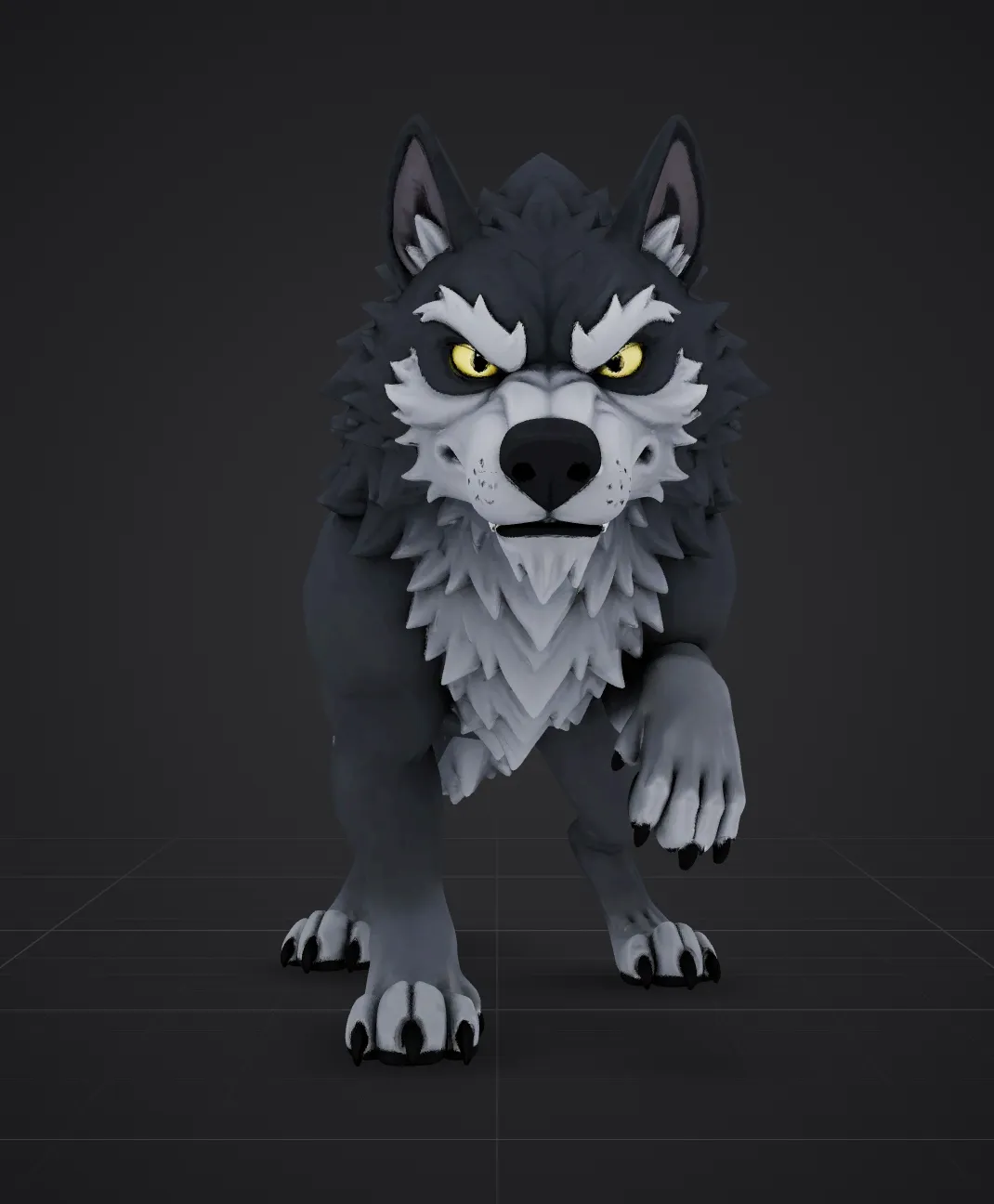
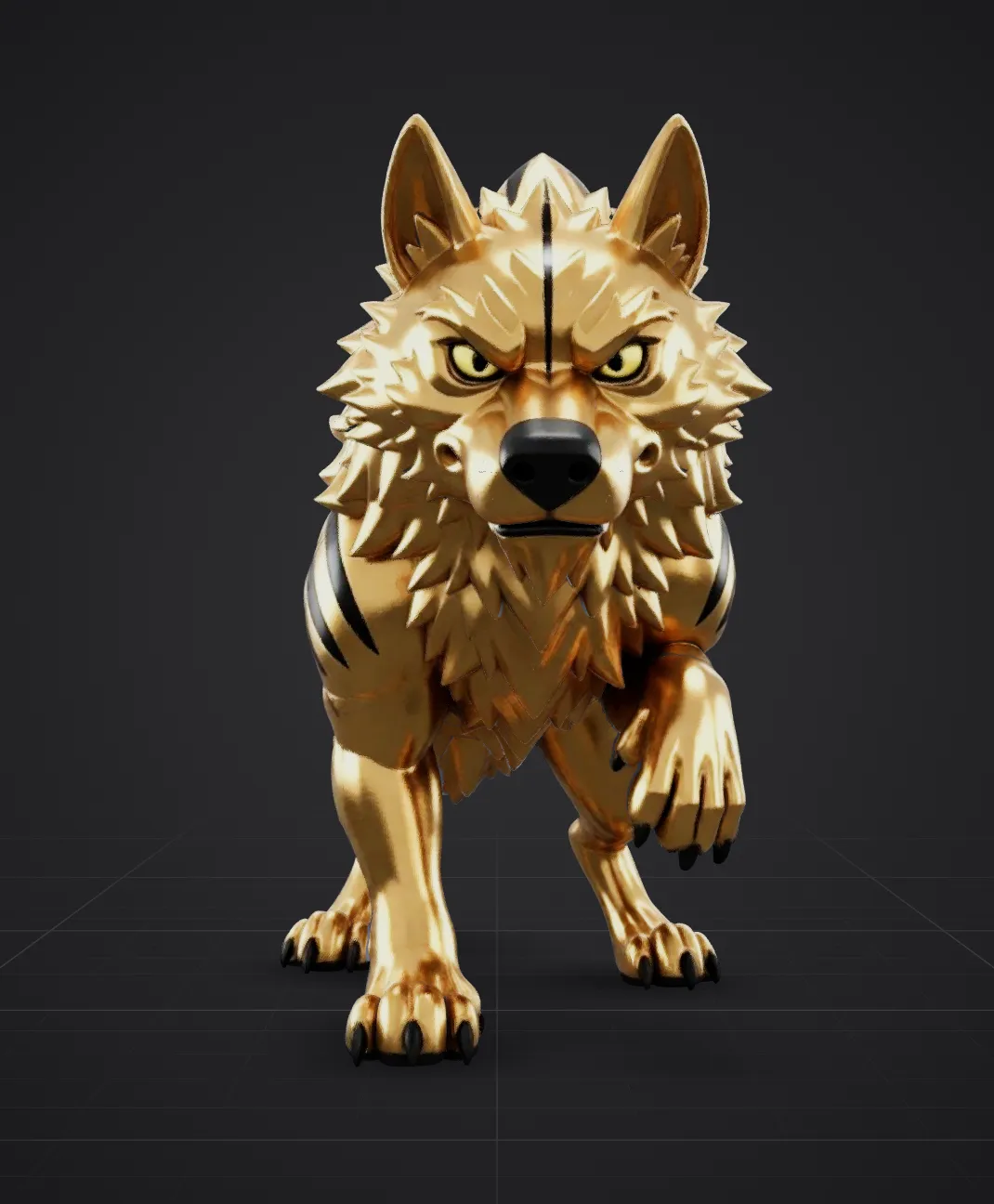
What you can do
- Paint by hand. Brush, eraser, image brush, decals, eyedropper and fill, right on the 3D surface. You see the brush on the model before you paint.
- Paint with AI. Describe a texture or a change in plain words. The AI repaints the side you are looking at (or all sides at once) and the result comes back as a new layer.
- Reveal AI results where you want them. A new AI layer starts hidden. Paint over the model with the brush to bring the AI texture in only where it looks good, or apply it everywhere with smooth edges.
- Work in layers. Paint layers, solid colours, AI layers, decals and groups, with opacity, blend modes and locking.
- Adjust colors without repainting. Brightness, contrast, exposure, saturation, vibrance, hue, temperature and tint for any layer, live on the model, as an adjustment you can change or remove any time.
- Check your work in 2D. The 2D view shows the selected layer on the model, the flat texture map, and exactly what the AI receives.
- Never lose work. Your session saves on its own. On paid plans it syncs to the cloud with version history and time-lapse videos.
- Export anywhere. Download GLB (with or without PBR materials), OBJ, STL or the textures as PNG, from 1K to 12K.
You can see the painter in action on the Texture Painter page.
What you need
- A free 3D AI Studio account. The app asks you to sign in or sign up when you open it.
- A computer with a modern browser such as Chrome, Edge or Firefox, with graphics acceleration turned on. The 3D view uses your graphics card through WebGL.
- A 3D model with UVs, in GLB, glTF, FBX or OBJ. No model? Use one of the samples on the start screen, or make one with Image to 3D or Text to 3D.
- Credits, only for AI painting and AI stickers. Hand painting, layers and exports cost nothing.
Painting on a laptop? Built-in graphics work well at the default texture size (4K) and below. 8K is meant for finished work on a strong graphics card. If the painter feels slow, see Tips and troubleshooting.
Plans at a glance
| Free account | Paid plans | |
|---|---|---|
| Hand painting, all tools, layers | Yes | Yes |
| Decals and image brush with your own images | Yes | Yes |
| Import and all exports, up to 12K | Yes | Yes |
| AI painting (credits per generation) | No, the button reads Upgrade to generate | Yes |
| AI stickers for decals | No | Yes |
| Where sessions are saved | In this browser (up to 6 sessions) | In the cloud, plus a backup in this browser |
| Continue on another device | No | Yes |
| Version history and time-lapse videos | No | Yes |
Each paid plan includes a set amount of cloud storage and a maximum number of sessions. The start screen shows how much you use. See Saving and sessions.
Hand painting or AI?
Both work on the same layers, so you can mix them freely.
- Use AI for large changes: a new material, new colours for the whole model, weathering, patterns, or details you could not paint by hand in a reasonable time. One generation covers everything you can see.
- Use the brush for precise work: eyes, edges, small fixes, text-like details, or cleaning up where an AI result is not quite right.
A typical session starts with one or two AI passes for the overall look, followed by brush work for the details.
All Texture Painter guides
| Guide | What you learn |
|---|---|
| Quick start | Paint, use AI once and export, in about five minutes |
| The workspace | What every part of the screen does |
| Moving around the model | Rotate, zoom, pan and focus with a mouse, trackpad, touch or pen |
| Painting tools | Brush, eraser, image brush, decals, eyedropper, fill and colours |
| AI painting | Prompts, models, credits, all-sides generation and AI layers |
| Layers | Layer types, masks on AI layers, blend modes and undo |
| Adjust a layer's colors | Brightness, contrast, saturation, hue and more, live and non-destructive |
| The 2D view | Every 2D view mode and when to use it |
| Saving and sessions | Autosave, the start screen, cloud sessions and version history |
| Time-lapse videos | Turn a cloud session into a shareable video |
| Export | Formats, texture sizes and using the result in other apps |
| Keyboard shortcuts and gestures | Every shortcut and gesture on one page |
| Tips and troubleshooting | Fixes for common problems |
Related
- Want a whole new texture without painting? Use the Texture Generator.
- Need clean UVs before painting? Run UV Unfold.
- Bringing the result into Blender, Unity or Unreal? See the Integrations guides and Export formats.
Frequently Asked Questions
Yes, with a free account. Hand painting, layers, decals with your own images, import and every export are free. AI painting and AI stickers need a paid plan and use credits.
No. The Texture Painter runs in your browser. You need a computer with graphics acceleration turned on in the browser settings.
GLB, glTF, FBX and OBJ. The model needs UV coordinates. If it has none, run UV Unfold first.
The painter supports touch and pens: paint with one finger or the pen, pinch to zoom and tap with two fingers to undo. It is designed for larger screens, so a computer gives the best experience.
The Texture Generator creates a complete new texture for a model in one go. The Texture Painter lets you change a texture step by step, by hand or with AI, and keep every change as a layer.
Texture Generator
Texture a 3D model with AI: upload a GLB, FBX or OBJ, describe the look or add a reference image, and get PBR textures in 1-3 minutes.
Quick start
Paint your first 3D model in about five minutes: open the Texture Painter, load a model, paint with the brush, let AI repaint it, reveal the result and download a GLB.