Seamless Texture Generator
Generate tileable PBR texture sets from text descriptions or images. All maps tile seamlessly with no visible seams or repetition artifacts.
The Seamless Texture Generator creates tileable PBR texture sets from text descriptions or images. Every map it produces tiles without visible seams, making it ideal for surfaces that repeat across large areas.
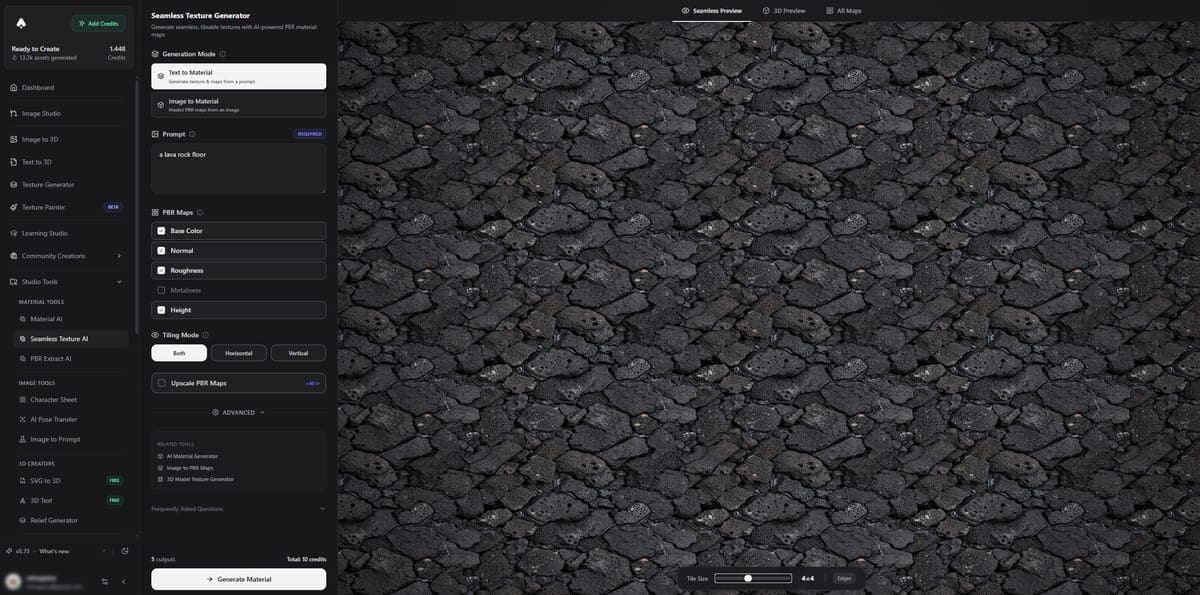
Two Modes
| Mode | Credits |
|---|---|
| Text to Material | 10 |
| Image to Material | 7 |
There is no "Extract from Photo" mode here. If you need to extract a material from a photo, use the Material Generator instead.
PBR Maps
Every generation produces a full set of maps that all tile seamlessly:
- Base Color - the diffuse surface color
- Normal - surface detail for lighting
- Roughness - matte vs glossy areas
- Metalness - metallic vs non-metallic regions
- Height - depth for displacement
Preview Tabs
- Seamless Preview - a tiled repeat check with adjustable tile count, so you can verify the texture repeats cleanly at different scales
- 3D Preview - a textured mesh with adjustable strength sliders for normal, height, roughness, and metalness maps
- All Maps - a grid view of each individual map
Settings
- Tiling direction - Both, Horizontal, or Vertical
- Output format - PNG, JPEG, or WebP
- Seed - for reproducible results
- Strength slider - controls how much the generation follows your input
- Map strength sliders - adjust individual map intensities in the 3D preview
- Per-map toggles - enable or disable specific maps
- Upscale - higher resolution output (+40 credits, paid plans only)
Difference from Material Generator
Both tools generate PBR material sets, but they have different strengths:
- Seamless Texture Generator is specifically optimized for tileable results and includes a seamless tiling preview tab. Best when you know you need a repeating surface.
- Material Generator has an additional "Extract from Photo" mode and is more general purpose. Both use the same AI backend, but Seamless focuses on tiling quality.
Use Cases
- Game environments: floors, walls, terrain, ceilings
- Architectural visualization: building materials, interior surfaces
- Product design: surface finishes, packaging textures
- 3D scene backgrounds: natural surfaces, patterns
Access
Free users can generate textures and preview results. Downloads are locked to paid plans.
Related Tools
- Need full PBR material sets? Use the Material Generator
- Need PBR maps from an existing texture? Try PBR Extract
- Apply textures to 3D models with the Texture Generator or Texture Painter
- Building game environments? See Export Formats for format recommendations and Integrations for engine-specific import guides
Frequently Asked Questions
Open the Seamless Texture Generator in 3D AI Studio and select "Text to Material" mode. Type a description of the surface you want, like "mossy cobblestone path" or "brushed aluminum panel." The AI generates a full PBR map set that tiles perfectly with no visible seams. It costs 10 credits per generation.
Yes. The Seamless Texture Generator in 3D AI Studio is specifically optimized for tiling. Use the built-in Seamless Preview tab to verify the texture repeats cleanly at different tile counts. The AI handles edge matching internally, so you do not need to fix seams manually.
Absolutely. The PBR maps from 3D AI Studio (base color, normal, roughness, metalness, height) work directly in Unity, Unreal Engine, Godot, and any other engine that supports standard PBR materials. The textures are designed for repeating surfaces like floors, walls, and terrain that are common in game environments.
"Text to Material" creates an original texture from your written description. "Image to Material" takes an existing image you upload and generates a seamless, tileable PBR map set from it. Both modes in 3D AI Studio produce the same five maps, but Image mode costs only 7 credits compared to 10 for Text mode.
Yes. 3D AI Studio lets you set tiling direction to Both, Horizontal, or Vertical. Use "Both" for surfaces that repeat in all directions like floors. Use Horizontal or Vertical for surfaces that only repeat along one axis, like a fence or a baseboard.
Unlike static texture libraries, the Seamless Texture Generator in 3D AI Studio creates original textures on demand from any description you can imagine. You are not limited to what someone has already photographed or created. You can also fine-tune results with seed values and strength controls for exactly the look you need.
Material AI
Generate PBR material maps from text, photos or existing images: base color, normal, roughness, metalness and height maps in one set.
PBR Extract AI
Extract individual PBR maps from photos or texture images. Generate normal, roughness, height, ambient occlusion, metallic, or depth maps one at a time.