The Flows Dashboard
The Flows dashboard is your home base for the node editor: see all your flows, create new ones four ways, browse templates and manage everything.
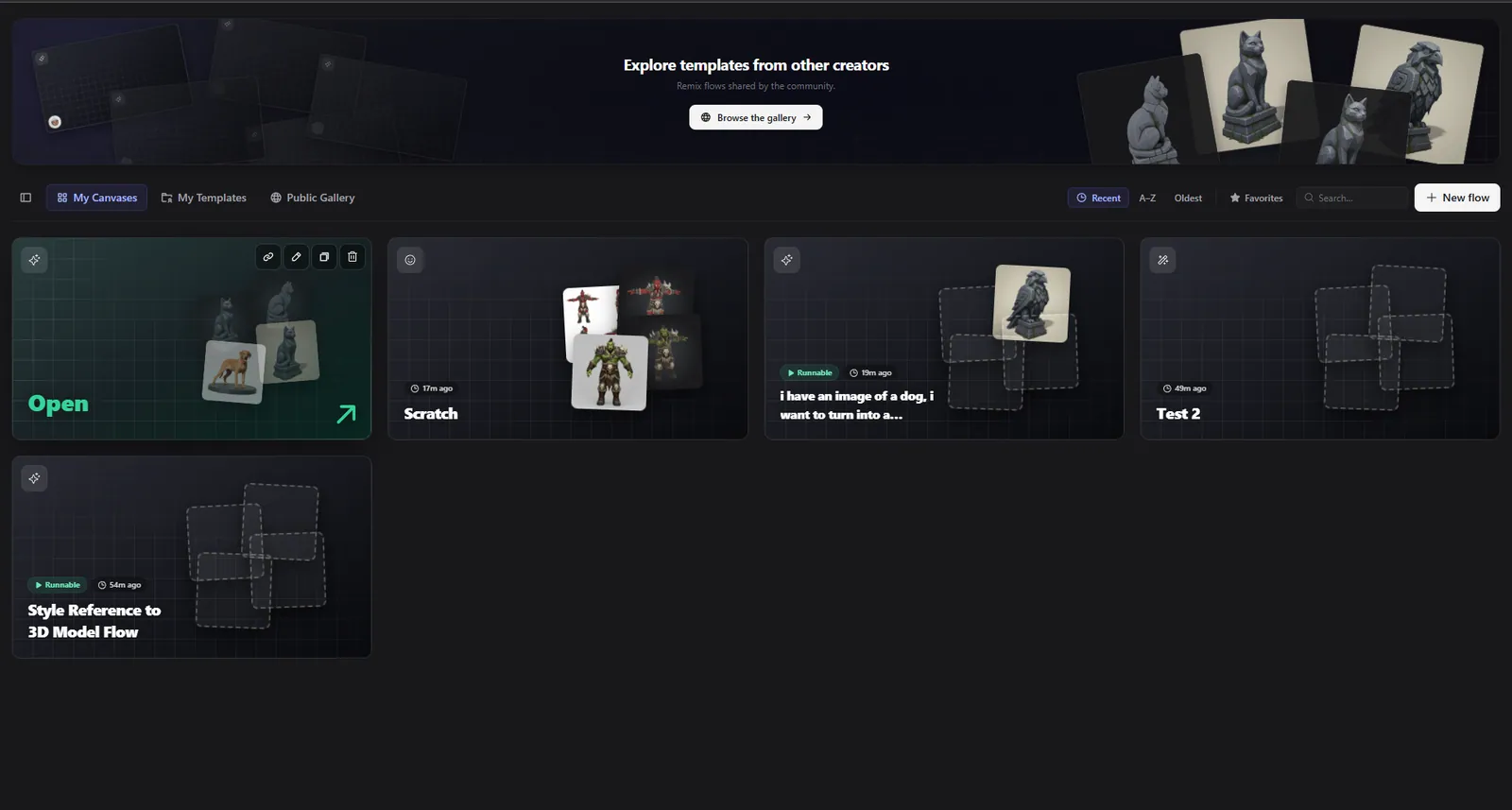
The dashboard is the screen you land on when you open Flow. It is your home base: every flow you create lives here as a card, and this is where you start new flows, browse templates, and manage what you already have.
Before the dashboard: the beta gate
Flow is in a private beta, so the very first time you visit you may see a welcome gate instead of the dashboard.
- If you are signed in, you will see a "Join the beta and enter" button. Click it once and you are in, with no reload and no waiting. You can leave the beta later in Settings under General.
- If you are signed out, you will see a "Sign in to continue" button that takes you to the login screen and brings you back to Flow afterward.
Once you have joined the beta, you go straight to the dashboard every time.
Layout of the dashboard
The dashboard is organized top to bottom:
- Explore banner - a hero strip at the very top that points you toward the public template gallery. It changes its message depending on which tab you are on, and you can collapse it to a thin bar if you want more room.
- The tab bar - a single row with a sidebar toggle on the left, the main tabs in the center, and a set of controls on the right that change per tab (filters, a page switcher, and the New flow button).
- The content grid - the cards for whichever tab is active.
On the left, the standard app sidebar slides in and out. Use the toggle button at the start of the tab bar to show or hide it.
The tabs
The tab bar has three tabs:
| Tab | What it shows |
|---|---|
| My Canvases | Your own flows, the documents you are building. This is the default tab. |
| My Templates | Templates you have saved or submitted, split into private drafts and public copies. |
| Public Gallery | Templates published by the whole community that anyone can use. |
Switching tabs is instant and just changes what the grid shows.
My Canvases: your flows
This is the main view and where you spend most of your dashboard time.
What each card shows
Every flow appears as a card. The card itself is the preview: it shows the flow's output images as a small stack of tilted tiles, with the flow's name, its icon, and how long ago it was last updated. Two extra markers can appear:
- A green Run badge means the flow is set up as a runnable "app", meaning it has at least one promoted input (more on that in Running Flows).
- An amber star means the flow is favorited.
Searching, sorting, and filtering
The controls on the right side of the tab bar let you narrow the list, and they stay fast even when you have a large number of flows.
- Search by name. Results update as you type (with a short debounce).
- Favorites filter shows only flows you have starred.
- Sort by most recent (the default, which also pins favorites to the top), by name (A to Z), or by oldest first.
If there are more flows than fit on one page, a small page switcher appears showing the current page and the total. Flows are paged eight at a time.
Loading and empty states
- While the first page loads, you see skeleton placeholder cards.
- If a search or filter returns nothing, you get a "No canvases match" message with a Clear filters button.
- If you have no flows at all, you get a friendly "Create your first flow" screen with a New flow button and an Explore the gallery link.
What you can do with a flow (card actions)
Hover over a flow card and a row of action buttons appears in the corner. Each one does a specific thing:
| Action | What it does |
|---|---|
| Open (click the card) | Opens the flow in the editor with a full screen transition. You can also press Enter or Space when a card is focused. |
| Share link | Opens the share dialog and mints a short lived link to the flow. See Templates & Sharing. |
| Rename | Opens a small dialog to change the flow's name and pick a new icon. |
| Duplicate | Makes an exact copy of the flow. The copy appears at the top of the list since it is the newest. |
| Delete | Removes the flow after a confirmation. |
Deleting a flow removes the canvas layout, but your generated assets stay safe in your main Dashboard. The 3D models and images you produced are not deleted, only the node pipeline that created them.
Opening a flow
Click a flow card and it opens in the editor with a smooth full screen transition that expands from the card. If a flow can no longer be opened (for example you deleted it), Flow lets you know and takes you back to the dashboard.
Creating a new flow
Click the New flow button (top right of the My Canvases tab) to open the launcher. The launcher offers four different ways to start, listed down the left side.
1. Blank canvas
Start completely empty. Give the flow a name, pick an icon, and click Create flow. You land in an empty editor ready to build. This is the choice for when you know exactly what you want to make.
2. Build with AI
Describe the pipeline you want in plain language, for example "generate a fantasy sword image, make four views of it, and turn it into a 3D model". Flow creates a fresh canvas, then hands your description to the AI assistant (Bob), who builds the whole pipeline automatically as soon as the editor opens. There are starter suggestions you can click, and you can submit with Ctrl+Enter or Cmd+Enter.
Build with AI uses credits, because the assistant is doing real work for you. The blank canvas and template paths do not cost anything to start.
3. From My Templates
Pick one of your own saved templates as a starting point. Flow clones it into a brand new flow so your original template is untouched.
4. From Public Templates
Start from a community template. The launcher shows a small set of official starter templates. There is also a link to browse the full gallery if you want more options.
In every case, once the flow is created you fly straight into the editor with the same smooth transition used for opening an existing flow.
My Templates tab
This tab holds templates you personally own. It splits them into two groups with clear headers:
- Private drafts - templates only you can see. You can keep editing these and submit them to the gallery later.
- Shared to the gallery - public copies you submitted. Each shows its review state: In review, Live, or Not approved.
Click any template to open its detail view, where all the management actions live (use, submit, share, delete). You can filter by visibility (all, drafts, shared) and search by name. See Templates & Sharing for the full lifecycle.
Public Gallery tab
This is the community library of published templates. Browse, search by name, filter by category, and sort by:
- New - most recently published.
- Trending - gaining popularity right now.
- Most Used - the most cloned templates.
- Official - made by the 3D AI Studio team.
- Staff Picks - hand selected highlights.
Hover a template to preview its description, and click the heart to favorite it. Click Use this template to clone it into a new flow of your own.
Deep links and reloading
When you open a flow, the address bar updates so you can bookmark it or reload the page and land right back where you were. Bookmarks only open for flows you own or have been given access to.
Frequently Asked Questions
Open Flow, make sure you are on the My Canvases tab, and click the New flow button in the top right. Choose one of four starting points: a blank canvas, Build with AI (describe it and the assistant builds it), one of your own templates, or a public template from the community.
They are still safe. Deleting a flow only removes the node pipeline (the canvas layout). The actual images and 3D models you generated stay in your main 3D AI Studio Dashboard and can be downloaded from there.
Yes. Hover over the flow card on the My Canvases tab and click the duplicate icon. Flow creates an exact copy that appears at the top of your list. This is useful when you want to try a variation without changing your original.
It means the flow is set up as a runnable app, which happens when the flow has at least one promoted input (an input exposed in the run panel as a form field). These flows are designed to be run with simple inputs without editing the node graph. See Running Flows for details.
Use the controls on the right of the My Canvases tab bar. Search by name, toggle the favorites filter to show only starred flows, or change the sort order (recent, name, or oldest). The list is paged eight flows at a time with a page switcher.
Yes. Hover the flow card and click the share icon to create a short lived link (valid for 10 minutes, 1 hour, or 24 hours). You can choose whether recipients can only view it or also clone it. See Templates and Sharing for the full details.
Overview
Flow is a visual node editor for repeatable AI pipelines. Connect prompts, images, edits and 3D generation on one canvas and run it all with one click.
The Canvas Editor
A tour of the Flow canvas editor: the toolbar, adding and connecting nodes, sections, floating panels, navigation and every keyboard shortcut.