Running Flows
How running works in Flow: single nodes vs whole pipelines, the run panel and queue, execution order, and turning a flow into a reusable app.
Running is where your pipeline actually does work. This page explains the different ways to run, how a run plays out, how the run queue works, and how to turn a flow into a simple reusable app.
The three ways to run
There are three buttons that trigger work, each with a different scope.
1. Run a single node
Every generation node has a Run node bar at the bottom. Clicking it runs just that one node using its current inputs. It does not touch upstream nodes. Use it when you only want to regenerate one step, for example to roll a new variation of an image you already have inputs for.
2. Run flow to here
Every generation node also has a Run flow to here action in its header. This runs everything that node depends on, in the correct order, ending with that node. Use it to build up to a specific point in your pipeline without running steps further downstream.
3. Run the whole flow
The big Run button in the top right runs the whole pipeline up to its outputs. Clicking it opens the run panel, where you confirm inputs and start the run.
There is always one launch surface: the run panel. A node never quietly runs a multi step pipeline on its own. When you press Run or "Run flow to here", the run panel opens, shows you the plan, and you start it from there. This keeps runs predictable.
What happens when you run
When a run starts, Flow does the following automatically:
- Works out the order. It follows your wires and figures out the correct order automatically, so that everything a node needs is produced before that node runs. If your wiring accidentally forms a loop, Flow refuses to run and tells you there is a loop.
- Sees through pass through nodes. Bypassed nodes, viewer nodes, and switches do not run themselves; Flow looks through them to find the real upstream producer. For a manual switch, only the selected branch is followed.
- Runs one node at a time, in order. Each node gathers its inputs from the connected upstream nodes, runs that step, and waits for it to finish before starting the next one. Running is deliberately sequential so it is predictable, reliable, and easy to follow.
- Feeds results forward. Each finished result is stored on the node and becomes the input for the next step.
You can watch all of this happen: nodes light up with a status ring, a number badge shows their position in the order, and wires animate as data flows along them. The Flow Monitor panel in the bottom left shows a live list of steps with their status, the elapsed time, and a Stop button.
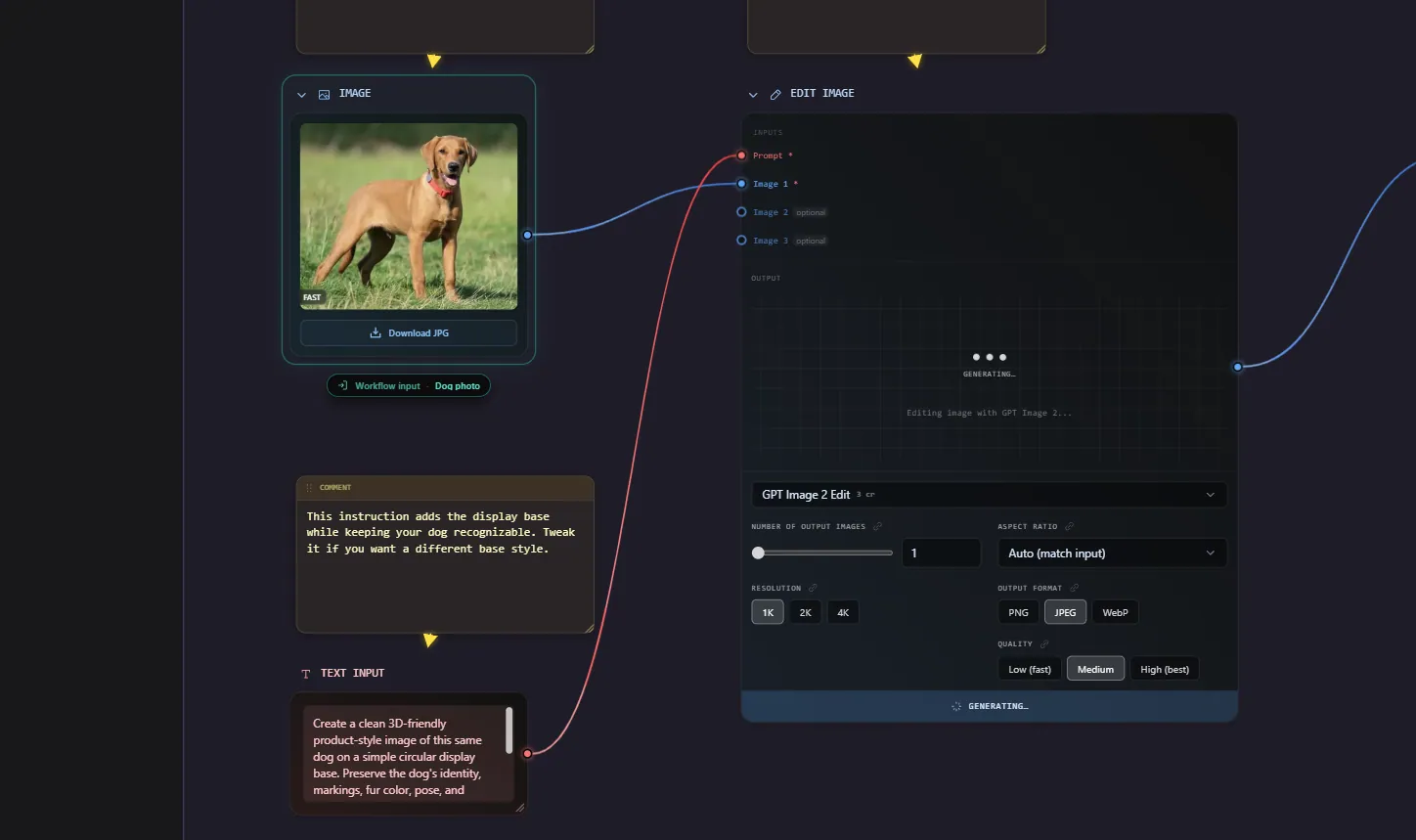
Run modes: all versus missing
When you start a run you can choose:
- All - run every node in the plan, even ones that already have a result.
- Missing - run only nodes that do not have a result yet, plus anything downstream of them (since changing an upstream step makes downstream results stale).
"Missing" is the efficient choice when you have already generated part of a pipeline and only want to fill in the rest.
The run panel
The run panel is the control center for running. It opens when you press Run or "Run flow to here". It shows:
- A plan preview: which steps will run and in what order, and a warning if any steps are missing inputs and will be skipped.
- An inputs form built from your promoted inputs (see below).
- A credit estimate for the run.
- The queue and activity of past and pending runs.
Press Run inside the panel to queue the run.
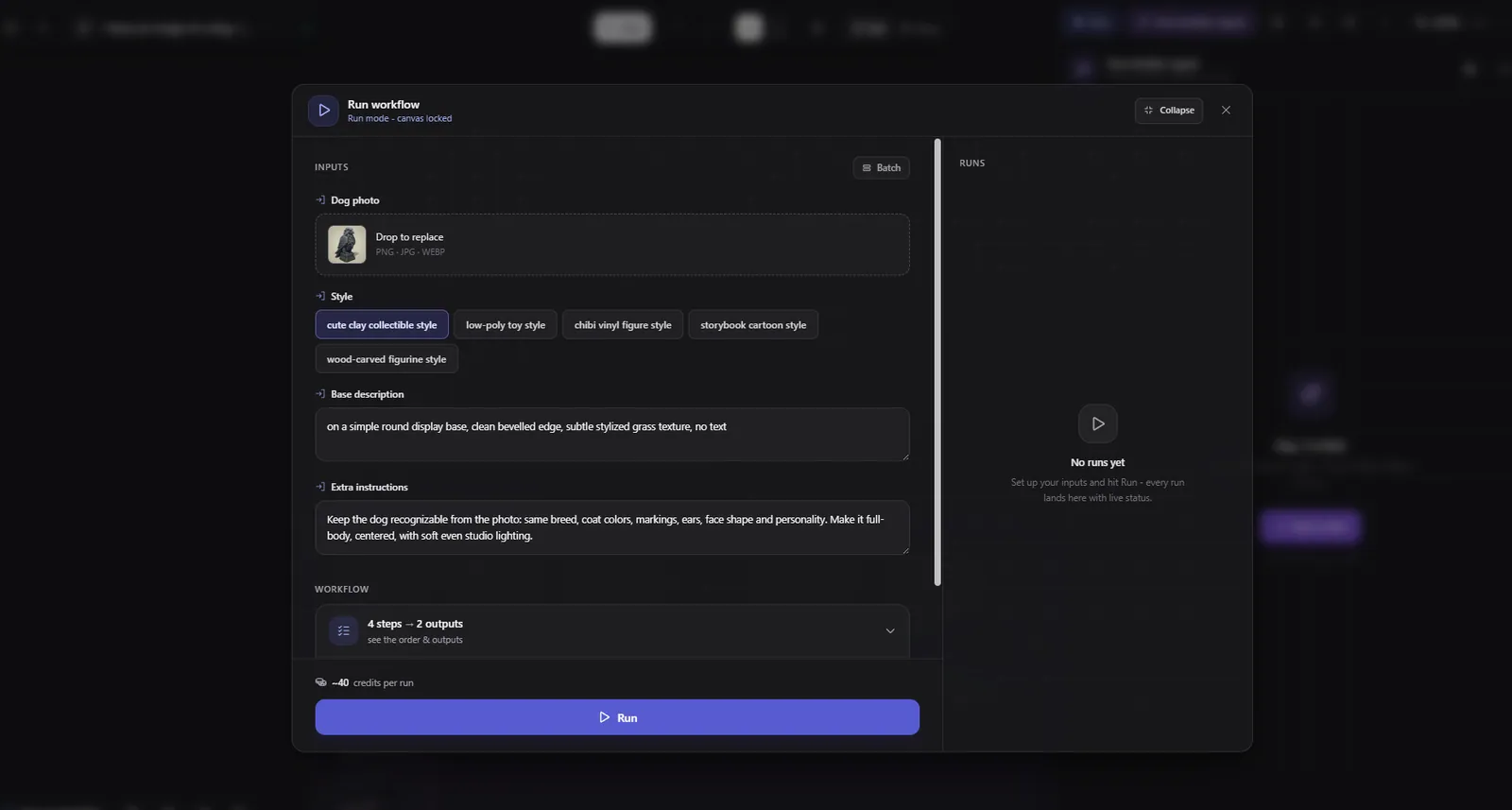
The run queue
Flow runs are queued, similar to a print queue. Each queued item captures a snapshot of the inputs you set, so you can change the inputs and queue another run without waiting for the first to finish.
- Runs execute one at a time, in order.
- You can queue multiple runs.
- Each item shows its status: queued, running, done, partial, failed, or cancelled.
- You can cancel a queued run, stop the active one, and clear finished items.
This makes it easy to fire off several variations (for example three different prompts) and let them process while you do other things.
Batch runs
A Batch node lets one step run once per item, so you can generate or transform a whole set in a single go. Wire a Batch (a collection of images, prompts, or 3D models) into a generation or derivation node and that node's Run button becomes Run N×, where N is the number of items. See the Batch node for how to fill one.
- Items run with a sensible concurrency per type (for example a couple of 3D generations at a time, more for fast image edits), starting the next as each one finishes.
- Failed items are not retried automatically, and one failure does not stop the rest.
- Progress shows live as k / N on the node and in the run monitor, and every result lands in the node's history filmstrip.
- To pass all the results to a following step, add a Collect Results after the batched node. Chaining two batched stages looks like: Batch to Style Reference to Collect to Batch to Image to 3D. See Collect Results.
Batch and credits
A batched run costs credits per item, so N items is N generations. The run panel shows the true total before you run, for example "~18 credits per run, 6 generations", and a banner notes when a run fans out into a batch. For several variations of one prompt, use the model's image count setting instead of a Batch.
Turning a flow into an app: promoted inputs and outputs
This is one of the most powerful features in Flow. You can mark certain nodes as the inputs and outputs of your pipeline, which turns the run panel into a simple form. Anyone can then run your flow by filling in the form, without touching the node graph at all.
Promoted inputs
Promote a node to make it appear as a field in the run panel. These node types can be promoted:
- Prompt nodes become text fields.
- Image nodes become image upload fields.
- Variable nodes become text, number, or choice fields.
- Switch nodes become a choice between branches.
Each promoted input gets a label and an order so the form reads logically.
Promoted outputs
Mark a generation node as a promoted output to make it a target of the run. When you run the flow, Flow runs everything needed to produce all the marked outputs. If you do not mark any outputs, Flow falls back to running the natural end points of your pipeline, so an unconfigured flow still just runs.
A flow with promoted inputs shows the green Run badge on its dashboard card and can open directly into run mode. This is how you build a reusable tool: set it up once with the right inputs and outputs, then run it (or share it) as a simple form, no wiring required.
You can promote inputs and outputs from a node's header actions, or ask the AI assistant to do it for you.
Reproducibility with seeds
To get consistent or repeatable results, add a Seed node and wire it into your generators. Set it to "fixed" to reuse the same seed every run (so the same prompt gives the same image), or "new each run" to get a fresh variation each time. When a run starts, Flow rolls the seed once and every generator sharing it uses the same value.
Results, history, and outputs
- Each generation node keeps its result on the node, with a history filmstrip of previous results. Click any thumbnail to make it the active result.
- Generating more than one image at a time sends the extra results into the filmstrip as variations.
- The Outputs drawer (top right) lists everything the flow has ever generated, with the node and run that produced each one. From there you can locate the producing node, set a result as active, add it to the canvas as a new node, or download it.
Errors and retries
Flow is built to keep a run going even when one step fails:
- If a node fails, the steps that depend on it are marked skipped rather than crashing the whole run.
- A failed node shows an error with a Retry button. Retrying starts a fresh attempt.
- If you reload the page mid run, finished results are still there, and any steps still in progress carry on where they left off.
- At the end of a run you get a summary, for example "Flow complete, 3 generated, 1 failed, 1 skipped".
Frequently Asked Questions
Running a single node (the Run node bar at the bottom of a node) executes just that one step with its current inputs. Running the flow (the Run button top right) executes the whole pipeline in dependency order, ending at your outputs. There is also "Run flow to here" in a node's header, which runs everything up to and including that node.
It follows your wires and works out which steps depend on which, then runs them in the right order so everything a node needs is ready before that node runs. This is automatic. If your wiring accidentally forms a loop, Flow refuses to run rather than getting stuck.
Yes. Flow has a run queue, so you can line up several runs. Each queued run snapshots the inputs you set, so you can change a prompt or image and queue another run immediately. Runs execute one at a time, and you can cancel queued ones or stop the active one.
Use a Batch node. Put your images, prompts, or 3D models into it (upload them or wire sources in), then connect it to the generation or derivation node, which then runs once per item. Add a Collect Results after it to gather all the outputs. See Batch runs. For several variations of a single prompt, use the model's image count setting instead.
Missing mode runs only the nodes that do not have a result yet, plus anything downstream of them. It is the efficient choice when part of your pipeline is already generated and you only want to complete the rest. All mode reruns everything regardless of existing results.
Promote the inputs and outputs. Mark your Prompt, Image, Variable, or Switch nodes as promoted inputs (they become form fields in the run panel) and mark your final generation nodes as promoted outputs. The flow can then be run as a simple form. Flows set up this way show a green Run badge on their dashboard card.
A step is skipped when something it depends on failed, or when it is missing a required input. Flow cascades a skip downstream so a single failure does not crash the whole run. Check the failed node's error message, fix the input or retry that node, then run again in missing mode to fill in the rest.
No. Bypassed nodes and viewer nodes do not execute; Flow looks through them to the real upstream producer. A switch does not run either, it just routes one branch through. In manual mode only the selected branch of a switch is executed during a run.
Nodes Reference
Reference for every node in Flow: how handles and data types work, plus input, generation, image, 3D, logic, viewer and organization nodes.
AI Assistant (Bob)
Bob is the AI assistant inside Flow. Describe the pipeline you want and Bob builds it, edits nodes, rewires connections and answers questions.