AI Material Generator
Generate PBR material maps from text, photos or existing images: base color, normal, roughness, metalness and height maps in one set.
The AI Material Generator creates full PBR material map sets from text, photos, or existing images. You get base color, normal, roughness, metalness, and height maps, all ready for use in any 3D engine or design tool.
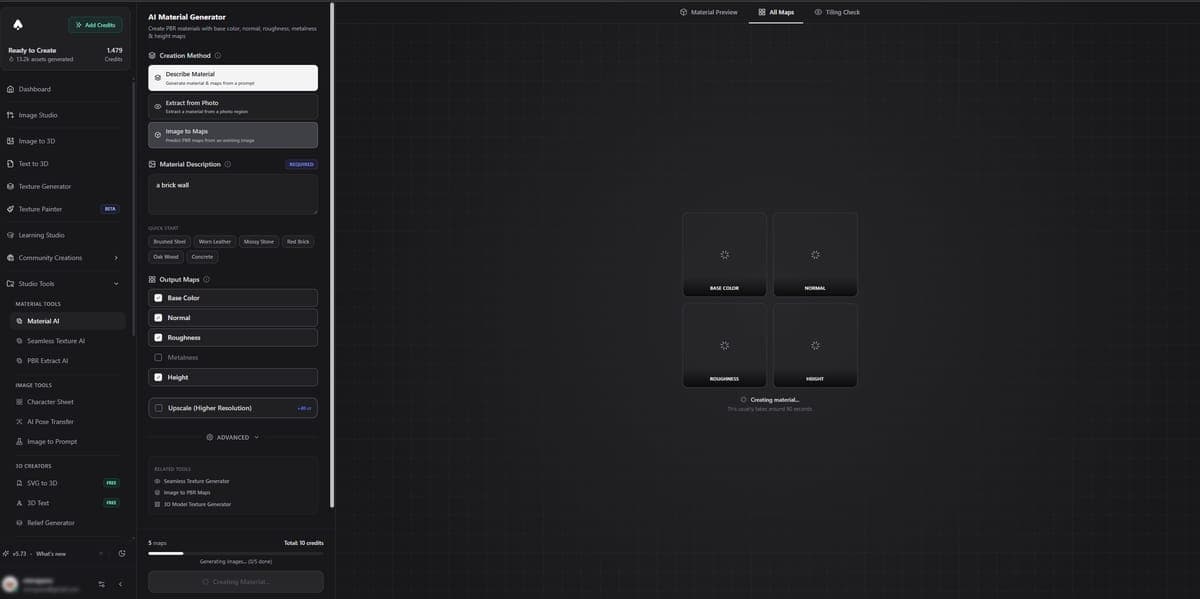
Three Modes
| Mode | What it does | Credits |
|---|---|---|
| Describe Material | Type a text description and get a full PBR material set | 10 |
| Extract from Photo | Upload a photo, describe a region, and extract that surface as a material | 15 |
| Image to Maps | Upload a texture image and get PBR maps generated from it | 7 |
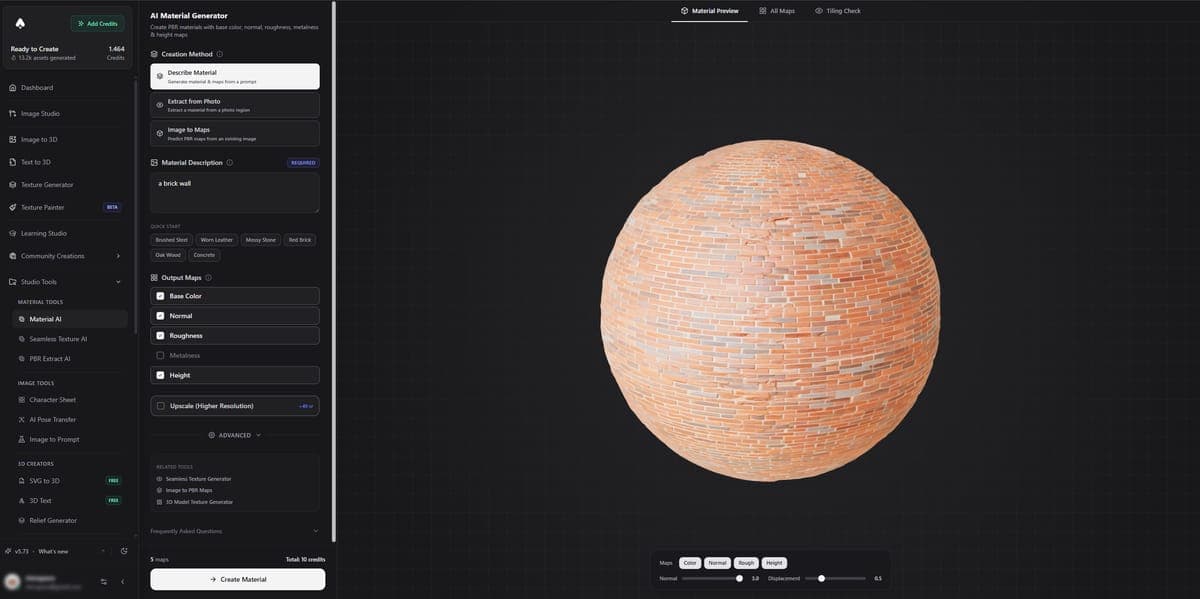
PBR Maps Generated
Every generation produces up to five maps:
- Base Color - the diffuse color of the surface
- Normal - surface detail that affects lighting without changing geometry
- Roughness - controls how matte or glossy the surface appears
- Metalness - defines which areas are metallic vs non-metallic
- Height - depth information for displacement and parallax effects
Each map can be downloaded individually.
Settings
- Tiling direction - Both, Horizontal, or Vertical
- Output format - PNG, JPEG, or WebP
- Per-map toggles - enable or disable individual maps
- Seed - lock in a value for reproducible results
- Upscale - higher resolution output (+40 credits, paid plans only)
- Material presets - starting points like Brushed Steel, Worn Leather, Mossy Stone, and more
Preview Tabs
The tool has three preview tabs so you can inspect results before downloading:
- Material Preview - a 3D sphere with all maps applied, showing how the material looks on a surface
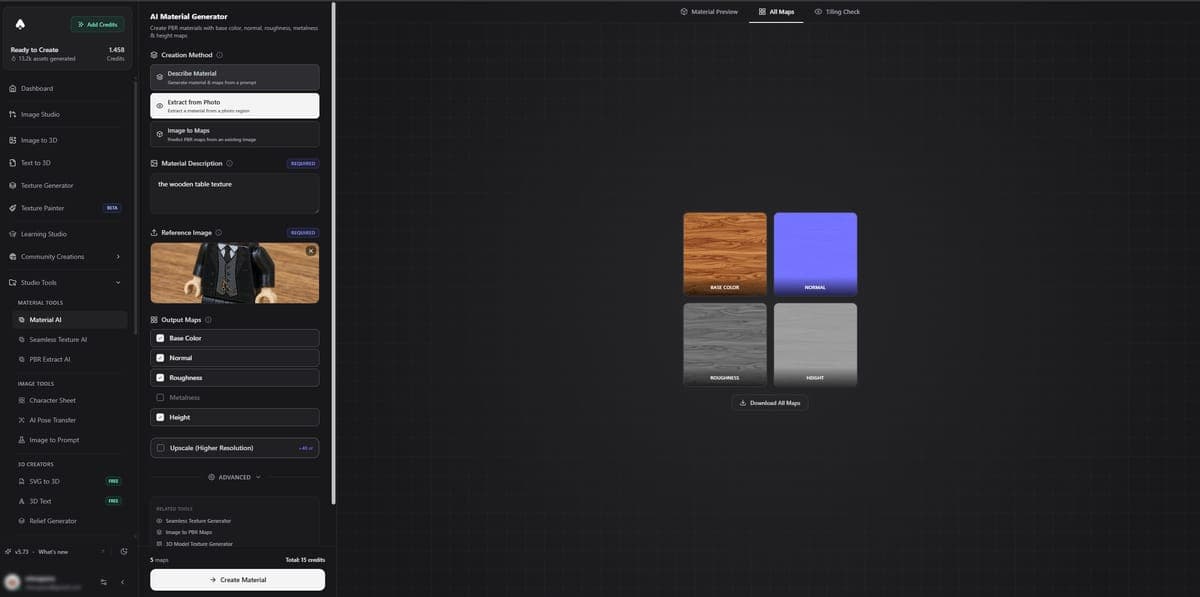
- All Maps - a grid view of each individual map side by side
- Tiling Check - a seamless repeat preview to verify the material tiles cleanly
Tips
- Use Describe Material when you want to create an original material from your imagination. Just type what you want and the AI builds it.
- Use Extract from Photo when you have a real-world surface you want to replicate. Upload a photo of brick, wood, fabric, or any surface and describe which part to extract.
- Use Image to Maps when you already have a base color texture and need the other PBR maps (normal, roughness, metalness, height) generated from it.
- Material presets are a great starting point. Pick one that is close to what you need, then customize the description to get exactly what you want.
Access
Free users can generate materials and preview results. Downloads are locked to paid plans.
Related Tools
- Apply generated materials to 3D models using the Texture Painter or Texture Generator
- Need a tileable texture instead? Use the Seamless Texture Generator
- Need PBR maps from an existing image? Try PBR Extract
- Generate 3D models to apply materials to with Image to 3D or Text to 3D
Frequently Asked Questions
Free users can generate materials and preview all PBR maps in 3D AI Studio. Downloading the map files requires a paid plan. Generation costs range from 7 to 15 credits depending on the mode, with "Describe Material" at 10 credits and "Extract from Photo" at 15.
The Material Generator in 3D AI Studio produces five maps: base color, normal, roughness, metalness, and height. You can toggle individual maps on or off before generating, and each map downloads as a separate image file in PNG, JPEG, or WebP format.
Yes. Use the "Extract from Photo" mode in 3D AI Studio to upload a photo of any surface, like brick, wood, fabric, or metal. Describe which region you want extracted, and the AI turns it into a tileable PBR material set with all five maps.
Download the individual map files and plug them into your material shader. In Blender, connect base color to the Principled BSDF color input, normal to Normal Map node, roughness to Roughness, metalness to Metallic, and height to a Displacement node. Materials generated in 3D AI Studio follow standard PBR conventions, so they work in any engine.
Both tools in 3D AI Studio produce PBR map sets. The Material Generator has three modes including photo extraction and is more general purpose. The Seamless Texture Generator is specifically optimized for tiling quality and includes a repeat preview. If you need textures for large repeating surfaces like floors or walls, Seamless is the better choice.
Yes. 3D AI Studio offers an upscale option that produces higher resolution maps for an additional 40 credits. This feature is available on paid plans only and works with any of the three generation modes.
Tips and troubleshooting
Fixes for common Texture Painter problems: you can't paint, the painter is slow, the 3D view doesn't start, the sign-in prompt, stretched textures and seams, AI results that miss, and credits.
Seamless Texture AI
Generate tileable PBR texture sets from text descriptions or images. All maps tile seamlessly with no visible seams or repetition artifacts.