Tips and Troubleshooting
Fixes for common Texture Painter problems: you can't paint, the painter is slow, the 3D view doesn't start, the sign-in prompt, stretched textures and seams, AI results that miss, and credits.
This page collects the problems people run into most often, with the quickest fix for each. Find your symptom in the headings below.
I can't paint
Work through these in order:
- Start the drag on the model. A drag that starts on the background turns the view instead of painting.
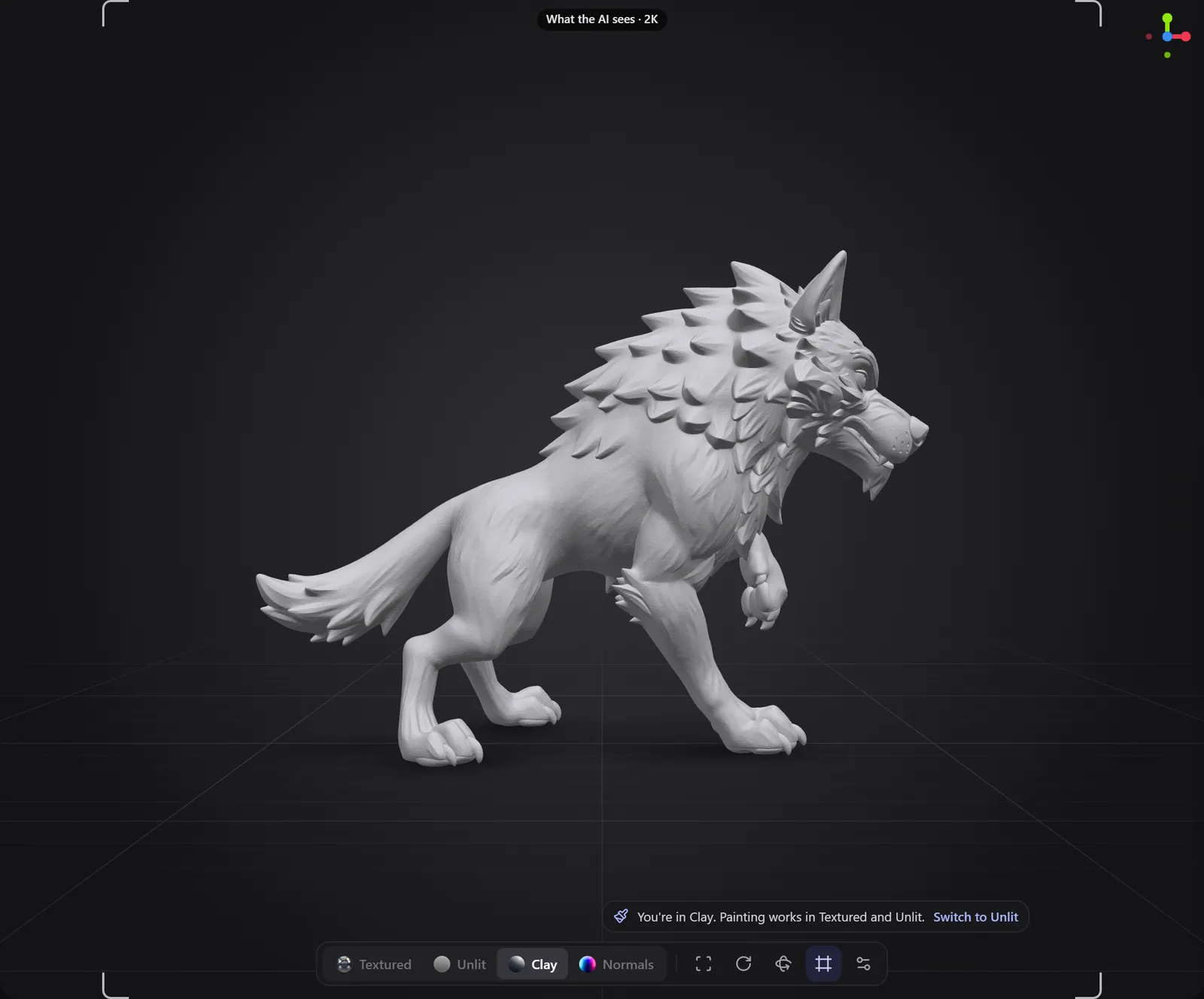
- Check the shading. You can only paint in Textured and Unlit. In Clay or Normals, the 3D view says so and offers Switch to Unlit.
- Check the selected layer. The 3D view tells you what is wrong and offers a fix:
- The base texture can't be painted: click Paint layer to add a layer to paint on.
- Pick a layer in the group to paint on it: select a layer inside the group, or click Paint layer.
- "…" is hidden: click Show.
- "…" is locked: click Unlock.
- On an AI layer, the brush reveals instead of painting colour. The options bar says Reveals the AI layer. Click Paint colour to add a paint layer for your colour.
- Check the opacity. With a low Opacity, strokes are faint. Raise it or paint over the spot again.
The painter is slow
- Lower the texture size. Click the size button in the top bar (for example 4K) and pick 2K or 1K. Your layers are kept. 8K needs a strong graphics card.
- Close other heavy tabs and apps that use the graphics card, such as games, video editors and other 3D tools.
- Turn on graphics acceleration in your browser settings (see below).
- On a laptop with two graphics chips, make sure the browser uses the stronger one. If the painter shows Graphics Adapter Detection with Likely using integrated GPU, its Open Windows Graphics Settings button takes you to the right setting on Windows.
- Large models (many millions of triangles) load and save more slowly. A lighter version from Remesh paints faster.
The 3D view doesn't start
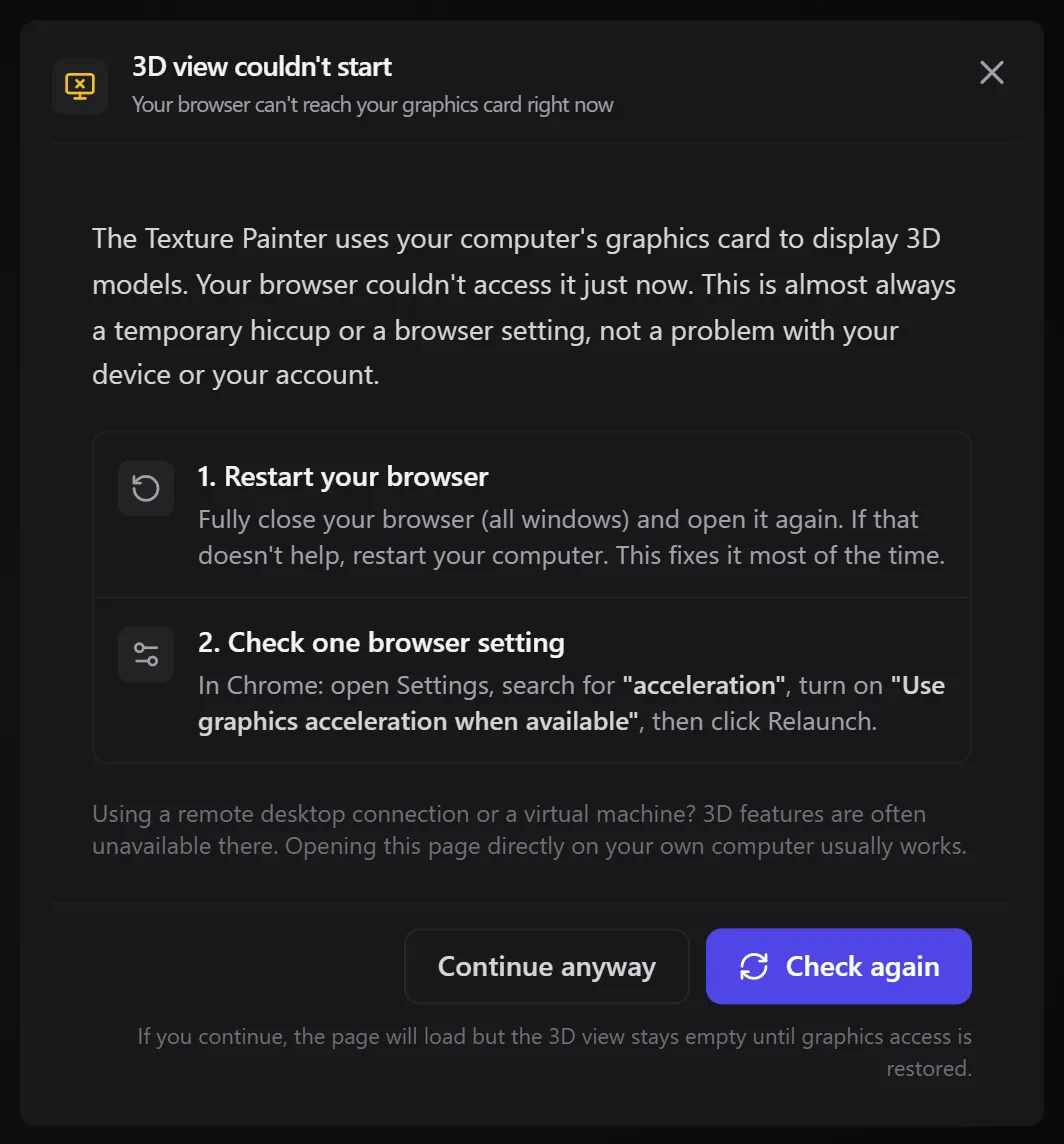
If you see 3D view couldn't start, your browser can't reach your graphics card right now.
- Restart your browser completely (close all its windows). If that doesn't help, restart your computer.
- Check one browser setting: in Chrome or Edge, open Settings, search for acceleration, turn on Use graphics acceleration when available, then click Relaunch.
- Click Check again.
3D features are often unavailable over a remote desktop connection or in a virtual machine. Open the page directly on your own computer.
The app asks me to sign in
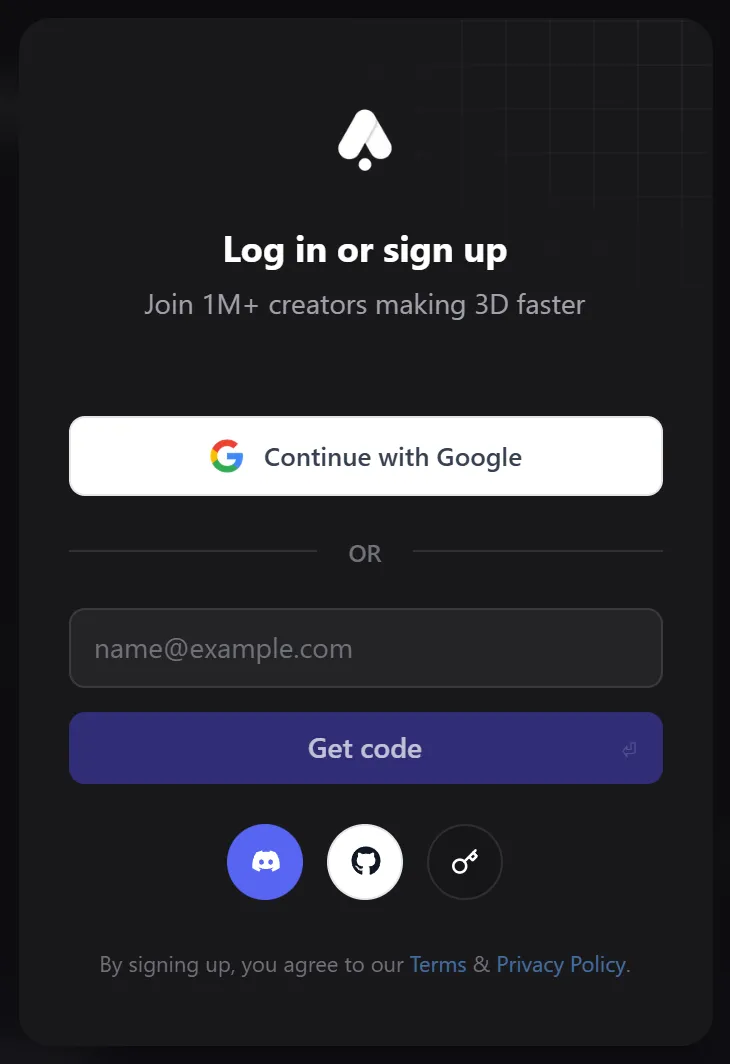
The Texture Painter needs a free 3D AI Studio account. Sign in or sign up in the Log in or sign up dialog, and the painter opens.
Textures look stretched or have seams
How paint lands on a model depends on its UVs, the way the model's surface is unfolded flat. If the UVs are stretched, too small or missing, paint looks blurry, smeared or broken along seams.
- Look at the Texture map in the 2D view. Tiny or squashed pieces mean low detail there.
- Use Normals shading to spot seams on the model.
- Raise the texture size for more detail on small pieces.
- Fix the UVs: run UV Unfold on the model, then paint it again.
- Paint across seams slowly with a soft brush, from a view that looks straight at the surface.
AI results not as expected
- Check what the AI sees. Switch the 2D view to What the AI sees. The AI only repaints what is inside that square, in your current shading.
- Frame one side straight on. Snap to a front or side view with
Alt+Shift+ drag, and fill the square with the area you want to change. - Describe surfaces, not shapes. Colours, materials and finishes work; adding or moving parts doesn't. See Write prompts that work.
- Say what to keep: add keep everything else the same.
- Leave Keep the shape and angle on in More options, so the AI doesn't change the angle or shape.
- Try another model or a higher quality. Test ideas with Qwen Edit Lightning, then finish with a sharper model.
- Use only the good parts. AI layers start hidden: reveal with the brush only where the result works, or use Apply with smooth edges and lower Coverage.
- Back and sides don't match? Use All sides (360°) for changes that should look the same all around.
Generate doesn't work
- The button reads Upgrade to generate: AI painting needs a paid plan.
- The button is dimmed: write a prompt first.
- An error message appears: for example when you are out of credits. No layer is added. Click the credit balance in the top bar to get more credits.
Related
Frequently Asked Questions
You started the drag on the background, or the shading is Clay or Normals. Start on the model, in Textured or Unlit shading.
Yes, at the default 4K texture size and below. If it feels slow, lower the texture size to 2K.
The texture size is too low for how close you look, or the model's UVs give that area little space. Raise the texture size, or improve the UVs with UV Unfold.