Saving and Sessions
How the Texture Painter saves your work: autosave, the save status, the start screen, cloud sessions on paid plans and browser sessions on the free plan, version history, trash, several devices and teammates, and opening a model from your dashboard.
Every model you paint becomes a session: the model, all layers and masks, AI results and your settings. Sessions save on their own, so you can close the tab and pick up later exactly where you stopped. This page explains how saving works, where your sessions are kept, and how to find, restore and manage them.
Your work saves itself
The painter saves a few seconds after you stop painting, and at least every 30 seconds while you keep going. It never saves in the middle of a stroke, and it also saves when you switch to another tab. Each save goes to your browser first, then to the cloud on paid plans, so a dropped connection or a closed tab never costs you work.
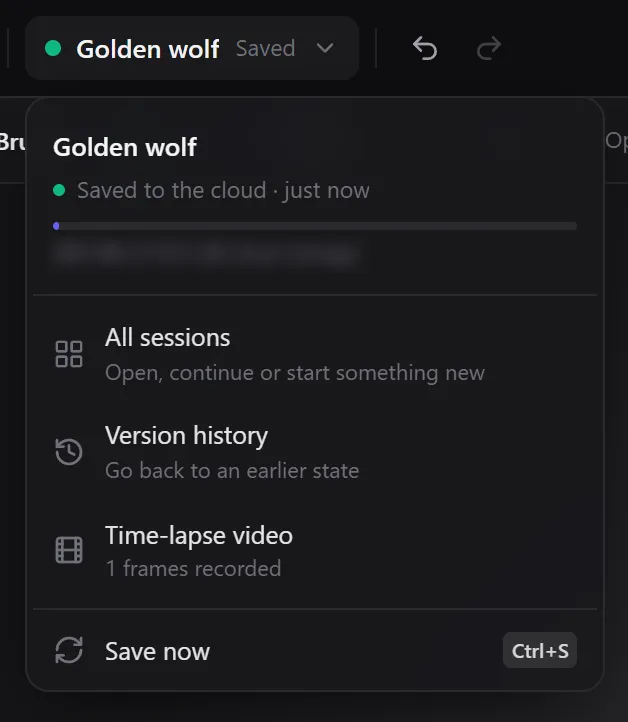
To save right away, press Ctrl+S (Cmd+S on a Mac) or choose Save now in the session menu. If you try to leave with unsaved changes, your browser asks you to confirm.
The word next to the session name shows the current state:
| Status | Meaning |
|---|---|
| Autosave | Nothing to save yet |
| Edited | Saving when you pause |
| Saving… | Your latest changes are being saved |
| Saved | Everything is in the cloud |
| On device | Saved in this browser |
| Offline | Safe in this browser; syncs when you are back online |
| Not synced | Safe in this browser; the painter retries shortly |
| Read-only | Someone else is editing; your changes stay in this browser |
Click the session name for the session menu: rename the session (up to 120 characters), see the cloud storage you use, and open All sessions, Version history or Time-lapse video.
Cloud sessions and browser sessions
| Paid plans | Free plan | |
|---|---|---|
| Autosave | Yes | Yes |
| Where it is stored | Your cloud sessions, plus a backup in this browser | This browser (up to 6 sessions) |
| Continue on another device | Yes | No |
| Version history | Yes | No |
| Time-lapse videos | Yes | No |
| Shared with your team workspace | Yes | No |
Each paid plan includes cloud storage and a maximum number of sessions. The bar at the bottom of the start screen shows your use. When storage is full, the painter keeps saving to your browser and asks you to free up space. Models larger than 300 MB can be painted, but are saved in this browser only.
The start screen
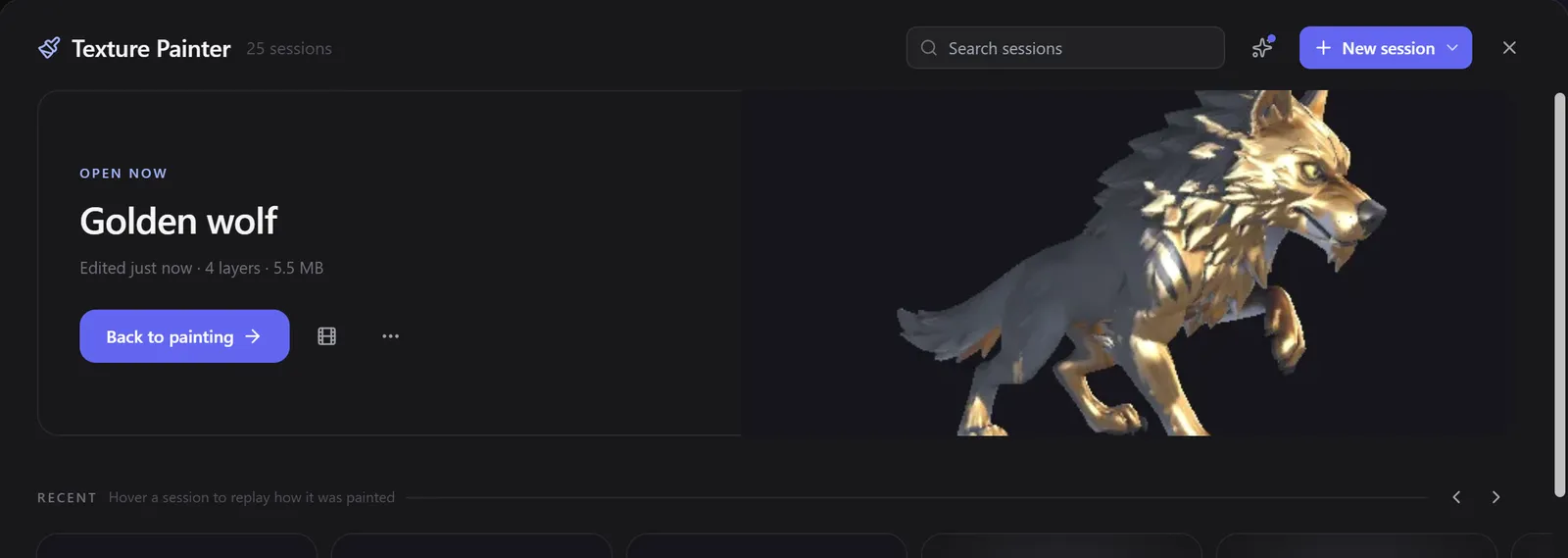
Click Sessions at the top left (or open the painter) to see the start screen:
- Continue where you left off opens your most recent session.
- Search sessions finds a session by name.
- New session starts with Upload a model, From your dashboard or Try a sample. You can also drop a model file anywhere in the window.
- Shelves sort your sessions: Recent, With your team, Deleting soon, On this device and Trash.
- Hover a session to replay how it was painted.
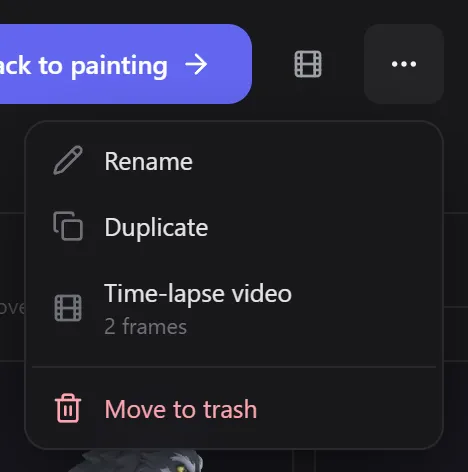
Open a card's ⋯ menu to Rename, Duplicate, make a Time-lapse video or Move to trash a session.
Open a model from your dashboard
In your dashboard, open a model and choose Texture Painter. If you painted that model before, the painter asks whether to Continue one of those sessions or Start a new session.
What is saved
- The model, including turns you made with Rotate the model
- Every layer with its name, visibility, lock, opacity and blend mode, and layer groups
- Painted pixels and AI layer masks
- AI and decal layers, with their images and reference images
- Material settings and the camera view
Version history
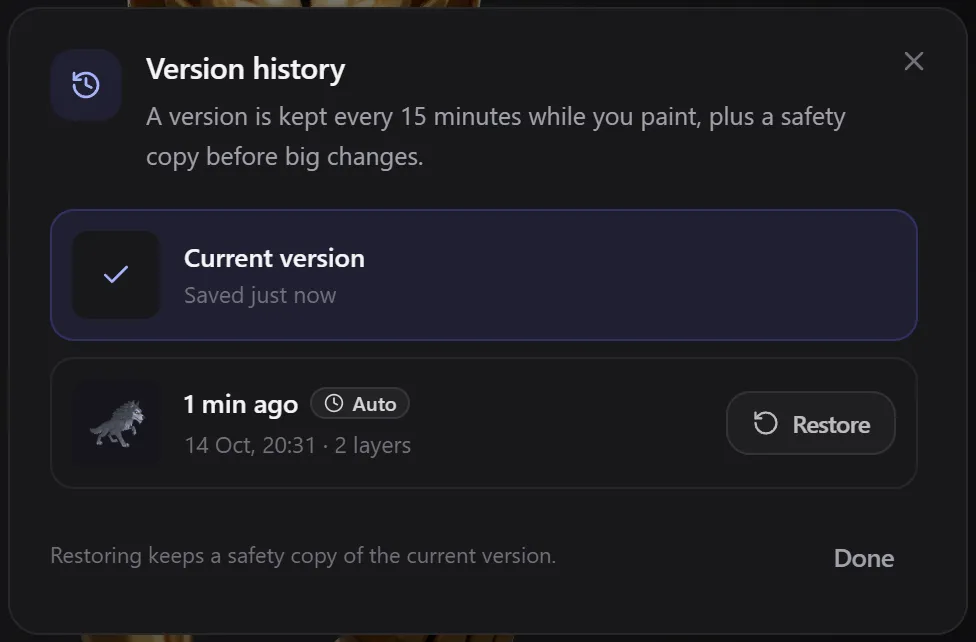
On cloud sessions, a version is kept every 15 minutes while you paint, plus a safety copy before big changes such as restoring an older version.
To go back: click the session name, choose Version history, click Restore on a version, then Confirm. Your current state is kept as a safety copy, so restoring can always be undone.
Several devices and teammates
Only one person can edit a session at a time, so changes never overwrite each other.
- You on another device or tab: opening the session there moves editing to the new place. The old tab becomes read-only and offers Take back editing or Keep as a copy.
- A teammate is editing: choose Open a copy, Take over editing or Just look.
The address in your browser always points to the open session. Teammates who have access to the session can open it from that link.
Recover unsaved work
If the browser closed before a change reached the cloud, the painter finds it the next time you open the session and asks whether to Restore my changes or Use the cloud version. Restoring keeps the cloud version in version history.
Trash and automatic deletion
- Trash: deleted sessions stay in the Trash shelf for 7 days. Restore them from there, or Delete forever.
- Automatic deletion: sessions you haven't opened for a year are deleted, and every session is deleted two years after it was created. A session due for deletion within 30 days shows Deletes in … days · open to keep. Opening it resets the one-year timer.
Sessions are a working space, not an archive. To keep a finished model long term, export it or choose Save to my dashboard in Export.
Related
Frequently Asked Questions
No. The painter saves on its own. Press Ctrl+S or choose Save now if you want to save before closing the tab.
Your cloud sessions stay available to open, but cloud saving pauses and new changes are kept in your browser. Upgrading again turns cloud saving back on.
Sessions created while your team workspace is active belong to the team and appear under With your team for its members. Sessions in your personal workspace are only visible to you.
No. Sessions in your browser are tied to the account that made them and only shown to that account.
The 2D view
The Texture Painter's 2D view shows the selected layer on the model, the selected layer flat, the unfolded texture map, exactly what the AI sees, and a running generation. How to open, resize and use each mode.
Time-lapse videos
Turn a Texture Painter cloud session into a shareable MP4: the painter records your model from the front and back while you work, and renders a time-lapse in square, 16:9 or 9:16 for Reels and TikTok.