The 2D View
The Texture Painter's 2D view shows the selected layer on the model, the selected layer flat, the unfolded texture map, exactly what the AI sees, and a running generation. How to open, resize and use each mode.
The 2D view sits next to the 3D view and shows one thing at a time: the selected layer on its own, the flat texture, or exactly what the AI will receive. Use it to judge a single layer, check an AI result before you reveal it, or line up a generation. This page explains each mode.
Open, close and resize
- Click 2D view at the right of the options bar, or press
\. It is open by default. - Close it with the × at its top right.
- Drag the divider between the 3D view and the 2D view to resize them. Double-click the divider to reset.
Choose what the 2D view shows
Click the mode name at the top left of the 2D view to switch. Follow what I'm doing lets the 2D view switch on its own: for example, it shows the generation while one runs.
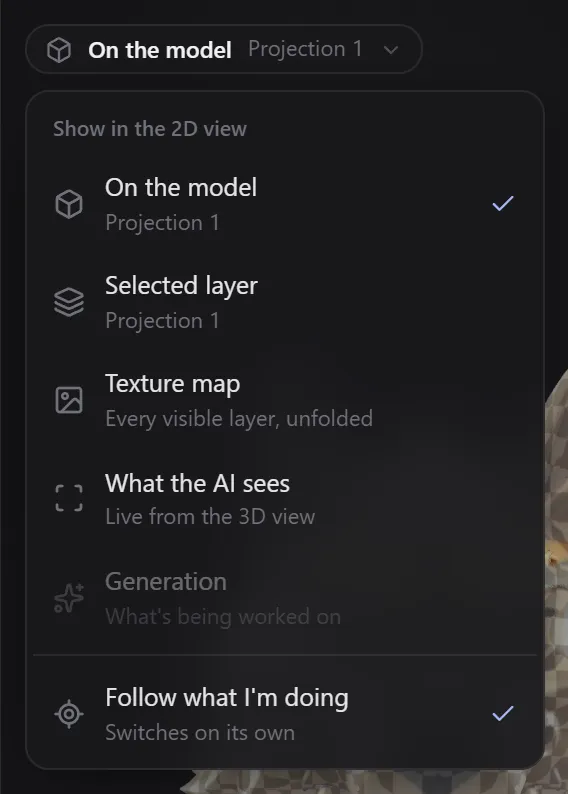
| Mode | Shows | Use it to |
|---|---|---|
| On the model | The selected layer alone, on the model, turning and zooming with your view | Judge one layer without the others in the way |
| Selected layer | Only the selected layer, flat | Look at a layer's image; for AI layers, compare before and after |
| Texture map | Every visible layer, unfolded flat | Check the whole texture and its seams |
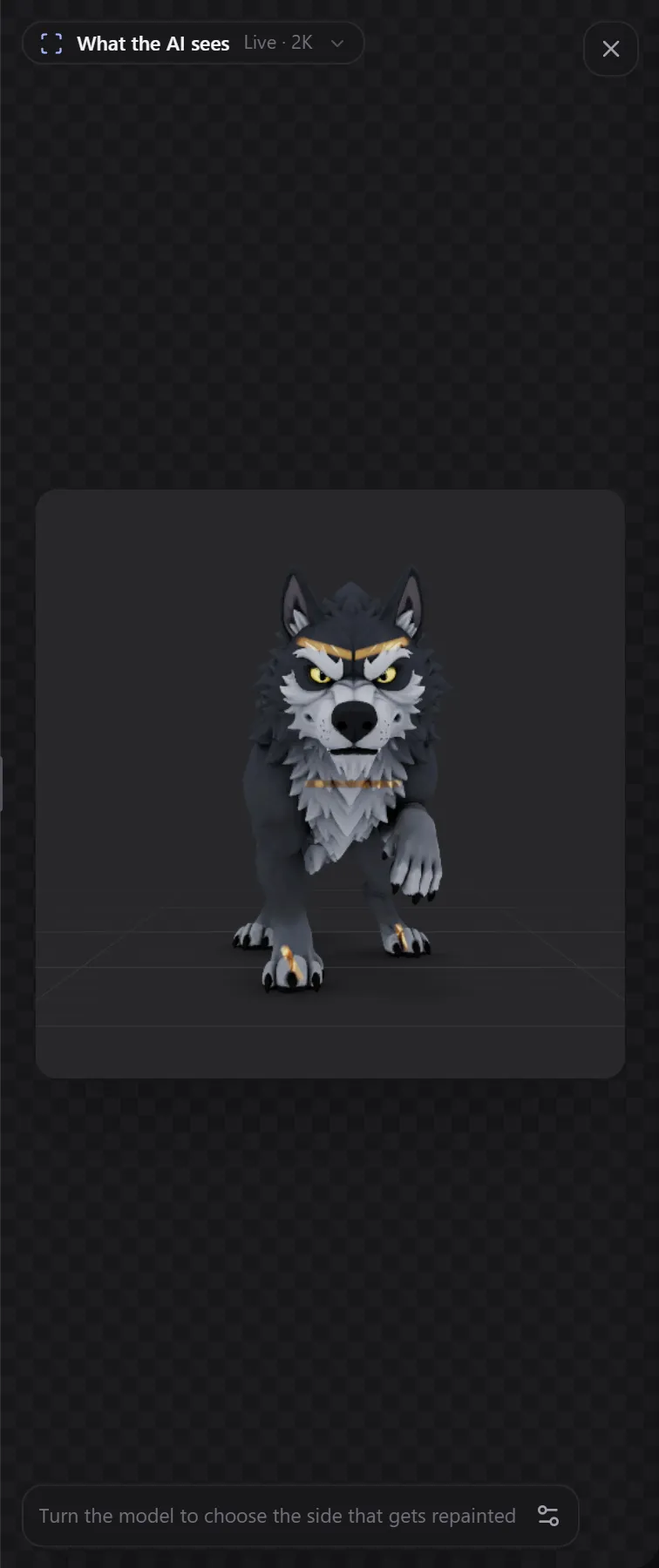
| What the AI sees | The picture the AI gets, kept up to date | Line up the view before you generate |
| Generation | The generation that is running, or the last one | Follow progress and cancel |
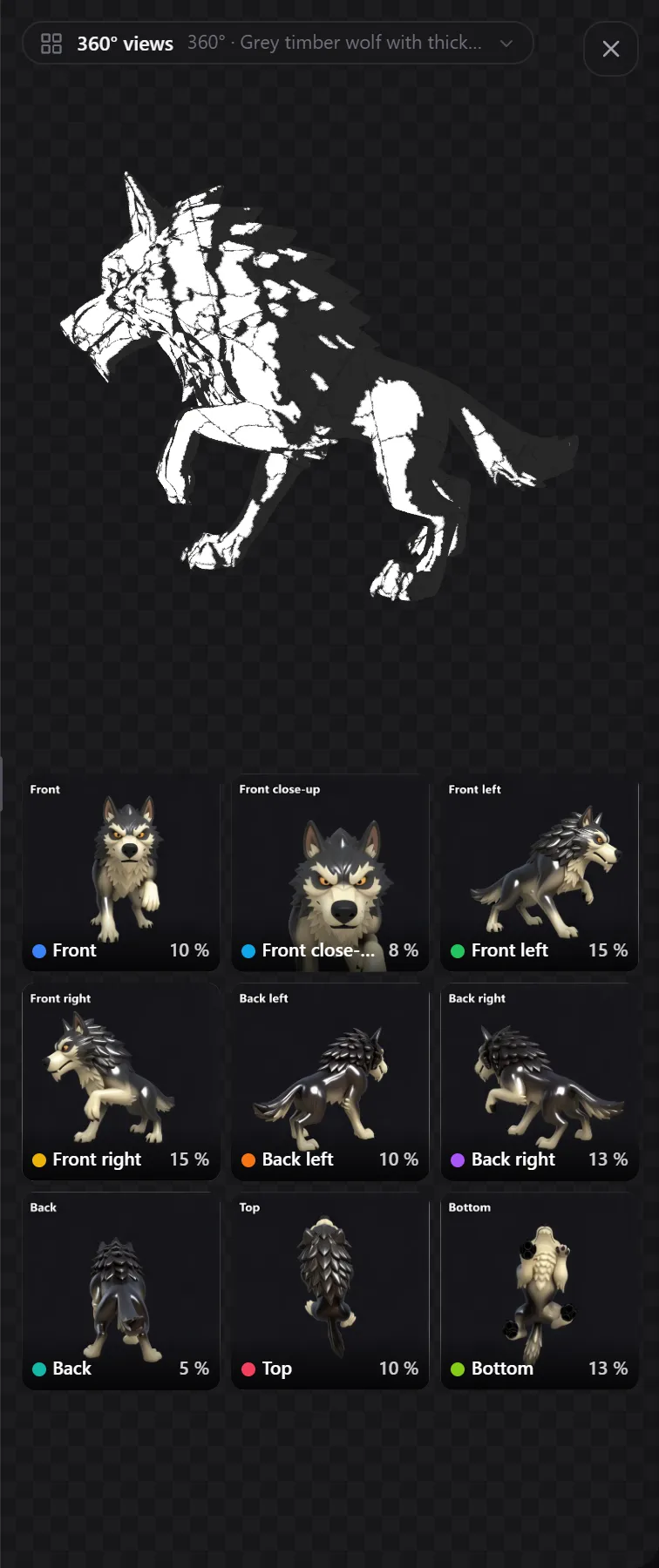
| 360° views (360° groups only) | Every view of a 360° group, and where each one lands | Find the view that painted an area |
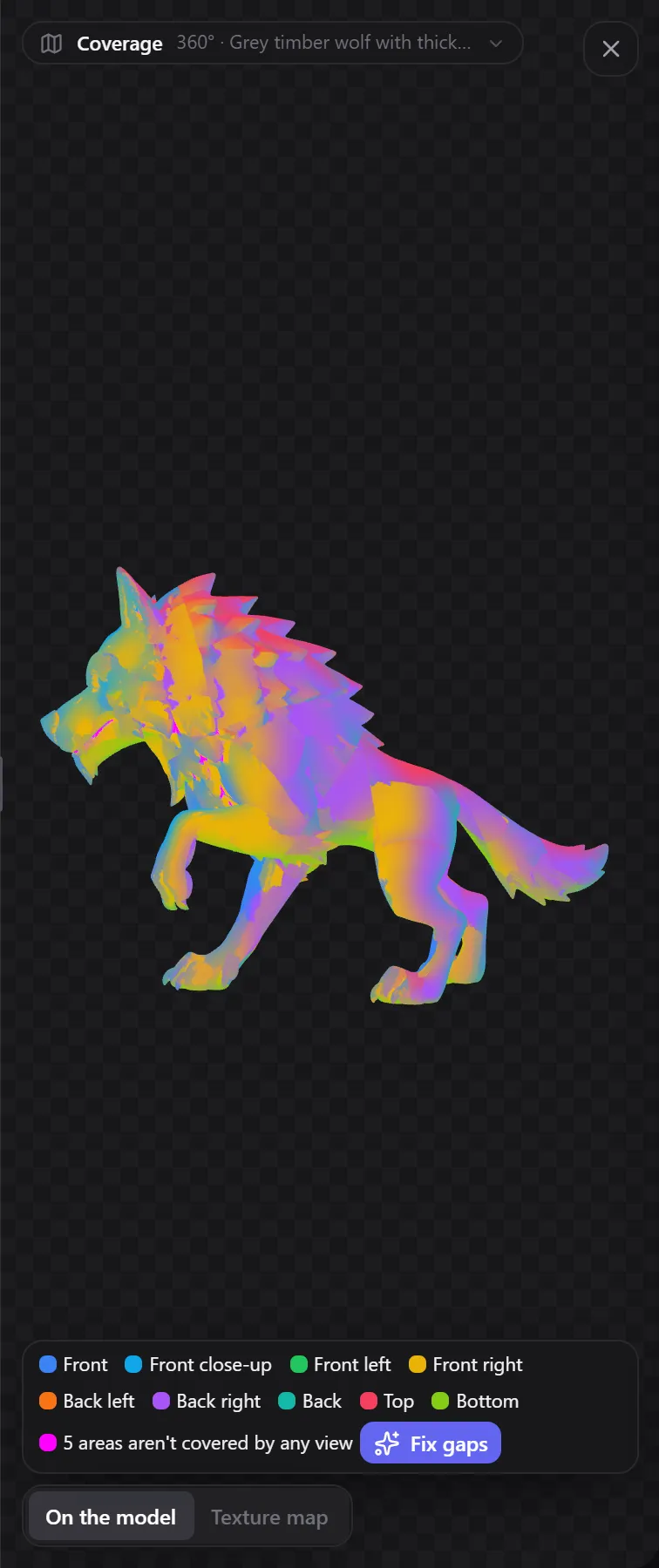
| Coverage (360° groups only) | The model coloured by the view each part comes from | Spot areas no view saw and fix them |
On the model
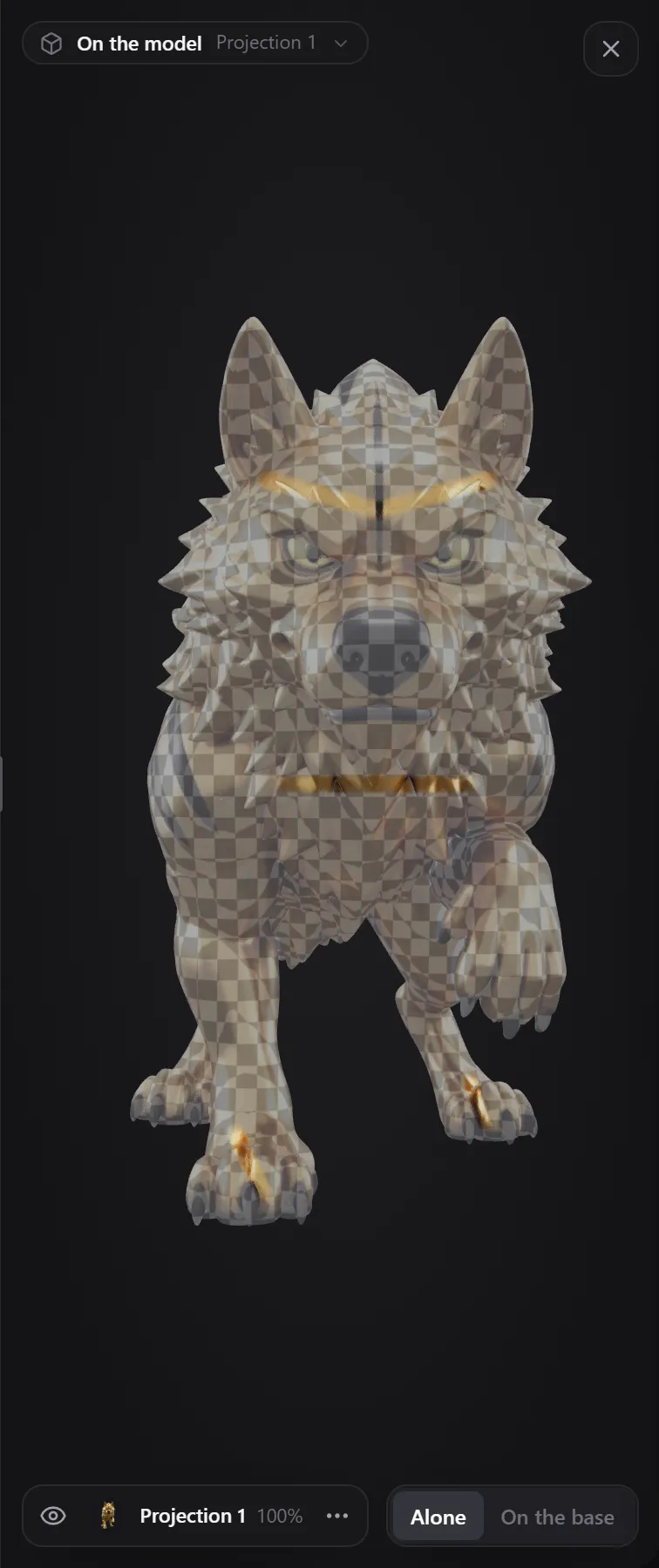
The selected layer alone on the model, turning with your 3D view. Switch between Alone (the layer on a blank model) and On the base (the layer over the original texture) at the bottom right.
Next to it you choose how close the 2D view is:
- Match zoom (default): the same spot at the same zoom as the 3D view. Zoom in on an eye to paint it, and the 2D view shows that eye up close too. If the 2D view is narrower than the 3D view, it keeps the middle of your 3D view in sight.
- Whole model: always the whole model, whatever your zoom. Use it to keep an overview while you work close up.
For an AI layer, the whole AI result shows here, including the parts you haven't revealed yet, so you can judge it before you paint it in. The 3D view shows only what you've revealed.
Selected layer
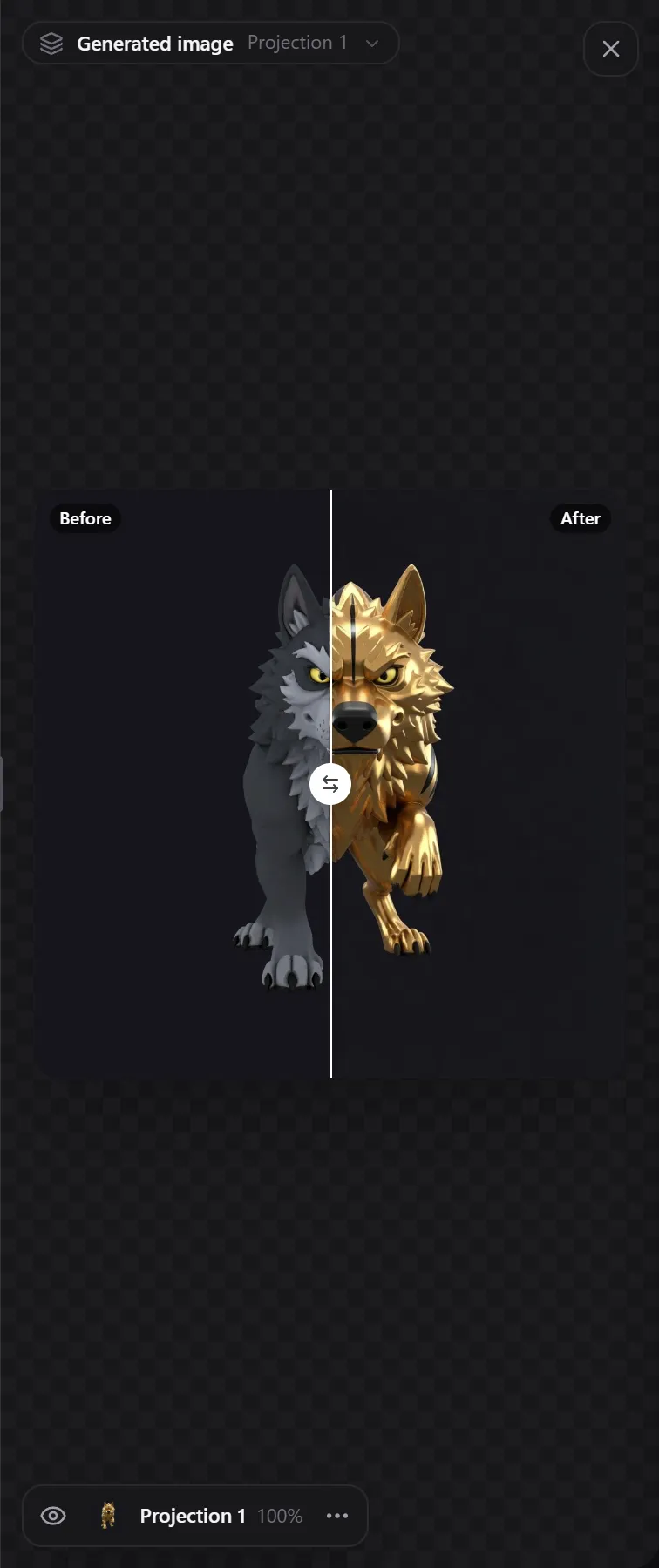
The selected layer, flat. For AI and decal layers the title reads Generated image: the image the AI returned, with a Before and After slider so you can compare it with the view it started from.
Texture map
All visible layers together, unfolded flat the way the texture is stored. Turn on UV grid to see the grid, and use Zoom (40 to 100%) to look closer.
Turn on Show UV islands (next to UV grid) to darken the space between the pieces of the texture. That space is filled with the colours at the pieces' edges (padding), so the model shows no seam lines from far away. See Padding.
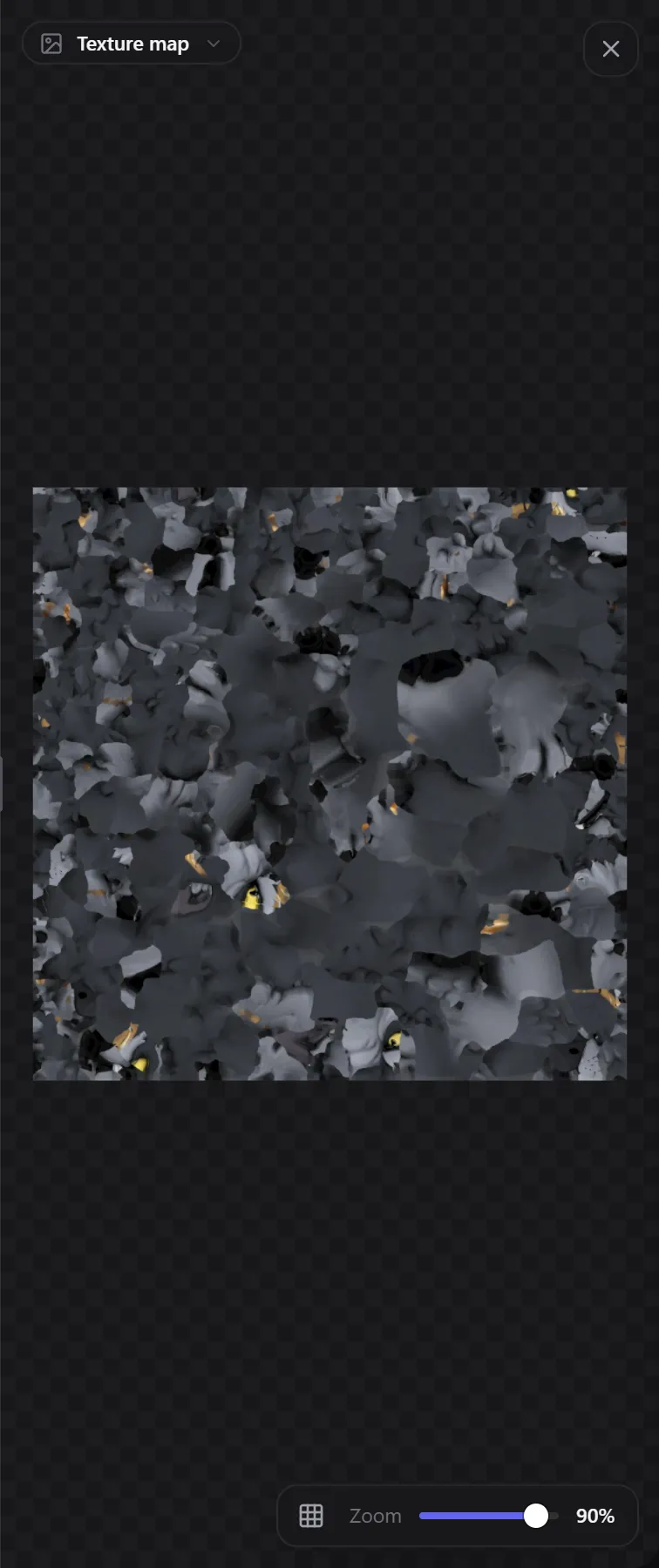
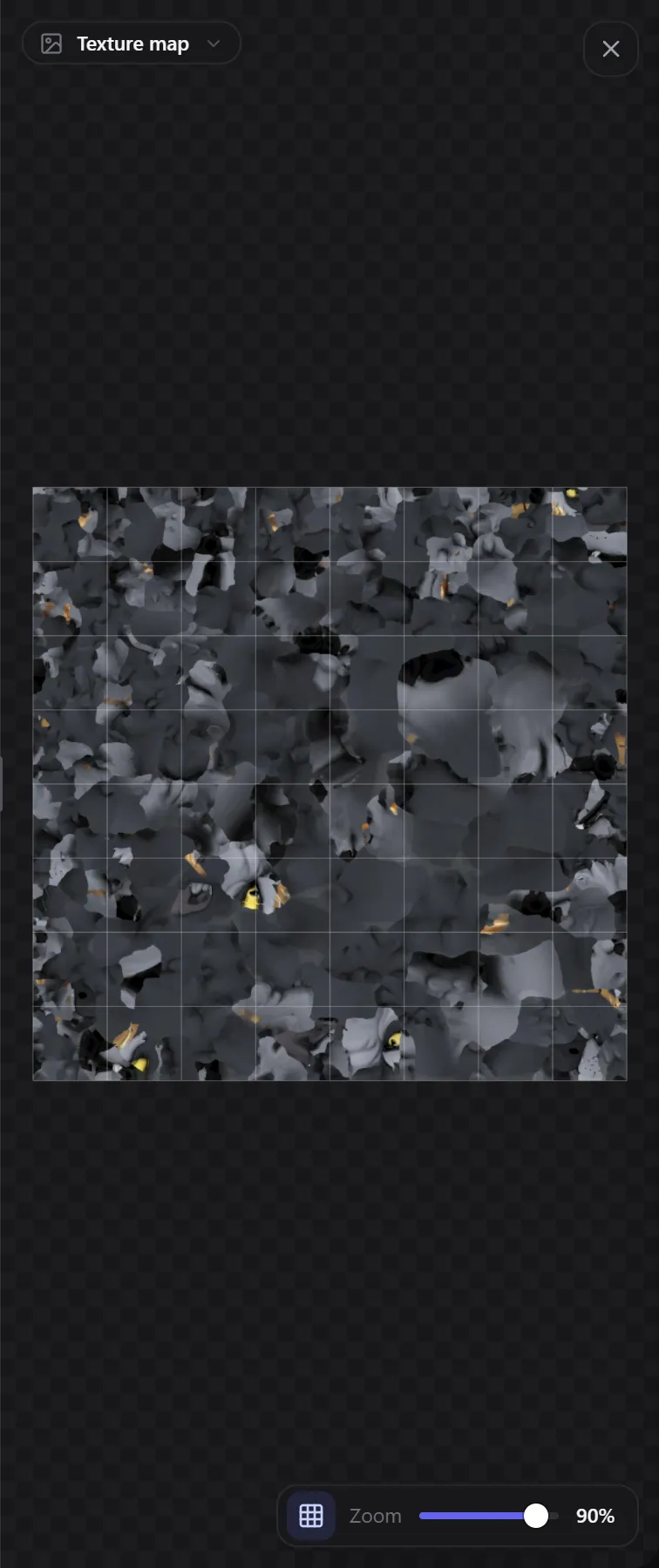
The texture map often looks like a scattered puzzle. That is normal: it is how the model's surface is unfolded. If the pieces are very small or stretched, painting can look blurry on the model. See Tips and troubleshooting.
What the AI sees
Exactly the picture the AI receives when you generate, with its size (for example Live · 2K). It follows the 3D view as you turn the model, and updates by itself when you paint, change layers or adjustments, undo, load another model or change a setting. The gear (Capture settings) changes the picture size, the background and the floor grid.
With All sides (360°) on, it shows every view the AI gets in one grid instead (for example 4 views · 2K). The views go all the way around the model, so you don't need to turn it. The gear then also has Name the views and Space around each view, which sets how large the model is in each view (see How each view is framed).
360° views and Coverage
With a 360° group or one of its views selected, two more modes appear. 360° views shows every view in a grid with the share of the model it covers: hover one to see where it lands on the model, click it to select its layer, and right-click it for Prefer this view or Use less of this view. Coverage colours the model by view and counts the areas no view saw, with Fix gaps to paint them. See All sides at once (360°).
Generation
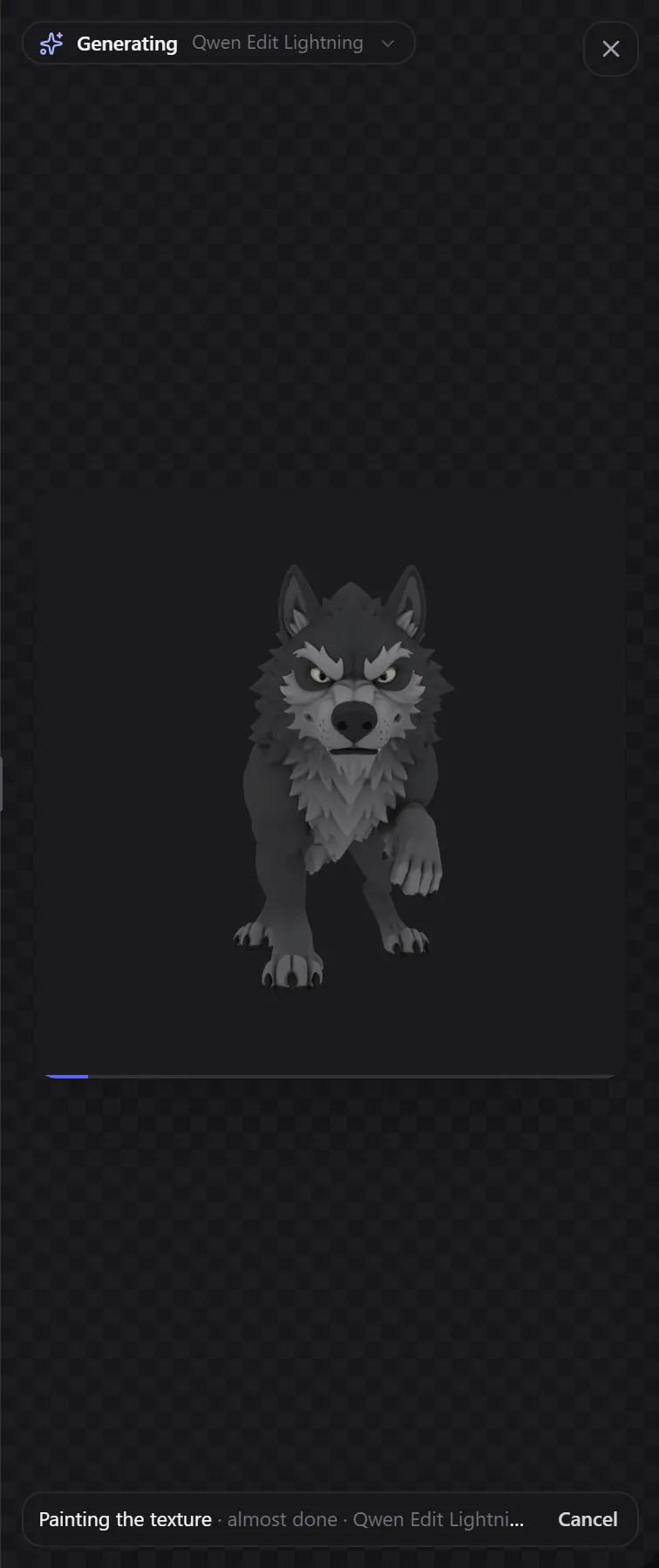
While a generation runs, this mode shows the model, the step it is on, the time left and a Cancel button. When it finishes, the result appears here.
The layer bar
At the bottom of the 2D view, the selected layer's row shows its eye, name, opacity and ⋯ menu, so you can adjust the layer you are looking at without going to Layers.
Related
Frequently Asked Questions
No. You paint in the 3D view; the 2D view is for looking at layers, the texture and what the AI sees.
New AI layers start hidden on the model. The 2D view shows the whole result so you can judge it before you reveal it with the brush or Apply with smooth edges.
Adjust colors
Change the brightness, contrast, exposure, saturation, vibrance, hue, temperature or tint of any layer in the Texture Painter without changing its pixels: adjustment layers, compare, masks, Applies to and Apply.
Saving and sessions
How the Texture Painter saves your work: autosave, the save status, the start screen, cloud sessions on paid plans and browser sessions on the free plan, version history, trash, several devices and teammates, and opening a model from your dashboard.