Keyboard Shortcuts and Gestures
Every Texture Painter keyboard shortcut and every mouse, trackpad, touch and pen gesture on one page, for Windows and Mac.
This page lists every keyboard shortcut and gesture in the Texture Painter. In the app, press ? or choose Keyboard shortcuts in Help to see the same list.
On a Mac, use Cmd wherever this page says Ctrl for a key combination (for example Cmd+Z), and Option for Alt. Single-key shortcuts don't work while you type in a text field.
Keyboard
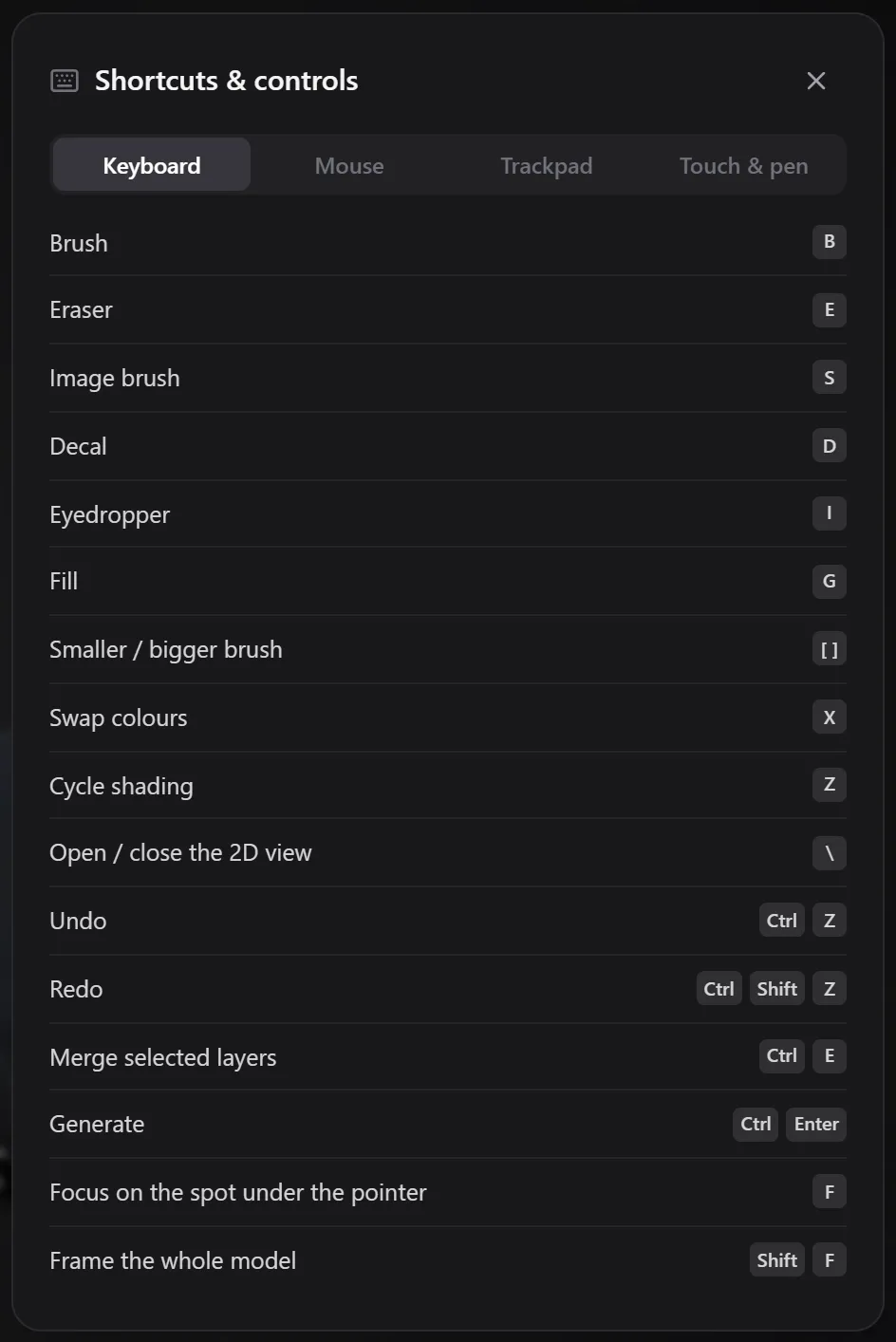
Tools and colours
| Key | Action |
|---|---|
B | Brush |
E | Eraser (press again to go back to the brush) |
S | Image brush |
P | Pattern brush |
D | Decal |
I | Eyedropper |
G | Fill |
[ / ] | Smaller / bigger brush |
X | Swap colours |
View
| Key | Action |
|---|---|
F | Focus on the spot under the pointer (over the background: frame the whole model) |
Shift+F | Frame the whole model |
Z | Cycle shading: Clay, Textured, Unlit, Normals |
\ | Open or close the 2D view |
H | Turn See through (Experimental) on or off. Hold it to cut away what's in front of the pointer until you let go. |
See through (Experimental)
These work while See through is on and asks you to click what's in the way (right after turning it on, or after Change cut).
| Key | Action |
|---|---|
| Click | Cut away what's in the way. See through stays on with the cut |
Scroll over the model, or [ / ] | Cut deeper / shallower (after Change cut) |
Shift+[ / Shift+] | Cut deeper / shallower in finer steps |
| Drag the edge of the circle | Resize Only around here |
Esc | Stop: before the first click See through turns off, after Change cut the cut stays |
Edit and save
| Key | Action |
|---|---|
Ctrl+Z | Undo |
Ctrl+Shift+Z or Ctrl+Y | Redo |
Ctrl+S | Save now |
Ctrl+Enter | Generate (in the prompt box) |
Esc | Leave the prompt box and go back to painting; close the start screen, tour or shortcut sheet |
? | Show or hide the shortcut sheet |
Layer list
These work while the layer list has focus (click an empty spot in the list first).
| Key | Action |
|---|---|
↑ / ↓ | Select the layer above / below |
Delete | Delete the selected layer |
Ctrl+C / Ctrl+X / Ctrl+V | Copy / cut / paste a layer |
Ctrl+E | Merge the selected layers, or flatten the selected group |
Adjustments
These work while the Adjustment panel is open (see Adjust colors).
| Key | Action |
|---|---|
C (hold) | Compare: see the layer without the adjustment |
← / → | On a slider: change the value by a small step (Shift: by 10) |
Esc | Close the panel |
Mouse
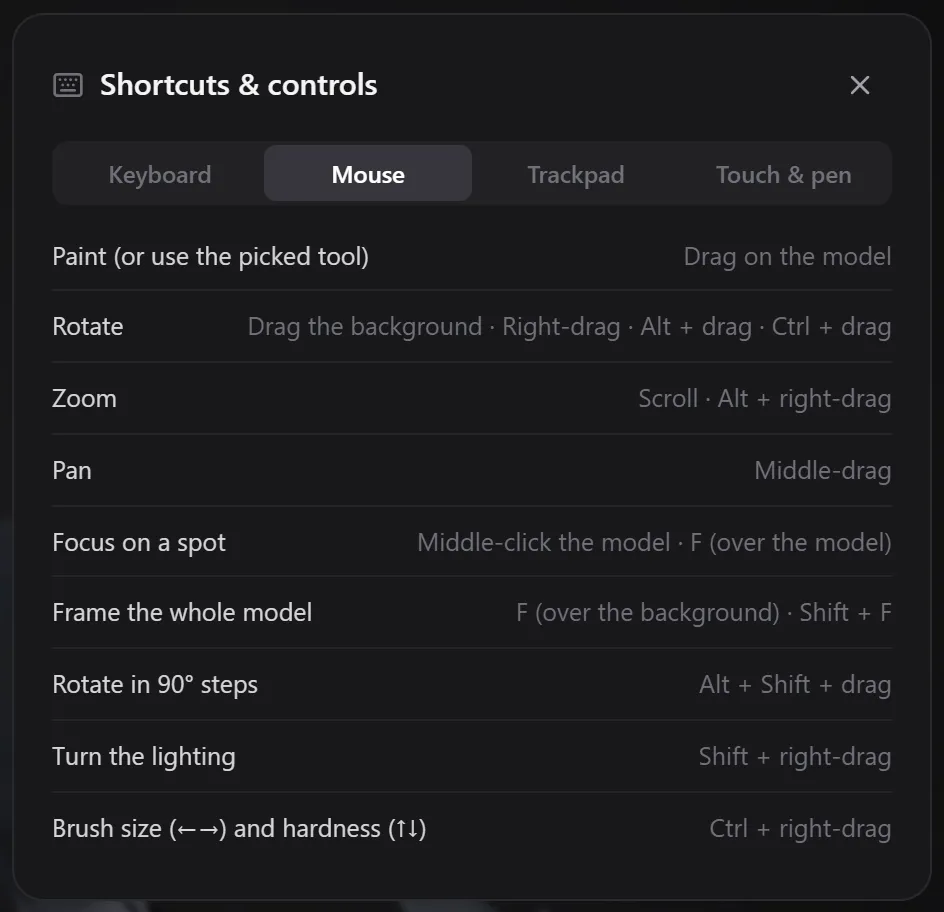
| Action | Mouse |
|---|---|
| Paint (or use the picked tool) | Drag on the model |
| Rotate | Drag the background, right-drag, Alt + drag or Ctrl + drag |
| Zoom | Scroll, or Alt + right-drag |
| Pan | Middle-drag |
| Focus on a spot | Middle-click the model, or F over the model |
| Frame the whole model | F over the background, or Shift+F |
| Rotate in 90° steps | Alt + Shift + drag |
| Turn the lighting | Shift + right-drag |
| Brush size (left and right) and hardness (up and down) | Ctrl + right-drag (Cmd + right-drag on a Mac) |
Trackpad
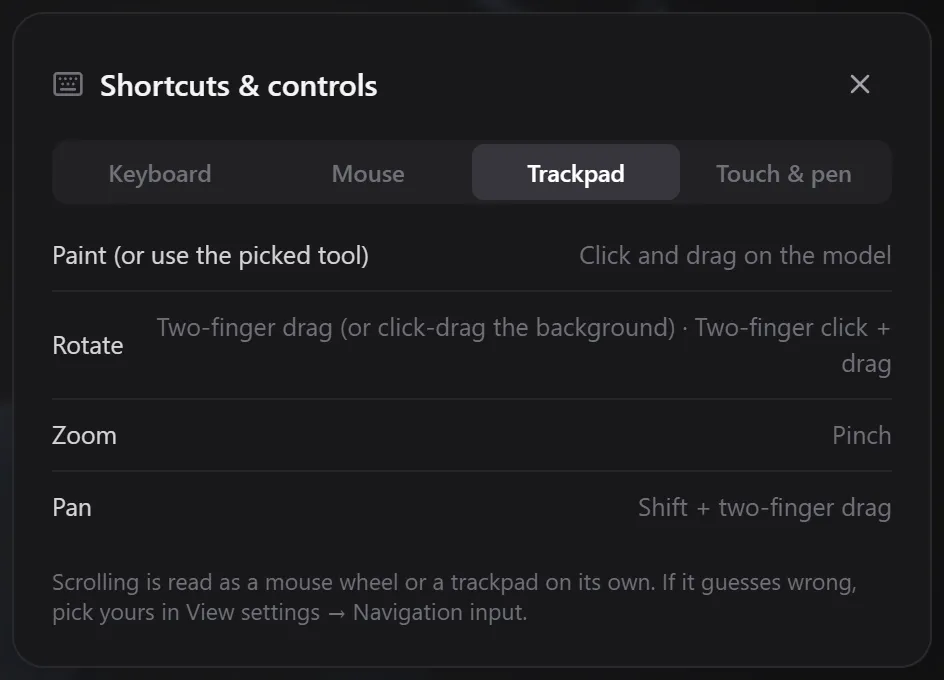
| Action | Trackpad |
|---|---|
| Paint | Click and drag on the model |
| Rotate | Two-finger drag (or click-drag the background), or two-finger click + drag |
| Zoom | Pinch |
| Pan | Shift + two-finger drag |
If scrolling does the wrong thing, set Navigation input in View settings to Mouse or Trackpad.
Touch screen and pen
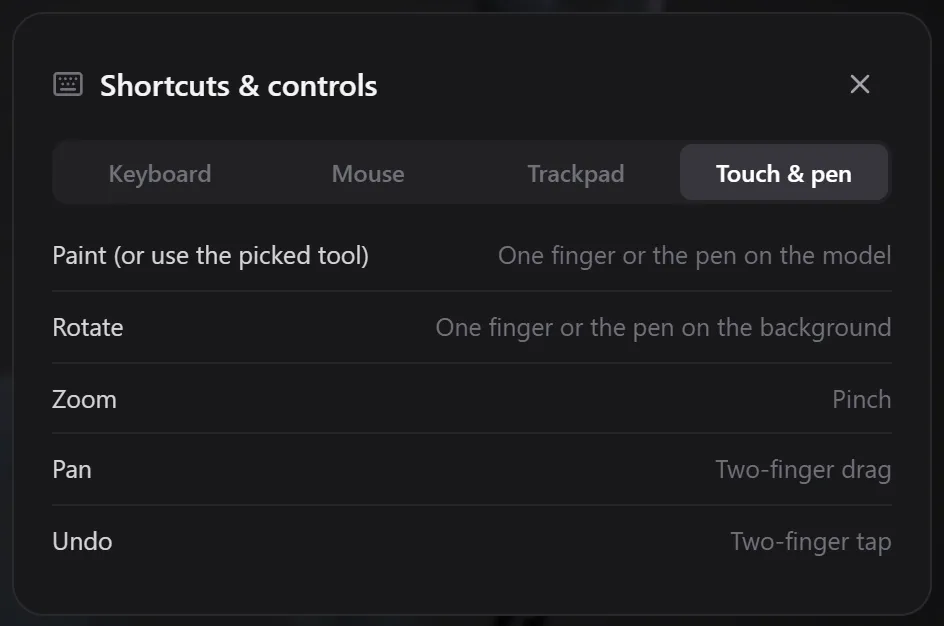
| Action | Touch and pen |
|---|---|
| Paint | One finger or the pen on the model |
| Rotate | One finger or the pen on the background |
| Zoom | Pinch |
| Pan | Two-finger drag |
| Undo | Two-finger tap |
Related
Export
How to download a painted model from the Texture Painter: GLB with or without PBR materials, smaller GLBs, OBJ, STL and PNG textures, export texture sizes from 1K to 12K, texture padding, saving to your dashboard, and using the result in Blender, Unity and Unreal.
Tips and troubleshooting
Fixes for common Texture Painter problems: you can't paint, the painter is slow, the 3D view doesn't start, the sign-in prompt, stretched textures and seams, AI results that miss, and credits.