Moving Around the Model
How to rotate, zoom, pan and focus in the Texture Painter with a mouse, trackpad, touch screen or pen, how to snap to 90° views, turn the lighting, and get close to small details.
This page shows every way to move around a model: rotating, zooming, panning and focusing, with a mouse, a trackpad, a touch screen or a pen. You will also learn how to get very close to small details and how to adjust navigation to the way you work.
The basics with a mouse
| To | Do this |
|---|---|
| Paint (or use the picked tool) | Drag on the model |
| Rotate | Drag the background, right-drag, Alt + drag or Ctrl + drag |
| Zoom | Scroll, or Alt + right-drag |
| Pan | Middle-drag |
| Focus on a spot | Middle-click the model, or point at it and press F |
| Frame the whole model | Shift+F, or press F over the background |
| Rotate in 90° steps | Alt + Shift + drag |
| Turn the lighting | Shift + right-drag |
| Change brush size and hardness | Ctrl + right-drag: left and right for size, up and down for hardness |
On a Mac, Alt is Option, and Ctrl + right-drag for the brush is Cmd + right-drag.
Drag the model to paint, drag the background to turn it. That one rule covers most of your work. When you start a drag on the model, you paint; when you start it next to the model, you rotate.
Rotate around what you are looking at
The view turns around the spot where you start dragging, not around the middle of the model. Start a right-drag on an eye, and the eye stays in place while the view turns around it. A small dot briefly marks the point the view turns around.
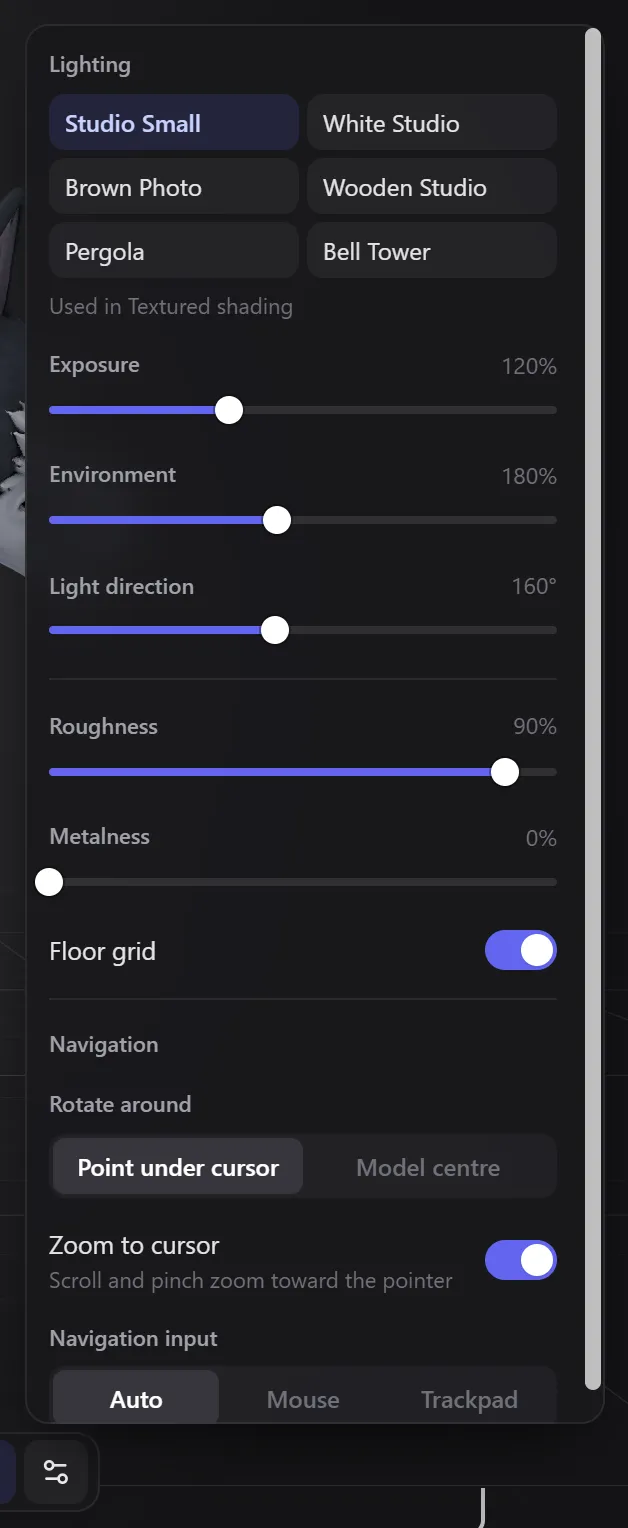
If you prefer to always turn around the middle of the model, set Rotate around to Model centre in View settings.
Zoom to the pointer
Scrolling zooms toward the pointer, so you can point at a detail and scroll to get closer to exactly that spot. The zoom stops just before the surface, so you never end up inside the model. You can zoom out to about 12 times the size of the model.
Get close to small details
To paint small details such as eyes or buttons:
- Point at the detail and press
F. The view focuses on that spot. - Scroll to zoom in further.
- Right-drag to look at the detail from the side you need.
- Make the brush smaller with
[and paint. - Press
Shift+Fto see the whole model again.
The brush stays the same size on the model however close you get, so zooming in is the best way to paint precisely.
Snap to straight views
Hold Alt + Shift while you drag to turn the view in exact 90° steps: front, sides, back, top and bottom. This is the quickest way to line up a clean view for an AI generation.
The small coloured axes at the top right of the 3D view show which way the model faces. Click an axis to turn the view to it.

Turn the lighting
In Textured shading, Shift + right-drag turns the light around the model. The same setting is Light direction in View settings.
Fix a model that lies down or faces away
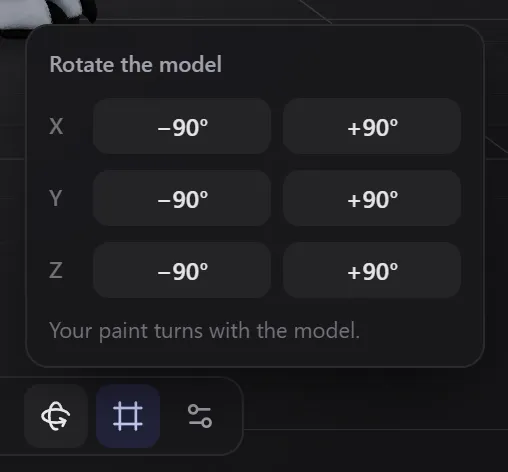
If a model opens on its side or with its back to you, open Rotate the model in the view bar and turn it in 90° steps around X, Y or Z. This turns the model itself, not just the view, and your paint turns with it.
Trackpad
| To | Do this |
|---|---|
| Paint | Click and drag on the model |
| Rotate | Two-finger drag (or click-drag the background), or two-finger click + drag |
| Zoom | Pinch |
| Pan | Shift + two-finger drag |
The painter tells a mouse wheel from a trackpad by how it scrolls. If it guesses wrong, set Navigation input in View settings to Mouse or Trackpad.
Touch screen and pen
| To | Do this |
|---|---|
| Paint | One finger or the pen on the model |
| Rotate | One finger or the pen on the background |
| Zoom | Pinch |
| Pan | Two-finger drag |
| Undo | Two-finger tap |
Navigation settings
Open View settings (the gear at the right end of the view bar) and scroll to Navigation.
| Setting | Options | What it does |
|---|---|---|
| Rotate around | Point under cursor (default), Model centre | Where the view turns around when you rotate |
| Zoom to cursor | On (default) or off | Scroll and pinch zoom toward the pointer, or toward the middle of the view |
| Navigation input | Auto (default), Mouse, Trackpad | Mouse: scrolling always zooms. Trackpad: two-finger drag turns the view and pinch zooms. Auto decides from how you scroll. |
Related
- Keyboard shortcuts and gestures has every control on one page.
- The workspace explains the view bar.
- Painting tools covers painting fine detail.
Frequently Asked Questions
You started the drag on the background, not on the model. In Clay and Normals shading, dragging the model also rotates, because you can only paint in Textured and Unlit.
Press Shift+F, press F over the background, or click Frame model in the view bar.
On a trackpad, two-finger scrolling rotates and pinching zooms. If you want scrolling to always zoom, set Navigation input to Mouse in View settings.
The workspace
A tour of the Texture Painter screen: the top bar, tool rail, options bar, 3D view and view bar, 2D view, Layers, Generate with AI, save status, credits, texture size, view settings and help.
Painting tools
Every painting tool in the Texture Painter: brush, eraser, image brush, pattern brush, decals, eyedropper and fill, plus colours and palettes, brush size, opacity and hardness, Paint hidden areas, Edge fade, and See through for areas behind other parts.